For AI
Set terms, payment, and pickup
Write your auction rules, choose who pays fees, and tell winners when they're charged and how to collect
Before you publish, fill in three settings pages that shape what bidders agree to and what winners hear afterward: Terms, Payment, and Fulfillment. You’ll find them all under Settings.
Terms and conditions
Section titled “Terms and conditions”Bidders must accept your terms before they can register and place bids.
- Go to Settings → Terms.
- Type your auction rules in Terms and conditions. Cover payment terms, your return or no-return policy, pickup, and how disputes are handled.
- Short on time? Click Use default template to start from a ready-made version, then edit it.
- Check the Preview to see how bidders will see it.
- Click Save terms.
Adding terms also checks off Set up the auction on the Overview checklist.
Payment settings
Section titled “Payment settings”Go to Settings → Payment.
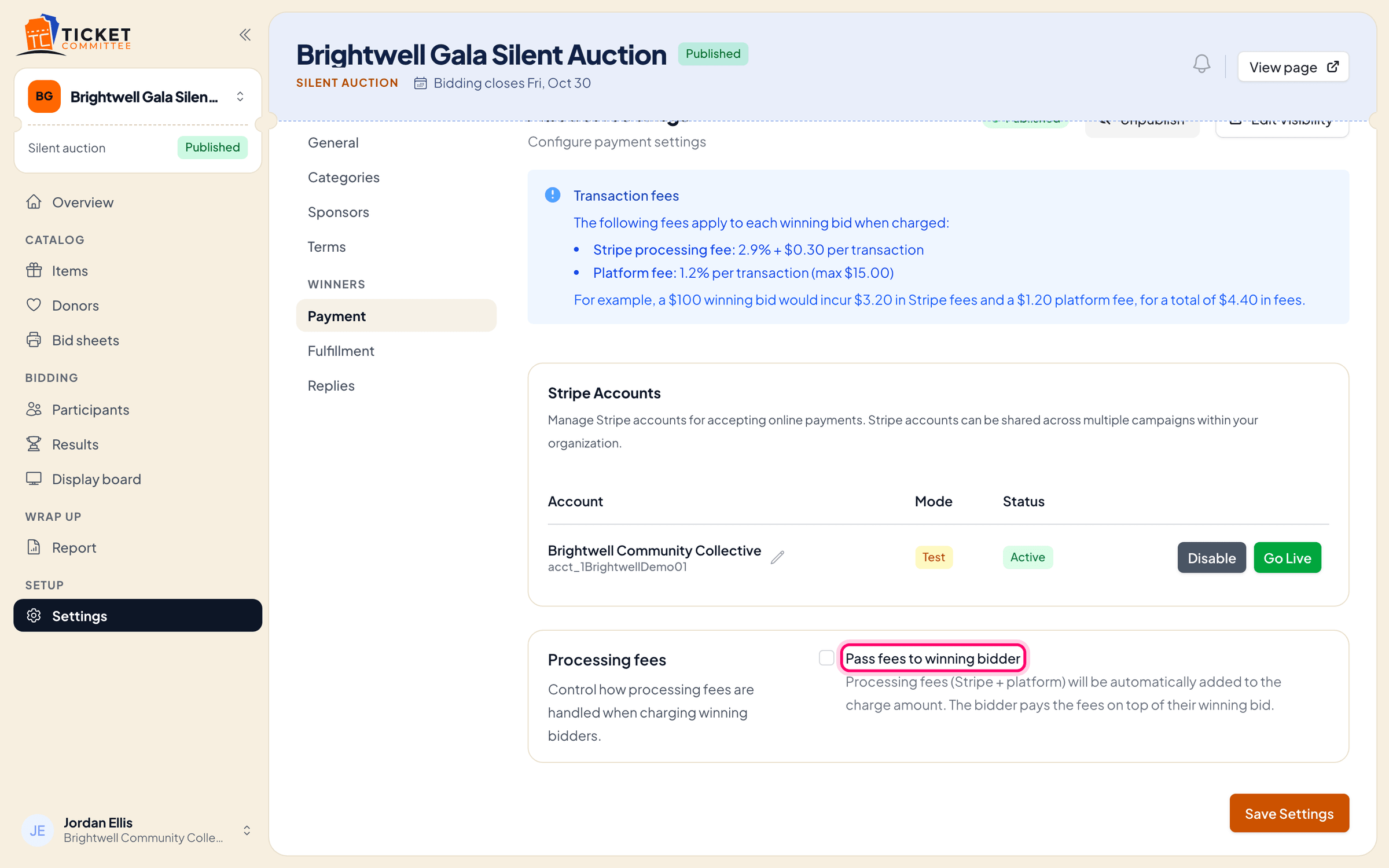
- Transaction fees shows the fees on each winning bid: Stripe’s processing fee and the platform fee, with a worked example.
- Stripe Accounts shows which Stripe account collects payment for this auction. Winners can’t be charged without a connected account that’s ready.
- Processing fees has one option: Pass fees to winning bidder.
| Pass fees to winning bidder | What the winner pays | What you receive |
|---|---|---|
| Off | Exactly their winning bid | The bid, minus the platform and Stripe fees |
| On | Their bid plus the fees | The full winning bid |
When fees are passed on, bidders see the fees and their total before they confirm a bid. Click Save Settings when you’re done.
See Silent auction fees for how the platform fee is worked out.
Fulfillment: charging and pickup
Section titled “Fulfillment: charging and pickup”Go to Settings → Fulfillment. Click Save settings when you’re done.
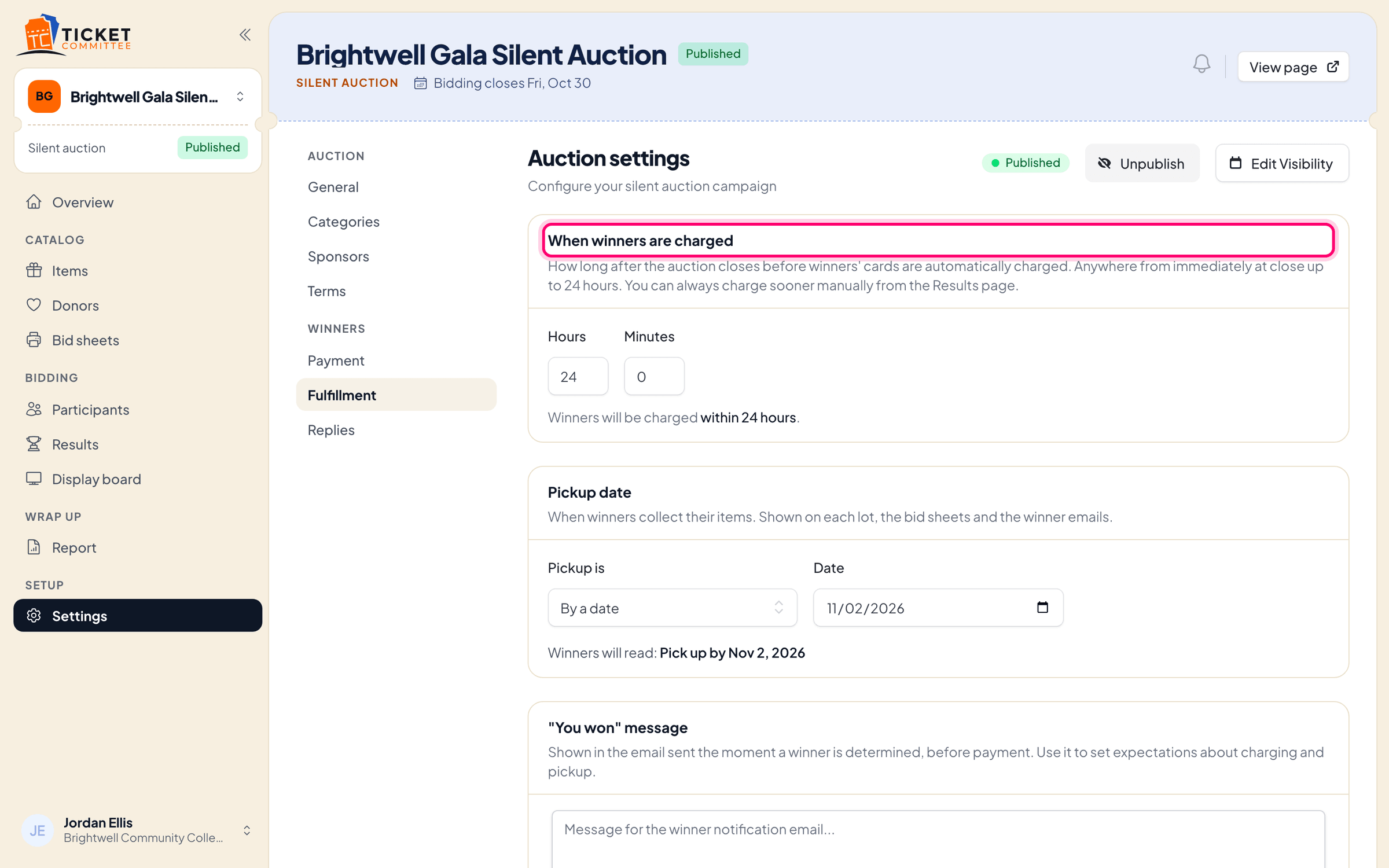
When winners are charged
Section titled “When winners are charged”Choose how long after the auction closes before winners’ cards are charged automatically. Enter Hours and Minutes, anywhere from 0 (as soon as the auction closes) up to 24 hours. The page shows the result in plain words, like “Winners will be charged within 2 hours of the auction closing.”
If you don’t set this, winners are charged within 24 hours. You can always charge sooner from Results.
Pickup date
Section titled “Pickup date”Tell winners when to collect their items. Choose what Pickup is:
- On a date
- By a date
- Starting on a date
- Between two dates (enter a First day and Last day)
The page previews exactly what winners will read. The pickup date is shown on each lot, the bid sheets, and the winner emails.
“You won” message
Section titled ““You won” message”This message goes in the email sent the moment a winner is determined, before payment. Use it to set expectations about charging and pickup. Click Use default template for a starting point.
Payment receipt and pickup instructions
Section titled “Payment receipt and pickup instructions”This goes in the receipt email after the winner is charged. Put pickup or delivery details here. Click Use default template for a starting point.
Individual items can override these instructions with their own Pickup instructions. See Add auction items.