
For AI
Find your way around
A quick tour of the Campaigns list, sidebar, campaign switcher, and account menu
Ticket Committee is organized around campaigns. Each ticketed event or silent auction you run is its own campaign, with its own tickets, orders, and settings. This tour shows where everything lives so you can find it quickly.
The Campaigns list
Section titled “The Campaigns list”When you sign in, you land on Campaigns. This is home base for your organization.
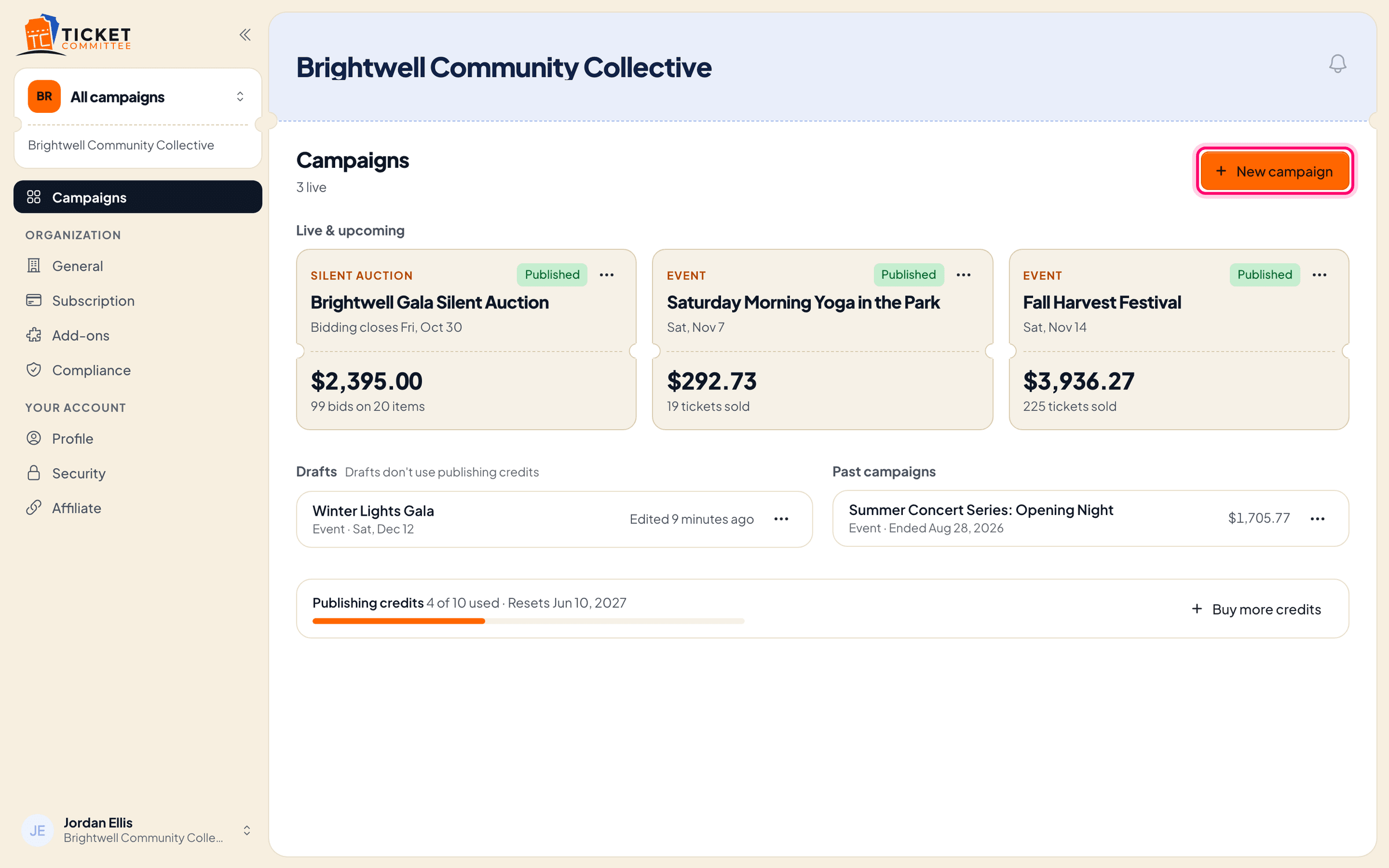
Campaigns are grouped by where they are in their life:
| Section | What’s in it |
|---|---|
| Live & upcoming | Published campaigns that are on sale, scheduled to open, or just ended in the last couple of days. Each card shows the date and a key number, like tickets sold. |
| Drafts | Campaigns you’re still setting up, plus any you’ve unpublished. Drafts don’t use publishing credits. |
| Past campaigns | Campaigns that have ended. |
| Archived campaigns | Campaigns you’ve tucked away. Click the heading to expand the list. |
Click any campaign to open it. Click New campaign to start a new one.
Campaign actions
Section titled “Campaign actions”Each campaign has a … menu with shortcuts. Depending on the campaign’s status, you’ll see:
- Settings: jump straight to the campaign’s settings
- View public page and Copy link: for live campaigns
- Duplicate or Run it again: copy a campaign as a starting point for the next one
- Archive or Unarchive
- Delete: only shown when the campaign can still be deleted
Publishing credits
Section titled “Publishing credits”At the bottom of the list, Publishing credits shows how many campaigns you’ve published this period and when your credits reset. Click Buy more credits if you need more.
The sidebar
Section titled “The sidebar”The sidebar on the left changes depending on where you are.
- On the Campaigns list, it shows Campaigns, your Organization pages (General, Subscription, Add-ons), and Your account (Profile, Security, Affiliate).
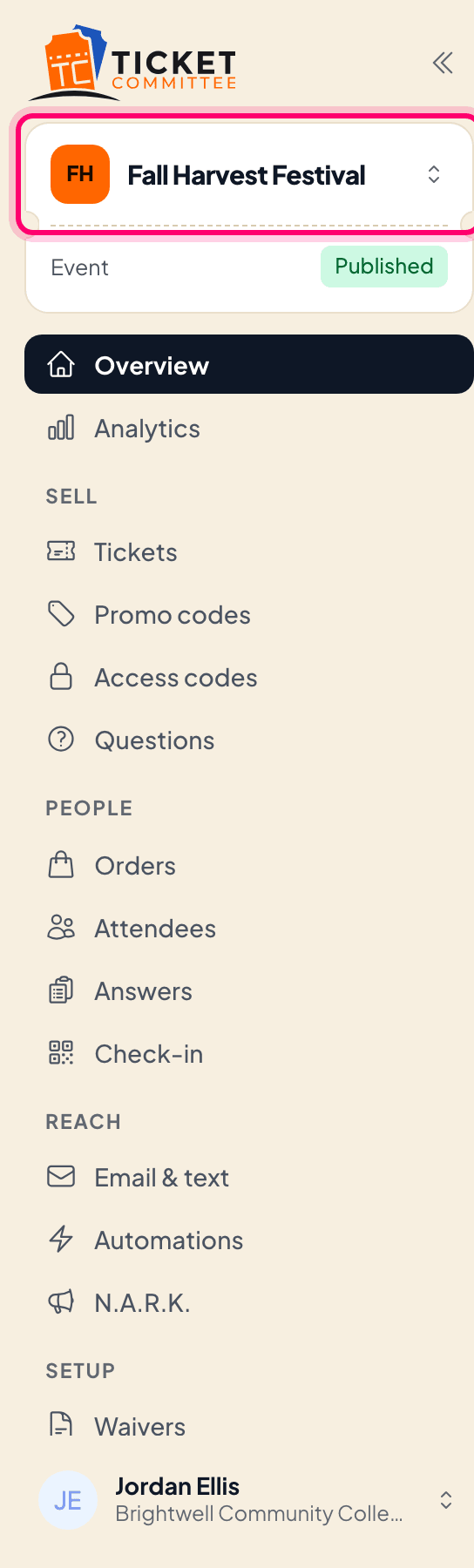
- Inside a ticketed event, it shows that event’s pages, grouped by job:
| Group | Pages |
|---|---|
| (top) | Overview, Analytics, and Accounting (if you can view finances) |
| Sell | Tickets, Promo codes, Access codes, Questions |
| People | Orders, Attendees, Answers, Check-in |
| Reach | Email & text, Automations, and other messaging tools |
| Setup | Waivers, Settings, and other event tools |
Some pages only appear when they’re included in your plan, so your sidebar may look a little different.
The campaign switcher
Section titled “The campaign switcher”At the top of the sidebar, under the logo, is a ticket-shaped card showing the campaign you’re in, its type, and its status (like Draft or Published). Click it to:
- Jump to any of your live and upcoming campaigns
- Go back to All campaigns
When you’re on the Campaigns list, the card says All campaigns.
The header band
Section titled “The header band”Across the top of every page inside a campaign is a band with:
- The campaign name and its status badge
- The campaign type and date
- Your notifications bell
- View page: opens the campaign’s public page in a new tab (once it has one)
The account menu
Section titled “The account menu”Click your name at the bottom of the sidebar to open the account menu. From here you can:
- Open Organization settings
- Create new organization
- Switch organization, if you belong to more than one
- Open Your profile
- Sign out
On your phone
Section titled “On your phone”On a phone, the sidebar tucks away. Inside an event, a tab bar along the bottom gives you Overview, Orders, a big Check-in button, and Attendees (or Messages). Tap More to open the full sidebar.