
For AI
Manage dates for a recurring event
Add, edit, and limit the dates buyers can choose from
A recurring event happens on more than one date, like a play with several performances or a weekly class. Buyers pick which date they’re attending when they buy tickets. You manage those dates on the Dates page.
Whether an event is recurring is chosen when you create it and can’t be changed later. See Create your first event.
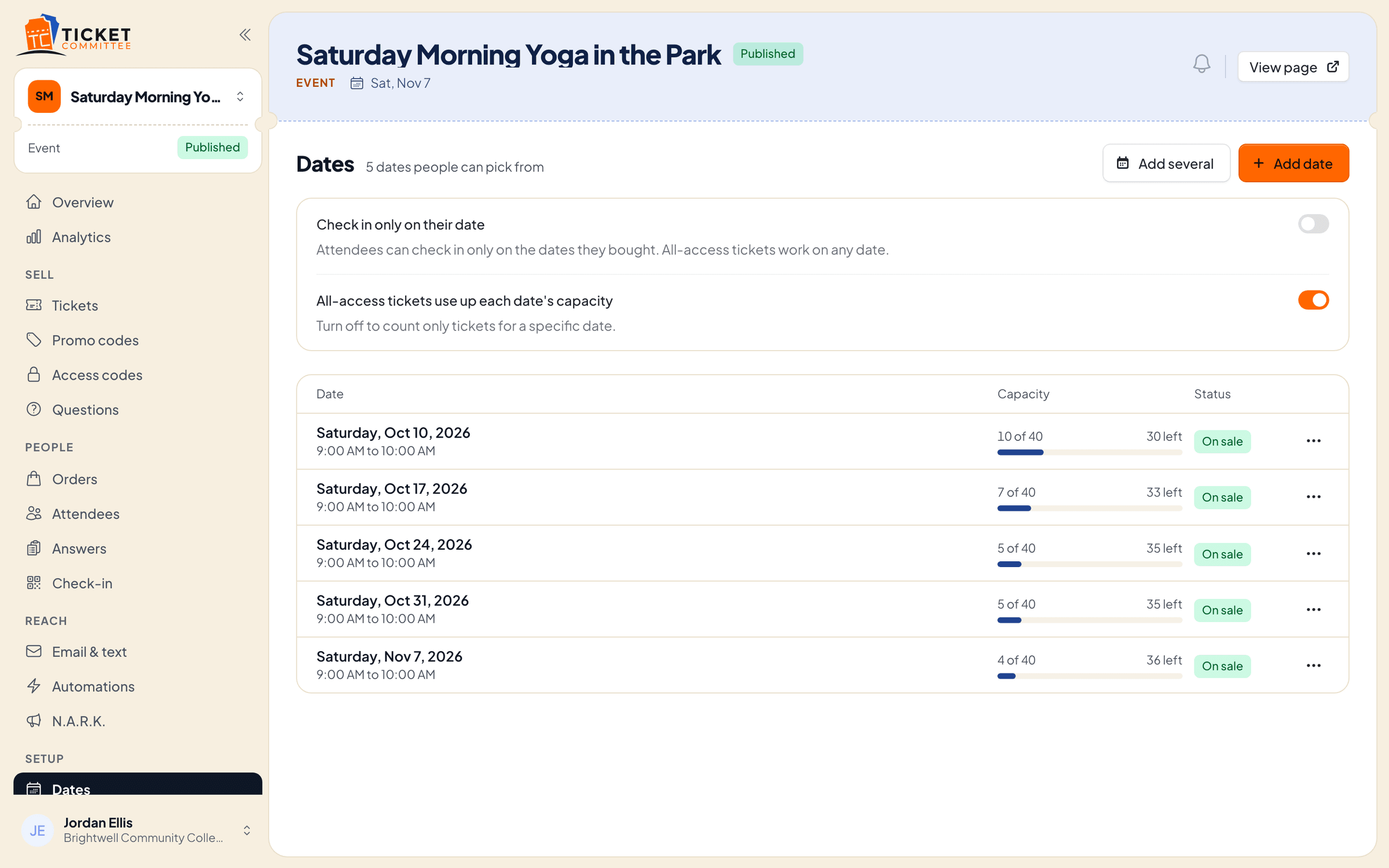
To open it, click Dates in your event’s sidebar, under Setup. You can also click Manage on the Dates card on your event’s Overview.
Add a date
Section titled “Add a date”- Click Add date.
- Fill in:
- Start Date & Time: required.
- End Date & Time: optional.
- Capacity: the most tickets that can be sold for this date. Leave blank for unlimited.
- Display if sold out: keep showing this date to buyers, marked sold out, after it fills up.
- Click Save Date.
Add several dates at once
Section titled “Add several dates at once”Use Add several to create a whole run of dates in one go, like every Saturday in October.
- Click Add several.
- Under Time slots, set a Start time, optional End time, and optional Capacity. Click Add time slot for more than one session a day, like a matinee and an evening show.
- Under Select dates, click days on the calendar to add them.
- Check the Preview for how many dates will be created.
- Click Create (the button shows the number of dates).
Each selected day gets one date for every time slot. You can create up to 100 dates at a time. Past days can’t be picked unless you turn on Allow dates in the past.
Check-in and capacity rules
Section titled “Check-in and capacity rules”Two switches at the top of the page control how dates work at the door and at checkout:
- Check in only on their date: attendees can check in only on the date they bought. All-access tickets work on any date.
- All-access tickets use up each date’s capacity: when on, every all-access ticket counts against every date’s capacity. Turn it off to count only tickets bought for a specific date.
The dates list
Section titled “The dates list”Each date shows its day and time, how many tickets have sold against its capacity (or “no limit”), and a status:
- On sale: buyers can pick this date.
- Off: hidden from buyers.
Click a date to edit it. Use the ⋯ menu for more:
- Take off sale: buyers can’t pick it anymore. Tickets already sold for it stay valid. Use Put on sale to turn it back on.
- Delete: removes the date permanently. A date with orders can’t be deleted. Take it off sale instead.