
For AI
Access codes
Require buyers to enter a code from your own list before they can see tickets
Access codes put your whole event behind a code screen. Buyers have to enter a valid code from a list you provide before they can see or buy any tickets. Use it when only certain people should buy: students with an ID number, families on a class roster, or members with a member number.
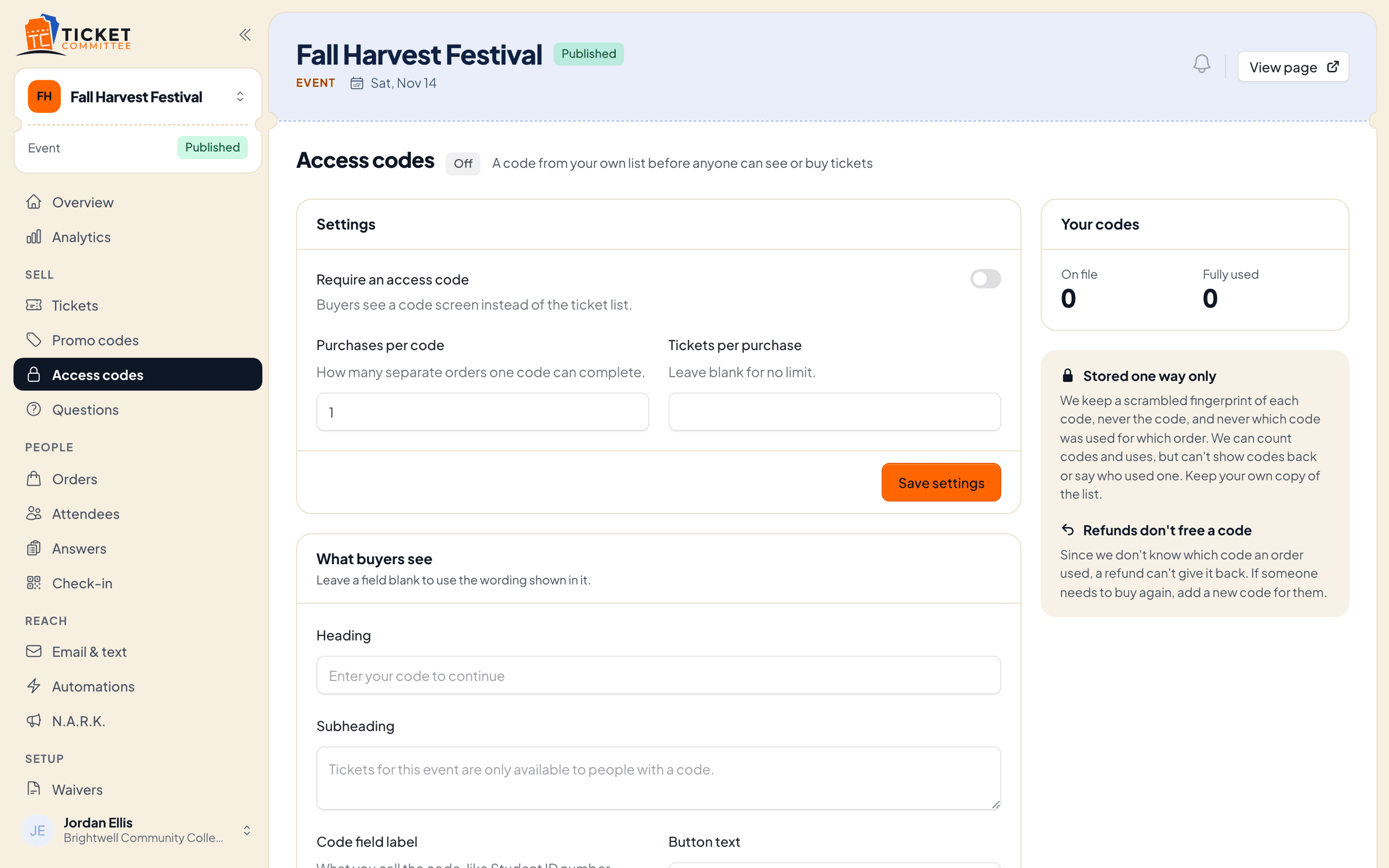
Find this page under Sell → Access codes in your event’s sidebar. The badge next to the title shows Required when the code screen is on, or Off.
Add your codes
Section titled “Add your codes”Add the codes first, before you turn the screen on. Otherwise nobody can get in.
- Under Add codes, either:
- Paste codes, one per line or separated by commas, or
- Or upload a CSV with a single column of codes (up to 5 MB).
- Click Add codes.
Your codes shows how many codes are On file and how many are Fully used.
You can add more codes at any time. They’re added to the list you already have.
Turn on the code screen
Section titled “Turn on the code screen”- Under Settings, turn on Require an access code.
- Set Purchases per code: how many separate orders one code can complete. Required, and usually
1. - Optionally set Tickets per purchase: the most tickets one order can have when bought with a code. Leave blank for no limit.
- Click Save settings.
Buyers now see a code screen instead of the ticket list. After they enter a valid code, they see your tickets as usual.
Change what buyers see
Section titled “Change what buyers see”Under What buyers see, you can reword the code screen. Leave any field blank to use the default wording shown in it.
| Field | Default |
|---|---|
| Heading | Enter your code to continue |
| Subheading | Tickets for this event are only available to people with a code. |
| Code field label | Code. Change it to whatever you call the code, like Student ID number. |
| Button text | Continue |
| Longer instructions | Shown below the subheading. Use it to say where to find the code. |
Click Save wording when you’re done.
How codes are stored
Section titled “How codes are stored”For privacy, Ticket Committee keeps only a scrambled fingerprint of each code, never the code itself. That has a few effects you should plan for:
- Keep your own copy of the list. We can count codes and uses, but we can’t show codes back to you.
- We can’t tell you who used which code. Codes aren’t linked to orders.
- Refunds don’t free up a code. Since we don’t know which code an order used, a refund can’t give the code back. If someone needs to buy again, add a new code for them.
Remove all codes
Section titled “Remove all codes”Click Remove all codes under Your codes and confirm. Anyone who hasn’t bought yet is locked out until you add a new list. This can’t be undone.
To stop requiring codes but keep your list, turn off Require an access code and click Save settings instead.