
For AI
Close bidding and collect payment
How the auction closes, how winners are charged, and how to handle failed payments and pickups
When your closing time arrives, every lot closes at once and winners are charged automatically. The Results page is where you watch charges go through, fix any that fail, and check off pickups.
How bidding closes
Section titled “How bidding closes”Bidding closes on its own at the Closes time in Settings → General. All lots close together:
- Lots with bids are Closed, and the highest bidder wins.
- Lots with no bids are marked Unsold.
Winners are emailed right away. The organization owner gets an “Auction Closed” email too.
While bidding is open, the Overview page shows a live countdown, Bidding closes in.
Close early
Section titled “Close early”To end bidding before the scheduled time:
- Go to Overview.
- Next to the countdown, click Close now.
- Click Close auction to confirm.
Every open lot closes right away. Winners are notified and charged according to your payment settings. This can’t be undone.
Extend bidding
Section titled “Extend bidding”To give bidders more time, change Closes to a later time in Settings → General and click Save. Do this before the original closing time. Lots that have already closed don’t reopen.
How winners are charged
Section titled “How winners are charged”Winners pay with the card they saved when they registered. You don’t need to send invoices.
Each winner is charged automatically after the delay you chose in Settings → Fulfillment (from right away up to 24 hours after close). They get a receipt email with your pickup instructions once the charge succeeds.
You can charge sooner from Results:
- One winner: click Charge next to the lot, check the amount, and click Charge.
- Everyone waiting: click Charge N waiting at the top, then confirm.
If fees are passed to bidders, the charge window shows the winning bid, the fees, and the total.
Read the Results page
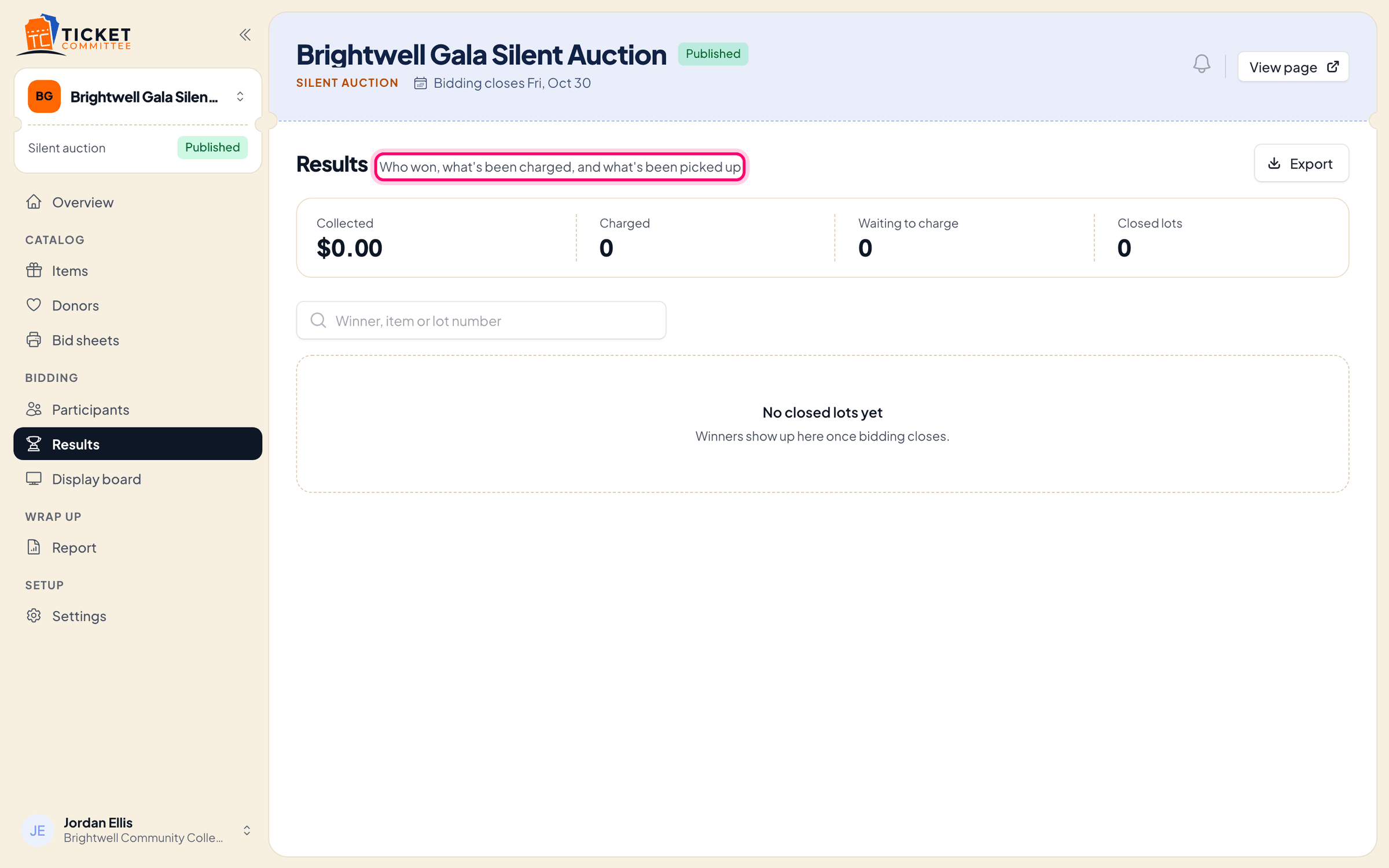
Section titled “Read the Results page”Open your auction and go to Results. The top shows Collected, Charged, Waiting to charge, and Closed lots. Search by winner, item, or lot number, or click Export for a CSV file.
Each lot shows its winner, final bid, and payment status:
| Status | What it means |
|---|---|
| Not charged | There’s a winner, but they haven’t been charged yet. |
| Paid | The charge went through. |
| Waiting on bank check | The winner’s bank wants them to confirm the payment. They’ve been emailed a link. |
| Failed | The charge didn’t go through. It shows which try it’s on and the reason. |
| Unsold | Nobody bid, or you marked it unsold. |
| No winner | The lot closed without a winner. |
When a charge fails
Section titled “When a charge fails”Failed charges are retried automatically: once after 1 hour, then again 4 hours later. After 3 failed tries, the organization owner gets a “Payment Failed” email.
You have a few options for a failed lot:
- Retry charge: try again now, for example after the winner updates their card in My bids.
- Offer to next bidder (in the ⋯ menu): gives the lot to the next highest bidder. The current winner’s payment is abandoned.
For Waiting on bank check, choose Re-notify for confirmation from the ⋯ menu to resend the winner the link to confirm the payment. The list shows how many times they’ve been reminded.
Bypass a winner
Section titled “Bypass a winner”If a winner asks to back out before they’re charged, open the ⋯ menu and choose Bypass winner. Add an optional Reason, then click Bypass Winner.
The lot goes to the next highest bidder, who gets a “You Won” email and is charged after your usual delay. The bypassed winner is notified and won’t be offered the lot again. If no other bidders are left, the lot is marked unsold.
Bypass is only available before the winner has been charged, and only when the lot has more than one bid.
Track pickups
Section titled “Track pickups”When a winner collects their item, click Mark picked up. The lot shows Picked up, and you can hover over it to see when and by whom. If you clicked by mistake, choose Undo pickup from the ⋯ menu.