
For AI
Your public event page
What buyers see, how to find and share your link, and how to preview it
Every event has a public page where buyers read about the event, pick tickets, and check out. This is the link you share by email, on social media, or on your website.
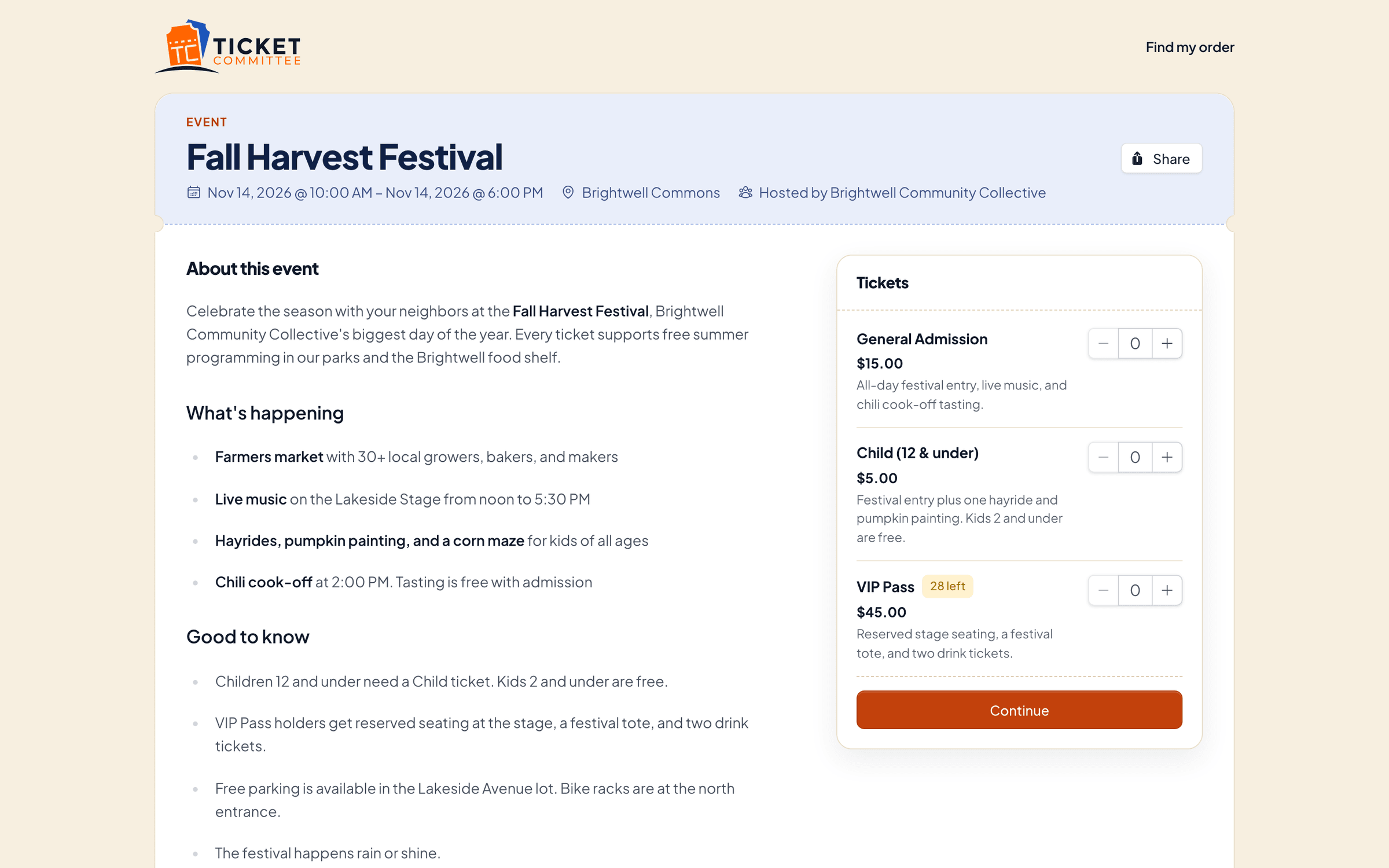
What buyers see
Section titled “What buyers see”The page shows:
- Your banner, logo, colors, and fonts from Appearance.
- The event name, date and time, and venue.
- Your description under About this event.
- The Tickets list, where buyers choose quantities and click Continue. For recurring events, buyers pick a date first.
If no tickets are on sale, buyers see No Tickets Available with a note to check back later.
Find your link
Section titled “Find your link”There are a few places to grab it:
- The Your public page card on your event’s Overview, with a copy button and a View page button.
- The Share section of Settings → Event details.
- On the Campaigns list, open the ⋯ menu on a live event and choose View public page or Copy link.
Custom URLs
Section titled “Custom URLs”If your organization has a custom URL, your event link looks like this:
ticketcommittee.com/your-org/your-event
The first part comes from your organization’s Custom URL (see Set up your organization). The last part is the event’s Custom URL, set in Settings → Event details → Share. If you leave the event’s part blank, a default ID is used instead.
Without an organization custom URL, your event uses a default link that you can still copy and share.
What visitors see before and after the sale
Section titled “What visitors see before and after the sale”Your page changes depending on where the event is in its life:
| Event state | What visitors see |
|---|---|
| Draft (never published) or unpublished | Nothing. The page can’t be found. |
| Published, before sales open | A “coming soon” page. |
| Published and on sale | The full ticket page. |
| After sales close | A “sales ended” page. |
| Archived | Nothing. The page can’t be found. |
People with an early access link can buy before sales open.
Preview your page
Section titled “Preview your page”When you’re signed in to your organization, you can open your event’s public page even while it’s a draft. A banner at the top reminds you This event is not yet published. This is a good way to check everything before you go live.
To see the pages visitors get outside the sale window, go to Settings → Publishing and use the buttons under Preview Buyer Pages:
- Before sales open
- After sales close
Only people who can edit the event can open these previews.