
For AI
What buyers see at checkout
Walk through checkout from the buyer's side, step by step
Knowing what your buyers see helps you answer questions and spot anything confusing before you launch. Buyers don’t need an account. They check out as guests, on a phone or a computer.
A progress bar at the top of checkout shows the steps: Your details, Add-ons (only if you’ve turned them on), Payment, and Done.
1. Choose tickets
Section titled “1. Choose tickets”On your event page, buyers see the Tickets card. They use the quantity picker on each ticket, then click Continue. On a phone, a bar at the bottom shows how many tickets they’ve selected with a Continue button.
If the event uses access codes, buyers enter their code first.
2. Your details: who’s coming
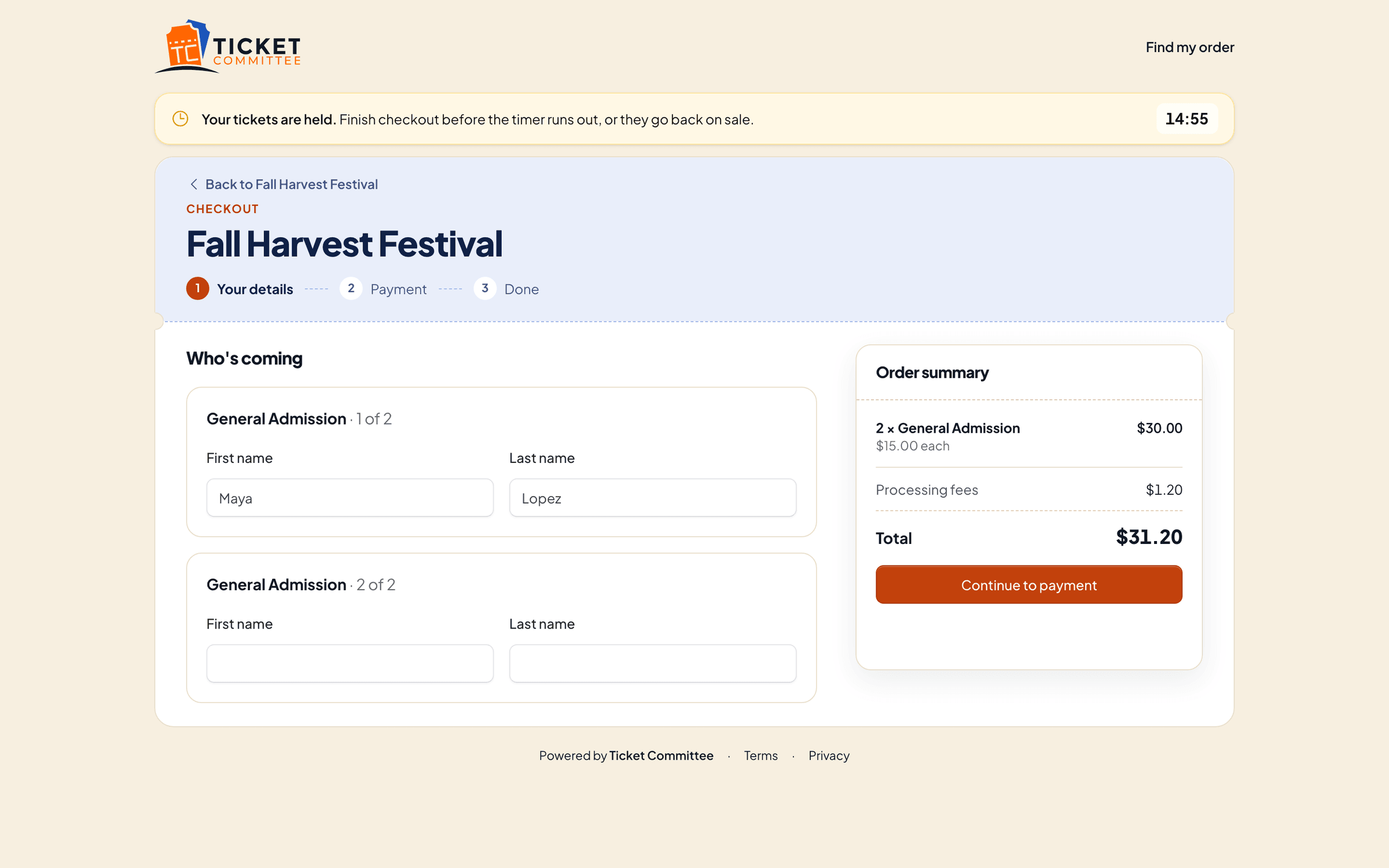
Section titled “2. Your details: who’s coming”Under Who’s coming, buyers fill in a card for each ticket with the attendee’s First name and Last name, plus any questions you’ve set up for that ticket.
The Order summary on the side lists each ticket and the running total. Buyers click Continue to payment (or Continue to add-ons).
3. Add-ons (optional)
Section titled “3. Add-ons (optional)”If you sell cart add-ons and have the step turned on, buyers can add extras here or click Skip add-ons.
4. Payment
Section titled “4. Payment”The payment page has three parts.
Payment. Buyers enter their card number, expiry, and CVC. If you also accept in-person payment, they choose between Card and In person. If you’ve written instructions for paying in person, they appear when buyers choose In person.
Your details. The buyer’s First name, Last name, Email (“Your tickets and receipt go here.”), and address. Then A few more questions, if you ask order-level questions.
Order summary. The final breakdown, including:
- Each ticket and add-on
- A promo code discount, if one is applied. Buyers click Have a promo code? to enter one. See Promo codes.
- A Donation, if you’ve turned on donations. Buyers enter an amount and click Add.
- Processing fees, if any are passed on to the buyer. An info button shows the split between the platform fee and card processing.
- The Total
Depending on your payment settings, buyers may also see a checkbox offering to cover the processing fee so your organization receives the full amount.
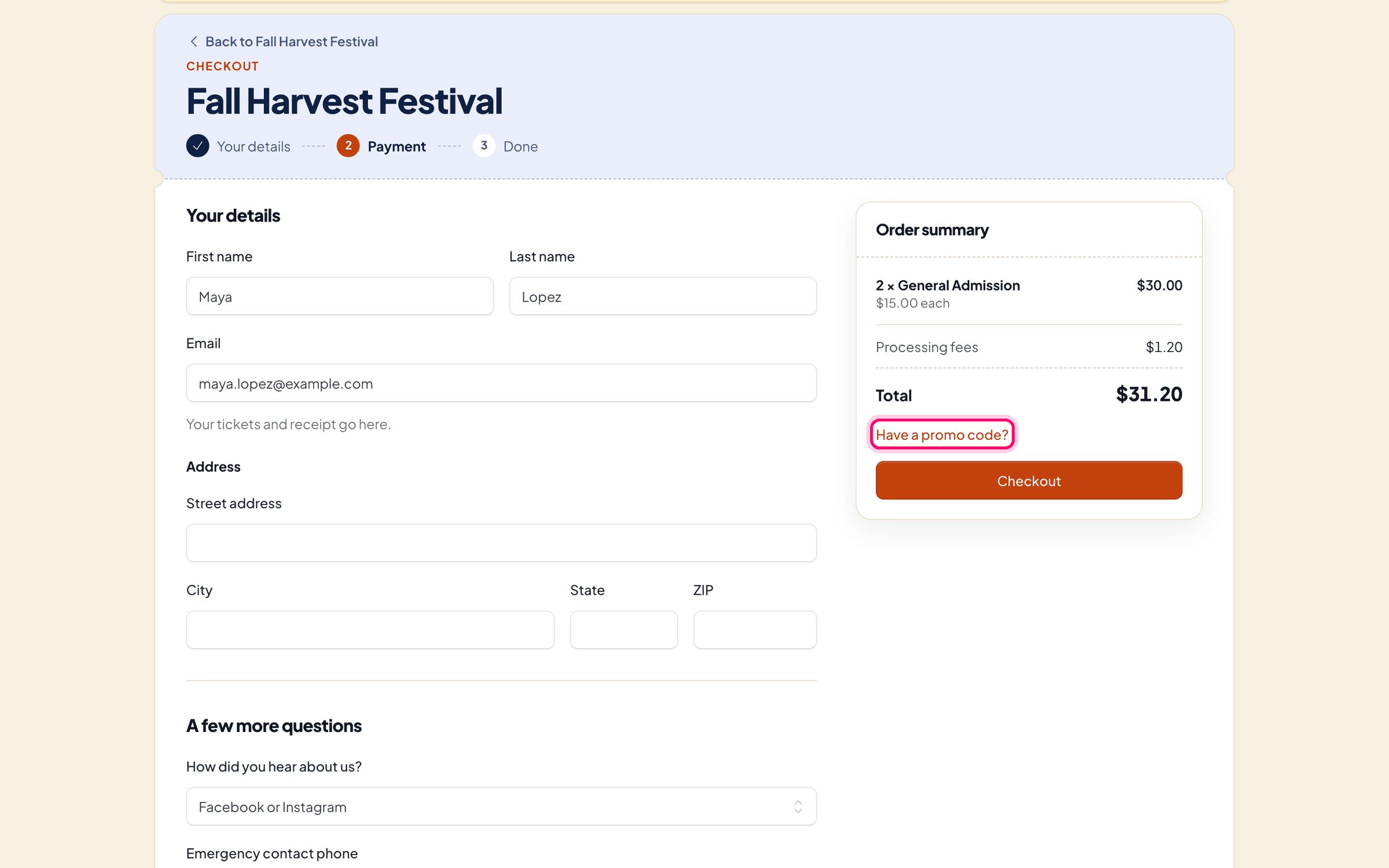
Buyers click Checkout to pay. If the total is $0 (a free ticket, or a promo code that covers everything), they see Nothing to pay and click Complete order instead. No card is needed.
5. Done
Section titled “5. Done”After the order goes through, buyers see their confirmation and get an email with their tickets and receipt at the address they entered.
If buyers lose their confirmation email, they can use Find my order on your event page to look it up.
Try it yourself
Section titled “Try it yourself”The best way to check your checkout is to buy a ticket. Create a free ticket type (or a 100% off promo code) and run through every step on your phone. Then delete or turn off the test ticket before you launch.