
For AI
Track sales with Analytics
See money collected, orders, ticket sales, busiest hours, and estimated card fees for your event
The Analytics page gives you a quick read on how your event is selling: how much you’ve collected, how many orders came in, which tickets are popular, and when people buy. It’s also where you download your sales data.
Open Analytics
Section titled “Open Analytics”Open your event and click Analytics in the sidebar, near the top under Overview.
Use the time range menu at the top right to choose what the page covers: Last 1 Hour, Last 24 Hours, Last 7 Days, Last 30 Days (the default), Last 90 Days, This Year, or All Time.
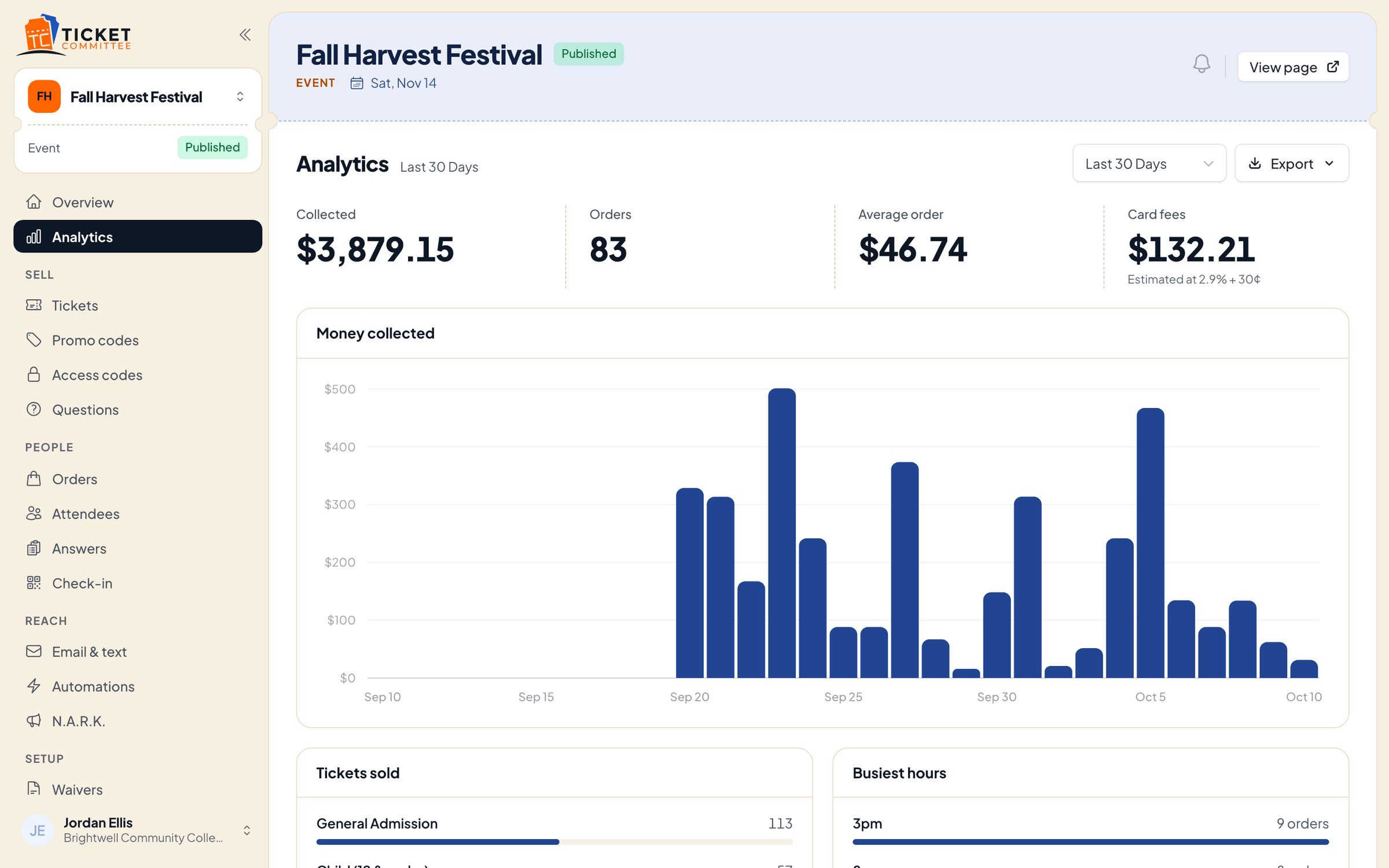
Headline figures
Section titled “Headline figures”| Figure | What it shows |
|---|---|
| Collected | Total payments received in the time range, by card and in person. |
| Orders | How many orders were paid in the time range. |
| Average order | Collected divided by orders. |
| Card fees | An estimate of Stripe’s card fees, worked out at 2.9% + 30¢ per card payment. |
Charts and breakdowns
Section titled “Charts and breakdowns”- Money collected: a bar chart of money in over the time range. Hover a bar to see the amount Collected and number of Orders for that period.
- Tickets sold: how many of each ticket type sold, with each one’s share of the total.
- Busiest hours: the times of day orders come in. Useful for planning when to send reminders.
- How people paid: Card versus Cash and comps, with the amount and number of payments for each.
- Card fees: estimated fees split into Buyer covered the fee (the buyer paid processing fees at checkout) and You covered the fee (your organization absorbed them), plus a count of Cash and comps, which have no card fees.
Export your data
Section titled “Export your data”Click Export at the top right and choose:
- Attendees: the full attendee list as a CSV, including check-in times and question answers. See Manage attendees.
- Completed orders: a CSV with each order’s ID, date, customer name, email, total, number of tickets, and ticket types.
Other places to see sales
Section titled “Other places to see sales”- Your event’s Overview page shows headline sales figures and recent orders at a glance.
- Your Stripe dashboard shows every card charge, fee, refund, and payout to your bank. See How you get paid.