
For AI
Connect your Stripe account
Set up Stripe so buyers can pay by card, and switch your account from test to live
To accept card payments, your organization connects a Stripe account. Stripe handles the card processing and sends the money to your bank. You only connect once: the account is shared by every event and campaign in your organization.
Before you start
Section titled “Before you start”Stripe asks for details to verify your organization and pay you. Have these handy:
- Your organization’s legal name and address
- Your EIN or tax ID (or, for an individual, the last four digits of an SSN)
- Details for the person who manages the account (name, date of birth, home address)
- The bank account where you want to receive payouts
Ticket Committee fills in what it already knows, such as your organization’s name, email, website, and phone, so you have less to type. We never see or store your tax ID or bank details. Those go straight to Stripe.
Connect Stripe
Section titled “Connect Stripe”- Open any event and go to Settings → Payments. (From a new event’s Overview page, the Choose how people pay checklist step takes you there too.)
- Find the Stripe Accounts card and click Connect Stripe Account.
- Complete Stripe’s steps. Depending on your account, this opens in a Connect your Stripe account panel right inside Ticket Committee, or takes you to Stripe’s site and brings you back when you’re done.
If you need to stop partway, close the panel. Your progress is saved. When you come back, click Finish Onboarding next to your account to pick up where you left off.
Check your account status
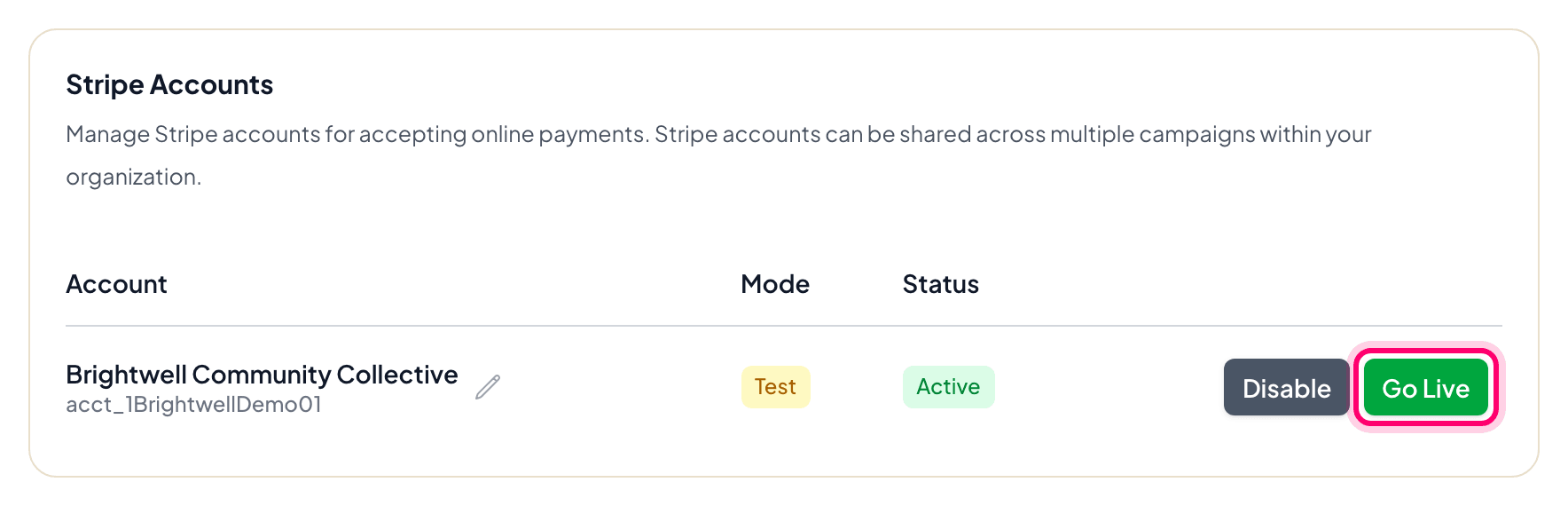
Section titled “Check your account status”Once connected, your account appears in the Stripe Accounts table with its Mode and Status.
| Status | What it means |
|---|---|
| Onboarding Required | Stripe still needs information. Click Finish Onboarding. |
| Ready | Onboarding is done, but this event isn’t using the account. Click Enable. |
| Active | This event is set to use the account. If a Finish Onboarding button also shows, Stripe still needs information before cards can be charged. |
| Inactive | The account isn’t available to take payments right now. Check your Stripe dashboard for anything Stripe needs. |
Your account is turned on for all of your organization’s events automatically, including ones you create later. Card payments start working as soon as Stripe finishes verifying the account. Until then, checkout only offers paying in person, if you’ve turned that on.
Go live
Section titled “Go live”The Mode column shows Test or Live.
- Test mode lets you try a full checkout without moving real money. Buyers see a Test mode notice at checkout with a test card number to use (4242 4242 4242 4242).
- Live mode charges real cards.
To start taking real payments, click Go Live next to your account and confirm. You can switch back with Test Mode at any time.
Rename, disable, or re-enable
Section titled “Rename, disable, or re-enable”- Click the pencil icon next to the account to give it a friendly name, like “Main checking”.
- Click Disable to stop this event from taking card payments. Click Enable to turn it back on.
Manage the account in Stripe
Section titled “Manage the account in Stripe”Your Stripe account is yours. Sign in at dashboard.stripe.com with the email you used during onboarding to see every payment and payout, update your bank account, change your payout schedule, and download tax forms.