
For AI
Use the display board
Show live bids on a TV or tablet in the room
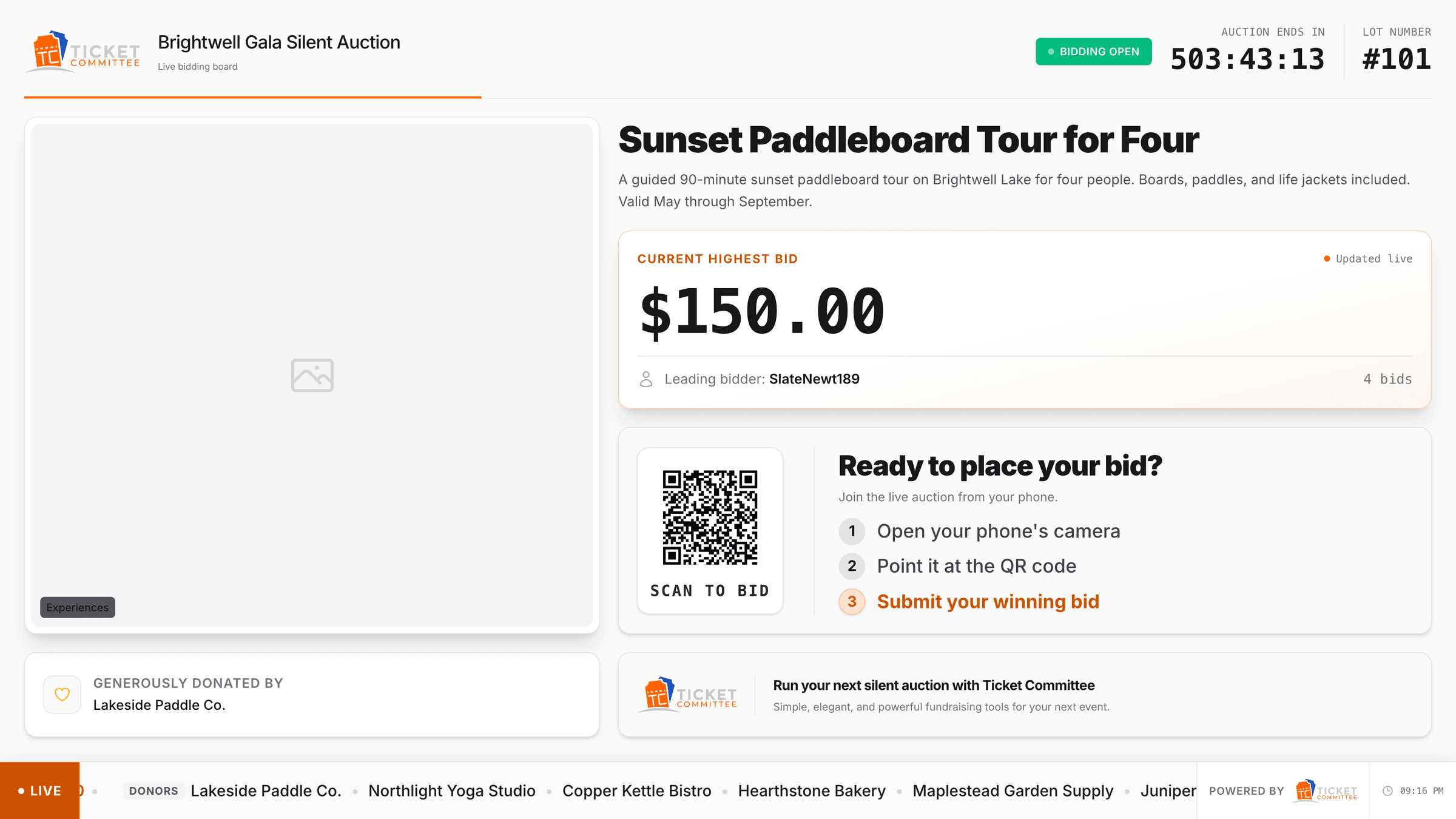
The display board is a full-screen page made for a TV or tablet at your event. It cycles through your lots, showing each one’s photo, current bid, and a QR code guests can scan to bid. Bids update live as they come in.
Open the board
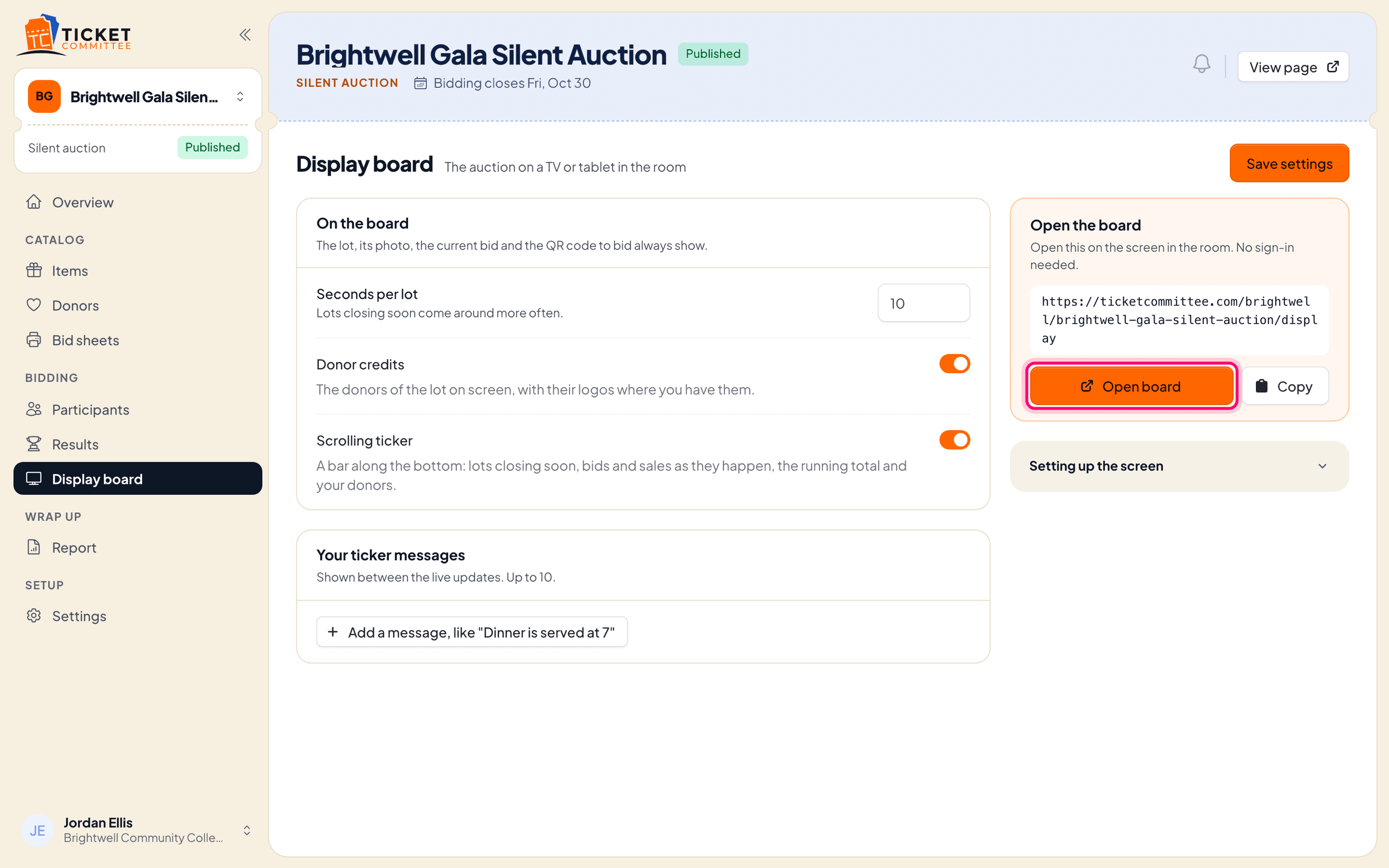
Section titled “Open the board”- Open your auction and go to Display board.
- Under Open the board, click Open board, or click Copy to grab the link.
- Open the link in the browser on the computer, streaming stick, or tablet connected to your screen.
No sign-in is needed. Anyone with the link can open the board, so you can set it up on any device.
Choose what’s on the board
Section titled “Choose what’s on the board”The lot, its photo, the current bid, and the QR code to bid always show. You can adjust the rest under On the board, then click Save settings.
| Setting | What it does |
|---|---|
| Seconds per lot | How long each lot stays on screen, from 5 to 120 seconds. The default is 10. Lots closing soon come around more often. |
| Donor credits | Shows the donors of the lot on screen, with their logos where you have them. On by default. |
| Scrolling ticker | A bar along the bottom with lots closing soon, bids and sales as they happen, the running total, and your donors. On by default. |
Ticker messages
Section titled “Ticker messages”With the ticker on, you can add your own announcements under Your ticker messages. They’re shown between the live updates. Click Add message, type something like “Dinner is served at 7”, and save. You can add up to 10 messages of up to 120 characters each.
Setting up the screen
Section titled “Setting up the screen”- Best: a 1080p or 4K TV in landscape.
- Also fine: 720p screens, streaming sticks, and tablets. Shorter screens drop the extras and keep the bid, photo, and QR code.
- Portrait: a TV turned on its side or an upright tablet gets its own layout.
- Too small: on a screen under 480 pixels wide, like a phone, the board sends people to the auction page instead.
Before doors open:
- Run the browser full screen. Tabs and the address bar take up space.
- Turn off screen sleep on the TV or laptop.
- If the edges are cut off, look for “Just scan”, “Screen fit”, or “1:1” in the TV’s picture settings.
Withdrawn lots don’t appear on the board.