
For AI
Duplicate, archive, or delete an event
Copy an event to run it again, tidy up past events, or remove one you don't need
Once an event is set up, you can copy it for next year, archive it when it’s over, or delete it if it was never used. All three live at the bottom of Settings → Publishing.
Duplicate an event
Section titled “Duplicate an event”Duplicating saves you from setting everything up again for a repeat event, like an annual gala.
-
Go to Settings → Publishing.
-
Under Duplicate Campaign, click Duplicate.
-
Choose what to copy. Everything is checked to start:
Option What it copies Tickets Your ticket types. Ticket questions Questions attached to tickets. Needs Tickets. Ticket options Ticket options. Needs Tickets. Payment settings Stripe connection, donations, fees, ticket holds, offline payments and order-update rules. Appearance Banner, logo, background, colors, fonts, and custom CSS. Analytics Your Google Analytics ID. General settings Description, venue, and timezone. -
Click Duplicate.
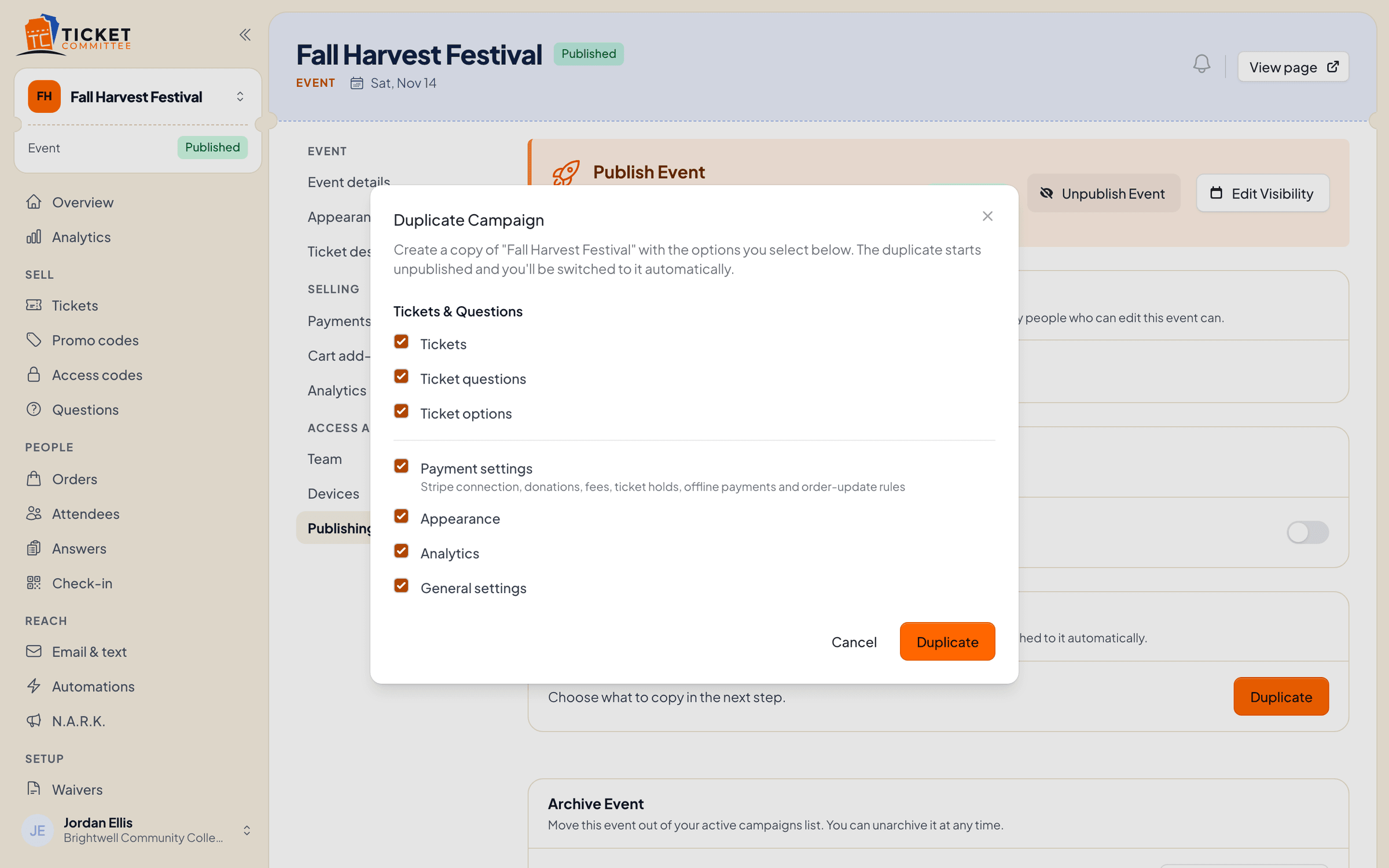
The copy is named after the original with “(Copy)” on the end, starts unpublished, and opens automatically so you can start editing. Orders and attendees are never copied.
You can also duplicate from the Campaigns list. Open the ⋯ menu on an event and choose Duplicate (for live and draft events) or Run it again (for past and archived events).
Archive an event
Section titled “Archive an event”Archiving moves an event out of your active campaigns list once you’re done with it.
- Go to Settings → Publishing.
- Under Archive Event, click Archive Campaign and confirm.
Archived events are hidden from the public, but you can still manage orders, refunds, and attendees. They move to the Archived section of your campaigns list.
To bring one back, click Unarchive on the same page, or choose Unarchive from the ⋯ menu on the campaigns list.
Delete an event
Section titled “Delete an event”You can only delete an event that has never been published and has no orders. For those events, you’ll see Delete Event instead of Archive Event.
- Go to Settings → Publishing.
- Under Delete Event, click Delete Campaign and confirm.
Deleting is permanent and removes the event and all its data. It also deletes any linked campaigns, like the event’s waivers.
Once an event has been published or has taken an order, it can’t be deleted. Archive it instead.