
For AI
View answers to your questions
See what buyers and attendees said at checkout, tallied question by question
If you ask questions at checkout, like T-shirt size, meal choice, or an emergency contact, the Answers page collects every response in one place. Choice questions are tallied with counts and percentages, so you can order the right number of shirts without building a spreadsheet.
Open the Answers page
Section titled “Open the Answers page”Open your event and click Answers in the sidebar, under People.
If you haven’t added any questions yet, you’ll see No questions yet and a Go to questions button that takes you to the Questions page where you create them.
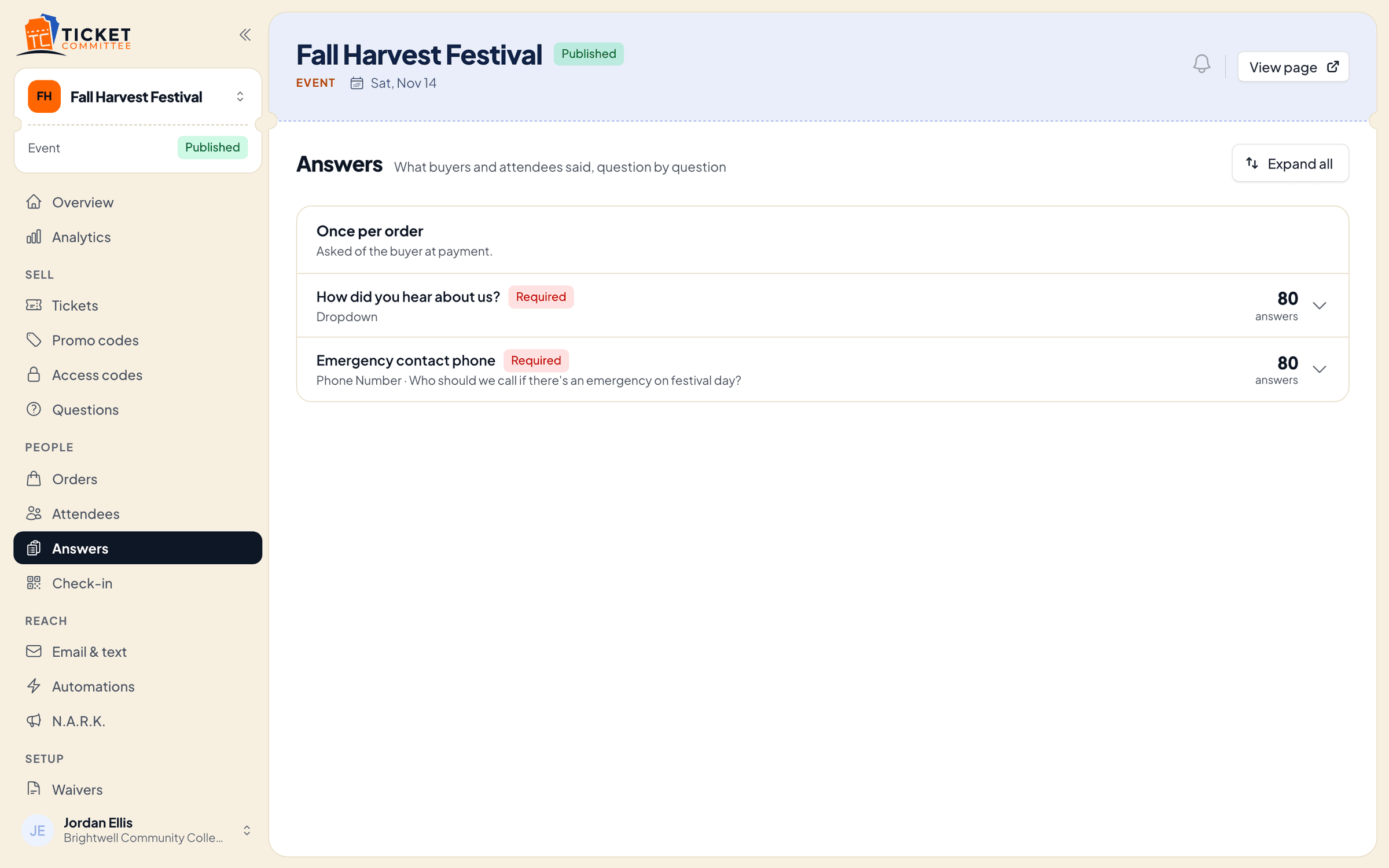
How answers are grouped
Section titled “How answers are grouped”Questions are grouped by where they’re asked:
- Once per order: questions asked of the buyer at payment.
- One group per ticket type (for example, VIP): questions asked for each person holding that ticket.
Each question shows its title, its type, a Required badge if it’s required, and the total number of answers.
Read the answers
Section titled “Read the answers”Click a question to expand it, or click Expand all to open every question at once (Collapse all closes them).
- Choice questions (like dropdowns or checkboxes) show each option with the number of people who picked it, the percentage, and a bar.
- Confirmation questions show how many people agreed.
- Text questions list each distinct answer, with a count if more than one person gave the same answer.
Under each answer, click Show people to see who gave it. Click an attendee’s name to open their details page.
Get answers in a spreadsheet
Section titled “Get answers in a spreadsheet”The attendee export includes a column for each question. Go to Attendees and click Export. See Manage attendees.
Fix a wrong answer
Section titled “Fix a wrong answer”Open the attendee (or the order, for buyer questions), click Edit, and update the answer. The Answers page reflects the change.