
For AI
View and manage an order
See who's on an order, what they paid, and resend tickets, edit details, or add attendees
Each order has its own page with everything about the purchase: the attendees, the tickets and total, the buyer’s details, and every payment. It’s also where you take action on an order, like resending tickets or collecting money that’s still owed.
To open an order, go to Orders and click the buyer’s name. You can also click View order from any attendee’s page.
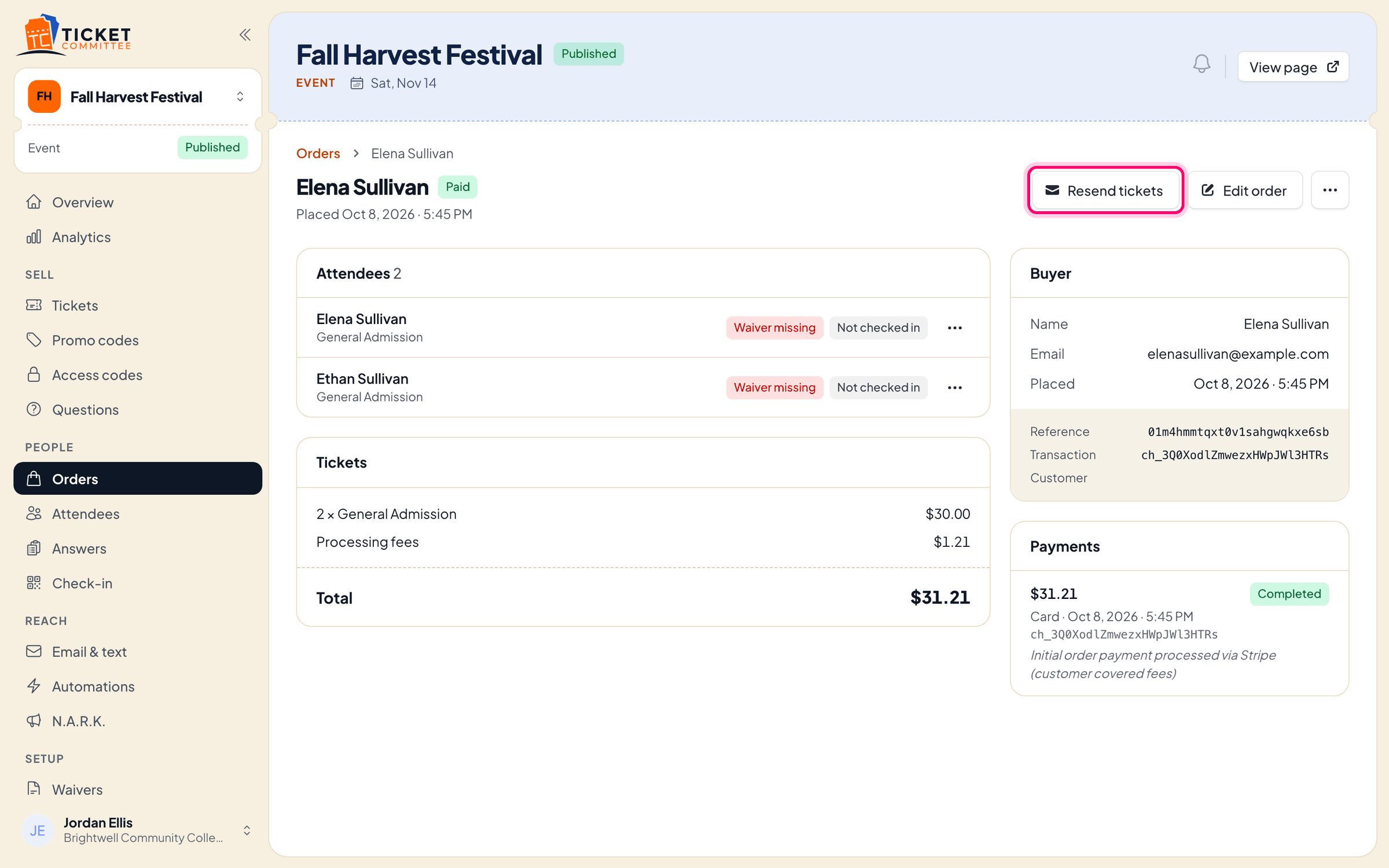
What’s on the order page
Section titled “What’s on the order page”| Section | What it shows |
|---|---|
| Attendees | Each person on the order, their ticket, and whether they’ve checked in. If your event uses waivers, you’ll also see Waiver signed or Waiver missing. Refunded and comp attendees are labeled. |
| Tickets | A receipt: each ticket line, any promo code discount, donations, add-ons, fees, refunds, and the Total (or Total due if the order is unpaid). |
| Buyer | The buyer’s name, email, when the order was placed, and their answers to any once-per-order questions. At the bottom are the order Reference and, for card orders, the Stripe Transaction and Customer IDs. |
| Payments | Each payment or refund recorded on the order, with the amount, status, method (such as Card or Cash), and any notes. |
Resend tickets
Section titled “Resend tickets”Click Resend tickets at the top of the order. The buyer’s confirmation email, with their tickets attached, is sent again to the email address on the order.
Edit the order
Section titled “Edit the order”Click Edit order to change the buyer’s First Name, Last Name, Email Address, and address. Answers to once-per-order questions appear under Additional Information, including hidden questions. Click Save when you’re done.
To change a single attendee’s name or answers, use the ⋯ menu next to that attendee and choose Edit attendee. See Manage attendees.
More order actions
Section titled “More order actions”Click the ⋯ button next to Edit order for more options:
- Add attendee: add another person to this order. Choose a Ticket Type, enter their name, and check Comp if it’s free. If the ticket costs money, you’ll be asked to take payment by card or choose Pay Later.
- Print tickets: opens the order’s printable tickets in a new tab.
- Send payment reminder and Retry payment: only shown when a card payment is processing or failed.
- Print labels for everyone: only shown if you’ve set up attendee labels. See Print name badges and labels.
- Cancel order: cancels the whole order. See Refund or cancel an order.
Actions for one attendee
Section titled “Actions for one attendee”Click the ⋯ menu on an attendee’s row to:
- View details or Edit attendee
- Change ticket: move them to a different ticket type
- Send waiver request: if they still need to sign a waiver
- Print label: if you’ve set up attendee labels
- Refund (for paid tickets) or Delete attendee (for tickets with no payment to refund)
Collect money that’s owed
Section titled “Collect money that’s owed”Some orders show a yellow notice at the top when money is still due.
Waiting for (amount) means the order is Awaiting payment, usually because the buyer chose to pay in person. The tickets are held. When the money comes in:
- Click Mark as paid if you’ve already received cash or a check. Confirm, and the buyer gets their tickets.
- Click Take payment to charge a card right now. Enter the card details and click Collect Payment.
(Amount) more is due means attendees were added after the order was already paid. Click Process payment to collect the difference.
Who can do what
Section titled “Who can do what”Volunteers on your event team can view orders and collect payments. Refunding a paid order, or cancelling one that was paid by card, is limited to members of your organization.