
For AI
Promo codes
Create discount codes buyers enter at checkout
Promo codes give buyers a discount when they enter a code at checkout, like EARLYBIRD for $5 off or VOLUNTEER for 20% off. You can limit how many times a code is used, which tickets it applies to, and when it works.
Find them under Sell → Promo codes in your event’s sidebar.
Create a promo code
Section titled “Create a promo code”- Go to Promo codes and click New promo code.
- Fill in the details (see the table below).
- Make sure Active is checked.
- Click Save Promo Code.
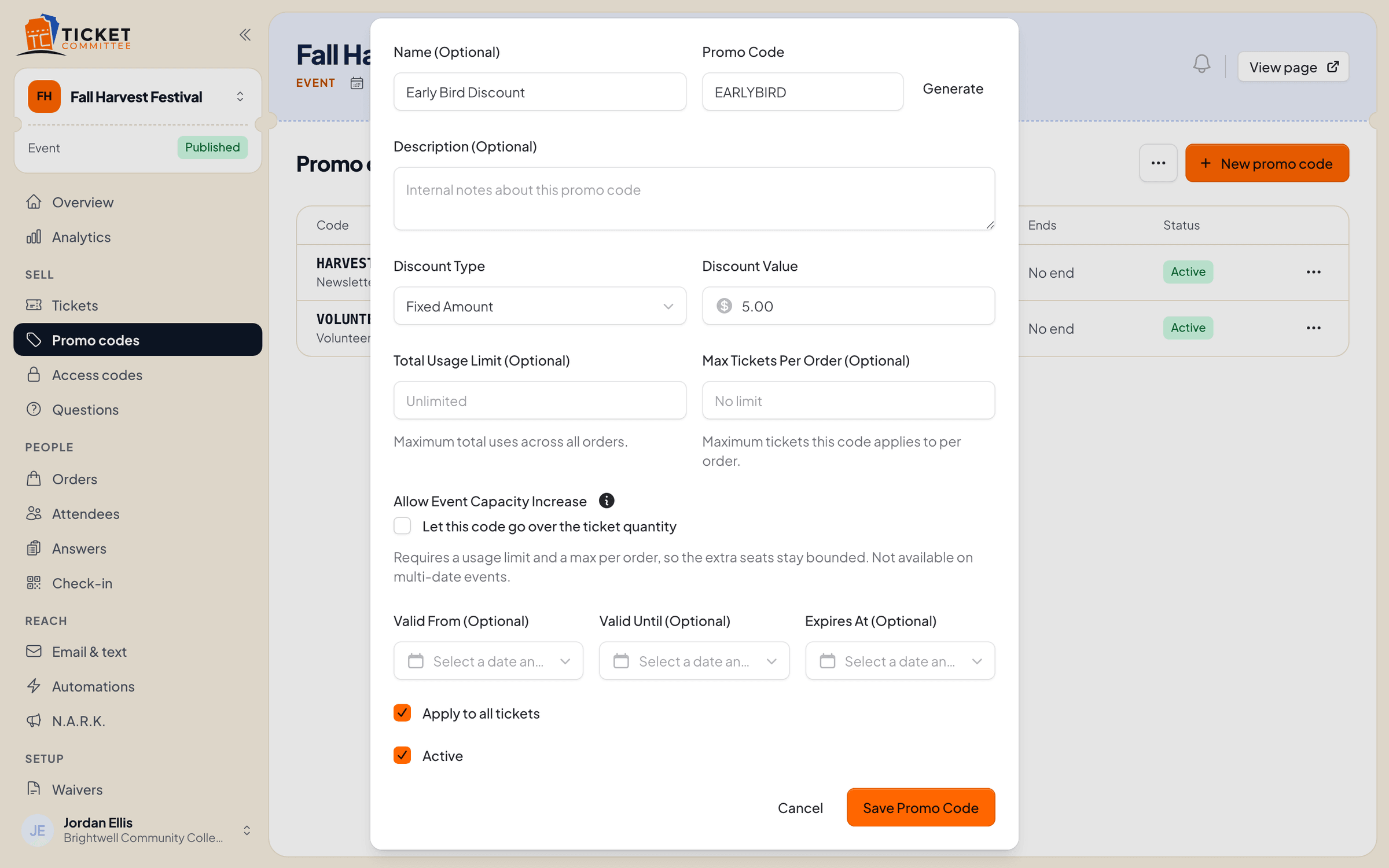
| Field | What it does |
|---|---|
| Name (Optional) | A friendly name, like “Early Bird Discount”. Buyers see it as the discount line in their order summary. |
| Promo Code | What buyers type. 3 to 20 letters and numbers, no spaces. Saved in capital letters. Click Generate for a random one. |
| Description (Optional) | Internal notes. Buyers don’t see it. |
| Discount Type | Fixed Amount (dollars off) or Percentage (percent off, up to 100). |
| Discount Value | How much off. |
| Total Usage Limit (Optional) | How many times the code can be used across all orders. Blank means unlimited. |
| Max Tickets Per Order (Optional) | How many tickets in one order the discount applies to. Blank means no limit. |
| Valid From / Valid Until (Optional) | The window when the code works. |
| Expires At (Optional) | A date after which the code stops working. |
| Apply to all tickets | Uncheck to pick specific tickets under Select Tickets. |
| Apply to all dates | For events with several dates. Uncheck to pick specific dates. |
| Active | Uncheck to turn the code off without deleting it. |
Let a code go over capacity
Section titled “Let a code go over capacity”Allow Event Capacity Increase lets buyers with this code still get tickets after the ticket sells out. Use it for sponsor or comp tickets you promised before the event filled up.
To turn it on, check Let this code go over the ticket quantity. The code must also have a Total Usage Limit and a Max Tickets Per Order, so the extra tickets stay limited. This option isn’t available on events with several dates.
Codes with this setting show an Over capacity badge in the list.
Create many codes at once
Section titled “Create many codes at once”Need a unique code for each sponsor or each family?
- Click the … button next to New promo code and choose Create several at once.
- Enter the Number of Codes (up to 500).
- Set the discount, limits, dates, and tickets. These settings are shared by every code.
- Click Create [number] Codes.
Each code gets a random 8-character code. Use … → Export CSV to download them, or Print to get a printable sheet.
Manage your codes
Section titled “Manage your codes”The Promo codes list shows each code’s Discount, how many times it’s been Used, when it Ends, and its Status:
- Active: buyers can use it now
- Off: you turned it off
- Ended or used up: it’s past its end date or hit its usage limit
Click a code (or … → Edit) to change it, then click Update Promo Code. Use … → Turn off or Turn on to pause a code. Organization owners can delete a code that hasn’t been used yet.
How buyers use a code
Section titled “How buyers use a code”On the payment step of checkout, buyers click Have a promo code?, type the code, and click Apply. The discount shows as its own line in the order summary, and buyers see how much they Saved. They can Remove it before paying.
Related
Section titled “Related”- Dynamic pricing: automatic price changes, no code needed
- Hidden tickets: a special price only certain people can see
- What buyers see at checkout