
For AI
View signed waivers
Find signatures, download signed PDFs, and check people in at the door
Every signed waiver is saved with the exact wording the person agreed to. You can look anyone up, download their signed PDF, and check them in at the door.
See who has signed
Section titled “See who has signed”- Open your event and go to Setup → Waivers.
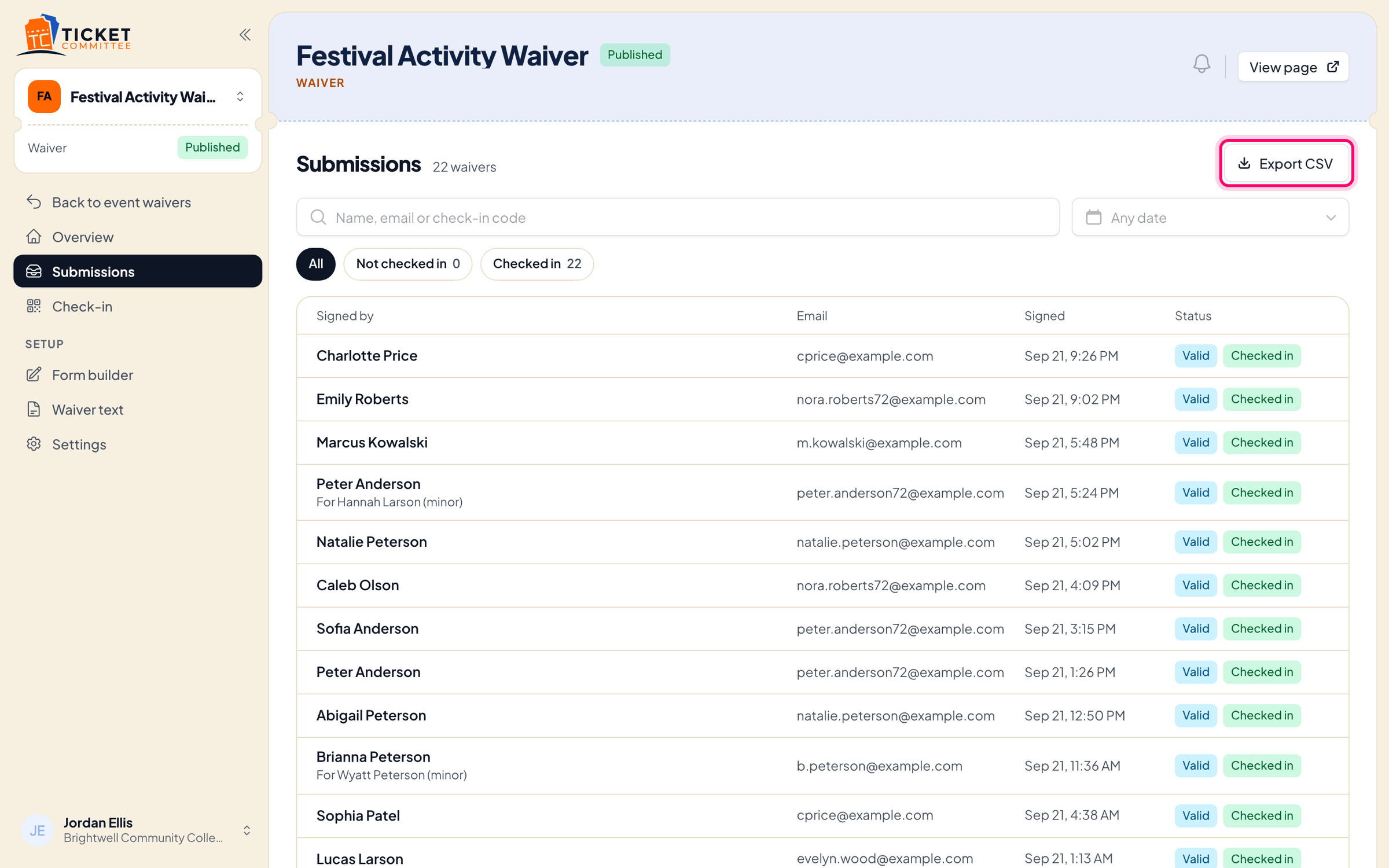
- Click Signatures next to your waiver. Or open the waiver and click Submissions in its sidebar.
Search by name, email, or check-in code, or pick a date range. Use the status buttons to narrow the list:
- Not checked in
- Checked in
- Needs to re-sign: signed an older version you asked everyone to re-sign.
- Expired: the waiver has passed its expiry.
Click anyone to see their details: who the waiver covers, their answers, their signature, and which version of the waiver they signed.
Download signed copies
Section titled “Download signed copies”- Click Signed PDF in a submission to download the whole waiver.
- When one person signed for several people, click the download icon next to any person under Covers to get their own PDF.
- Click Export CSV at the top of Submissions to download everything as a spreadsheet. This depends on your plan. If it’s greyed out, your current plan doesn’t include bulk export.
The waiver overview
Section titled “The waiver overview”The waiver’s Overview shows Waivers signed, People covered (this includes minors and groups), signatures This week, and how many people are Checked in. You’ll also see the last 14 days of signatures and the most recent signers.
If some waivers no longer count, a warning appears. Those waivers expired, or were signed on an older version you asked everyone to re-sign. Click Review to see who.
Check people in at the door
Section titled “Check people in at the door”If you turned on Check people in by QR code in Signing rules, each signer gets a QR code.
- Open the waiver and click Check-in.
- Scan the signer’s QR code with your device’s camera, or type the code into Or type the check-in code and click Check.
- You can also Search by name.
The Recently checked in list shows who has come through.
Archive or delete
Section titled “Archive or delete”From the ⋯ menu on Setup → Waivers:
- Archive stops using the waiver but keeps its signatures. Click Restore to bring it back.
- Delete removes the waiver and all its signatures. This can’t be undone.