
For AI
Refund or cancel an order
Refund one ticket or a whole order, and what happens to the buyer's card and tickets
You can refund tickets one attendee at a time, or cancel an entire order at once. Card payments go back to the buyer’s card through your Stripe account. Cash payments are marked as refunded so your records stay accurate, and you hand the money back yourself.
Refunds and cancellations of paid orders are limited to members of your organization. Event volunteers won’t see these options.
Refund one ticket (partial refund)
Section titled “Refund one ticket (partial refund)”Use this when one person on an order can’t come, or to refund an entire order ticket by ticket.
- Open the order (or the attendee’s page).
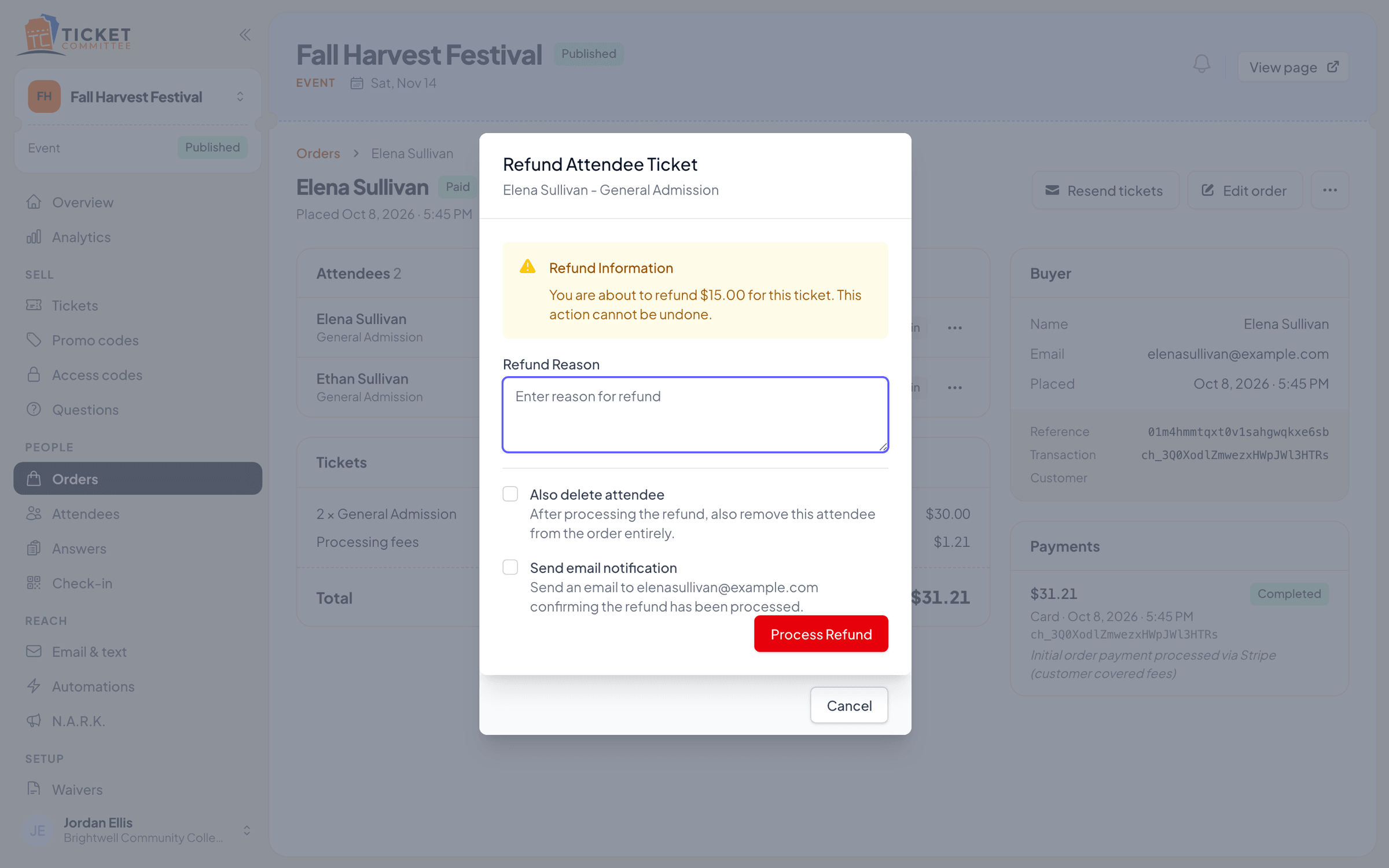
- Click the ⋯ menu next to the attendee and choose Refund.
- Review the amount. The refund is the price paid for that attendee’s ticket.
- Optionally fill in Refund Reason. It’s saved in the order’s payment notes.
- Choose your options:
- Also delete attendee: removes the attendee from the order entirely after the refund.
- Send email notification: emails the buyer to confirm the refund. This is off unless you check it.
- Click Process Refund.
You’ll see Refund Complete when it’s done. The attendee is marked Refunded, they drop off the check-in station’s list, and a refund line appears in the order’s Payments section.
The order’s status updates automatically:
- Some tickets refunded: Part refunded
- Every ticket refunded: Refunded
Cash and other non-card payments
Section titled “Cash and other non-card payments”If the ticket wasn’t paid by card, the refund window shows Cash Refund Required. Processing the refund marks the ticket as refunded in Ticket Committee, but no money moves. Return the cash or check to the buyer yourself.
Refund vs. Delete attendee
Section titled “Refund vs. Delete attendee”The attendee menu shows Refund when there’s a payment to give back. For attendees with nothing to refund, such as people on an order that’s still Awaiting payment, you’ll see Delete attendee instead. Deleting permanently removes the attendee from the order. You can add an optional reason and choose Send email notification to let the buyer know.
Cancel a whole order
Section titled “Cancel a whole order”Cancelling stops every ticket on the order at once and refunds a card payment in full.
- Open the order.
- Click the ⋯ button at the top and choose Cancel order.
- Leave Email the buyer that it was cancelled checked if you want the buyer notified, or uncheck it.
- Click Cancel order to confirm.
The order moves to Cancelled, its tickets stop working, and you’re taken back to the Orders list. Cancelled orders still turn up when you search.
If the card refund can’t be processed automatically, the order is still cancelled and you’ll see a message asking you to process the refund manually. You can do that from your Stripe dashboard.
Things to know about refunds
Section titled “Things to know about refunds”- Refunds are per ticket. There’s no option to refund a custom amount, like half a ticket.
- A ticket refund covers the ticket price. If the buyer also paid processing fees, those aren’t included when you refund an individual ticket. Cancelling the whole order refunds the full card charge. See Refunds and fees.
- Refund from Ticket Committee. Issue refunds here rather than in your Stripe dashboard, so the order, attendee, and check-in list stay in sync.
- Timing. Stripe sends the money back to the buyer’s card. It can take several business days to show up on their statement.
Buyers cancelling on their own
Section titled “Buyers cancelling on their own”If you’ve turned on customer order updates, buyers may be able to cancel their own order or remove attendees from their order page. See What buyers receive.