
For AI
Notify contacts at check-in and check-out (N.A.R.K.)
Automatically email or text someone when an attendee arrives or leaves
N.A.R.K. sends an email or text each time an attendee checks in or out. It’s handy for camps, classes, and youth events where a parent or guardian wants to know their child arrived safely, or has left.
The notification goes to an email address or phone number you collect with a question at checkout, so it can reach someone other than the buyer.
Before you start
Section titled “Before you start”Add a question to your tickets that collects the contact to notify. See Add custom questions.
- For emails, add an Email question, like “Parent’s email”.
- For texts, add a Phone Number question with Use this number for text messages turned on.
Turn it on
Section titled “Turn it on”- Open your event and go to Reach → N.A.R.K.
- Click Settings in the sidebar.
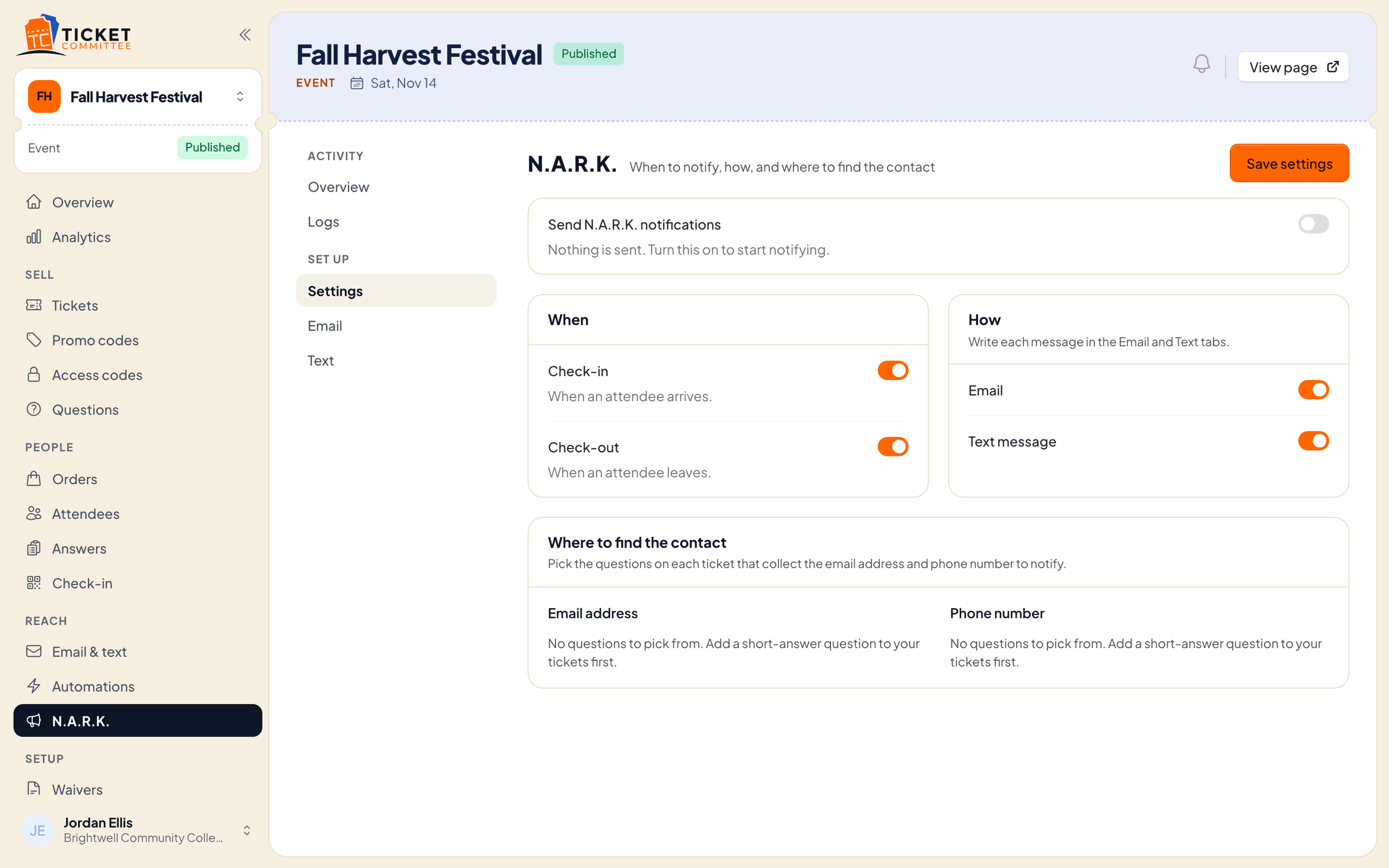
- Turn on Send N.A.R.K. notifications.
- Under When, choose Check-in (when an attendee arrives), Check-out (when an attendee leaves), or both.
- Under How, turn on Email, Text message, or both.
- Under Where to find the contact, tick the questions on each ticket that hold the Email address and Phone number to notify.
- Click Save settings.
Write the messages
Section titled “Write the messages”- Click Email in the sidebar.
- Under Replies, choose No replies (sent from a no-reply address) or Allow replies and enter a Reply-to address.
- Fill in the Subject and Message for the Check-in email and Check-out email.
- Click Save emails.
Text
- Click Text in the sidebar.
- Write the Check-in text and Check-out text. One text holds 160 characters.
- Click Save texts.
If check-in or check-out is turned off in Settings, its message box is replaced with a note saying so.
You can use these placeholders: {{attendee_name}}, {{event_name}}, {{check_in_time}}, {{check_out_time}}, and {{attendee_date}}. For example: {{attendee_name}} has arrived at {{event_name}}.
See what was sent
Section titled “See what was sent”The Overview shows today’s activity: Sent today, how many Got through, how many Failed, and who’s Inside now. Anything that Didn’t go through today is listed at the top so you can follow up.
Click Full log (or Logs in the sidebar) to see every notification. Search by attendee or recipient, and filter by status or by check-in vs. check-out. Each entry shows any retry attempts.