
For AI
Share your event page
Find your event's public link and get it in front of buyers
Every ticketed event has a public page where buyers see your event details and pick their tickets. Once your event is published, share the link anywhere: email, social media, your website, a QR code on a flyer.
Find your link
Section titled “Find your link”Your event’s link is built from your organization’s custom URL and the event’s custom URL:
ticketcommittee.com/your-organization/your-event
You can copy it from a few places:
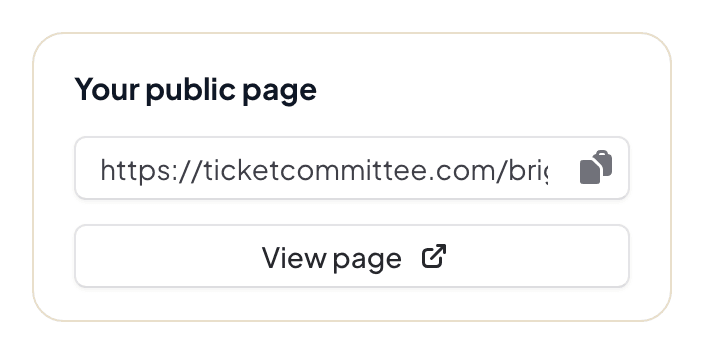
- The event’s Overview page: under Your public page, click the copy button, or click View page to open it.
- The header band: click View page at the top right of any page in the event.
- The Campaigns list: open the campaign’s … menu and choose Copy link or View public page.
Before you share
Section titled “Before you share”Nobody can see the page until the event is published. While it’s a draft:
- If you’re signed in, you can open the link to preview it. You’ll see a notice that says This event is not yet published.
- Anyone else who opens it gets a “not found” page.
To see the pages buyers get outside the sale window, go to Settings → Publishing and use Preview Buyer Pages:
- Before sales open: the “coming soon” page shown if you scheduled the event to open later
- After sales close: the page shown once sales have ended
What’s on the page
Section titled “What’s on the page”Buyers see your event details (name, date, venue, description, and your branding) alongside a Tickets card listing every ticket type that’s currently on sale. Each ticket shows its name, price, description, and a quantity picker. Depending on your settings, tickets may also show:
- Sold out, or a “left” count
- A crossed-out price and Save amount when a discount applies
- Requires: another ticket
- Special Access, for a hidden ticket unlocked by a link
- Entry hours, if the ticket only scans at certain times
When buyers have picked their tickets, they click Continue to start checkout.
For events with several dates, buyers first choose a date under Select dates, then pick tickets for that date.
Share links for special access
Section titled “Share links for special access”- Hidden tickets: add
?code=and your code to the end of the link. See Hidden tickets. - Code-only events: if you’ve turned on access codes, share the normal link. Buyers will be asked for their code.
Tips for getting the word out
Section titled “Tips for getting the word out”- Put the link in your newsletter, school or church bulletin, and on social media.
- Turn the link into a QR code for flyers and posters.
- Sell on your own website with an embedded checkout.