
For AI
Edit your event details
Change the name, description, date, venue, and email reply settings
The Event details page holds the basics buyers see on your public page and on every ticket: the name, description, date and time, and venue. It’s also where you set your event’s custom link, create an early access link, and choose where email replies go.
To open it, click Settings in your event’s sidebar. Event details is the first page under Event.
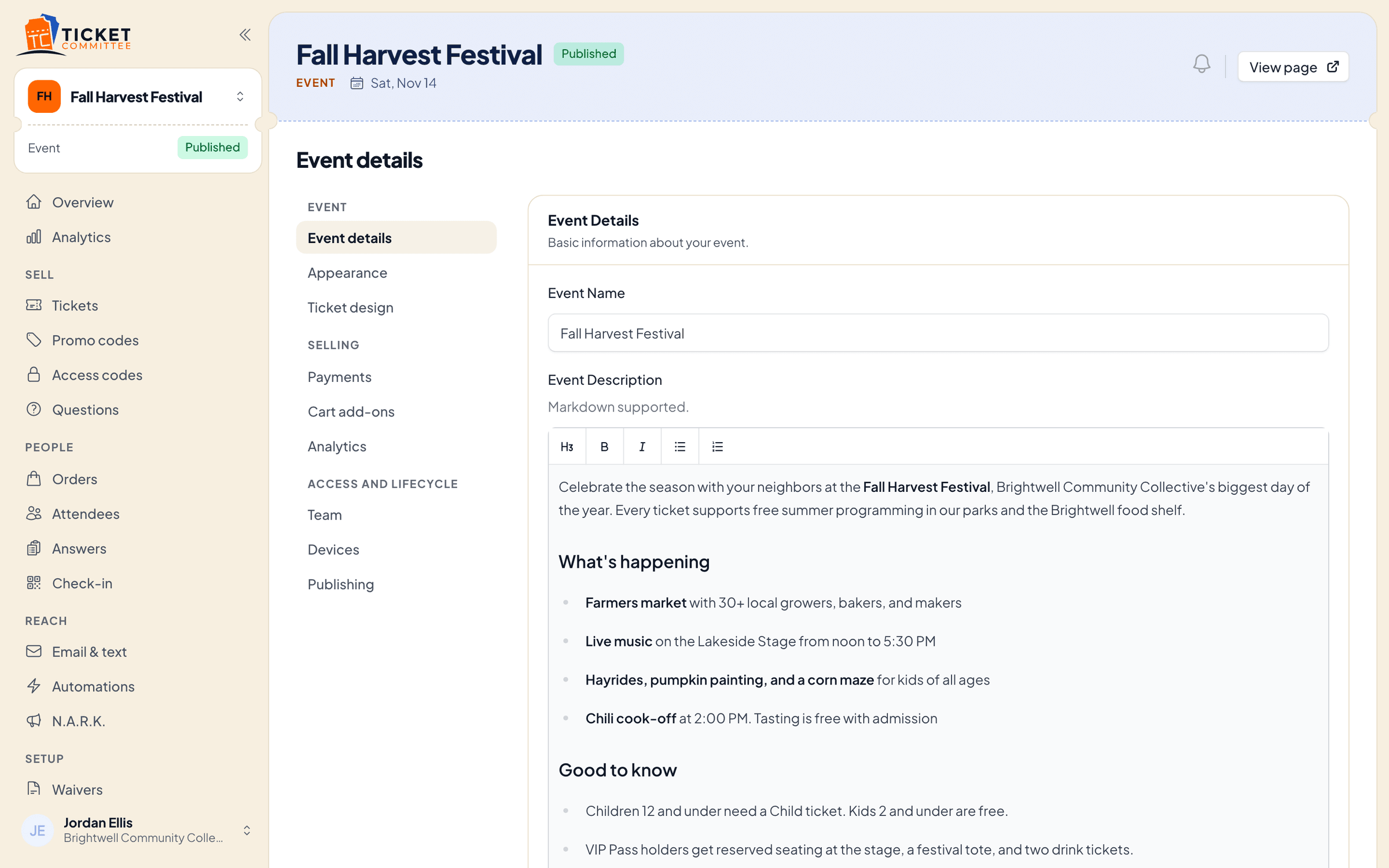
Event Details
Section titled “Event Details”| Field | Notes |
|---|---|
| Event Name | Required. At least 3 characters. |
| Event Description | Required. At least 10 characters. Markdown is supported, and there’s a formatting toolbar. Shown under About this event on your public page. |
| Event Start | Required. The date and time the event begins. |
| Event End | Optional. Must be after the start. |
| Event Timezone | The timezone your dates are in. The short zone name (like EDT) appears next to the date pickers. |
For a recurring event, you won’t see start and end fields here. Each date is managed on the Dates page instead. See Manage dates for a recurring event.
Event Venue
Section titled “Event Venue”Enter Venue Name, Venue Address, City, State, and Postal Code. All are optional. Whatever you fill in appears on your public page so buyers know where to go.
This section shows your event’s public link.
- If your organization has a custom URL, you can set a Custom URL for the event too. Use lowercase letters, numbers, and hyphens, at least 3 characters. Leave it blank to use the default link. The full link is shown above the field as you type.
- If your organization doesn’t have a custom URL yet, you’ll see the default Public URL instead, with a link to organization settings where you can set one.
Click Copy to copy the link. Learn more in Your public event page.
Early Access Link
Section titled “Early Access Link”An early access link lets specific people buy tickets before sales officially open, like members, sponsors, or past attendees.
- Click Generate Early Access Link.
- Click Copy and send the link to the people you want to let in.
- To shut it off, click Revoke. The old link stops working.
Anyone with the link can reach the ticket page even when sales haven’t opened yet, so share it only with the people it’s meant for.
Email Replies
Section titled “Email Replies”Choose where replies go when attendees answer an email about this event. Pick a Reply-To Behavior:
| Option | What happens |
|---|---|
| Inherit from Organization | Replies go to your organization’s reply-to address, set in organization settings. |
| Custom Reply-To | Replies go to an address you enter in Custom Reply-To Email. Custom Reply-To Name is optional and defaults to your organization’s name. |
| No Reply | Recipients can’t reply to this event’s emails. |