
For AI
Text your attendees
Collect phone numbers with consent so you can send text messages
Text messages are great for day-of updates people will actually see. Before you can text anyone, you need their phone number and their permission. You collect both with a phone number question at checkout.
Step 1: Ask for a phone number
Section titled “Step 1: Ask for a phone number”- Open your event and go to Sell → Questions.
- Click Add question and choose Once per order (to text the buyer) or For each attendee (to text each ticket holder).
- Set Answer type to Phone Number.
- Enter the Question, like “Mobile number”.
- Tick Use this number for text messages. This shows an opt-in checkbox next to the phone field at checkout.
- Click Add question.
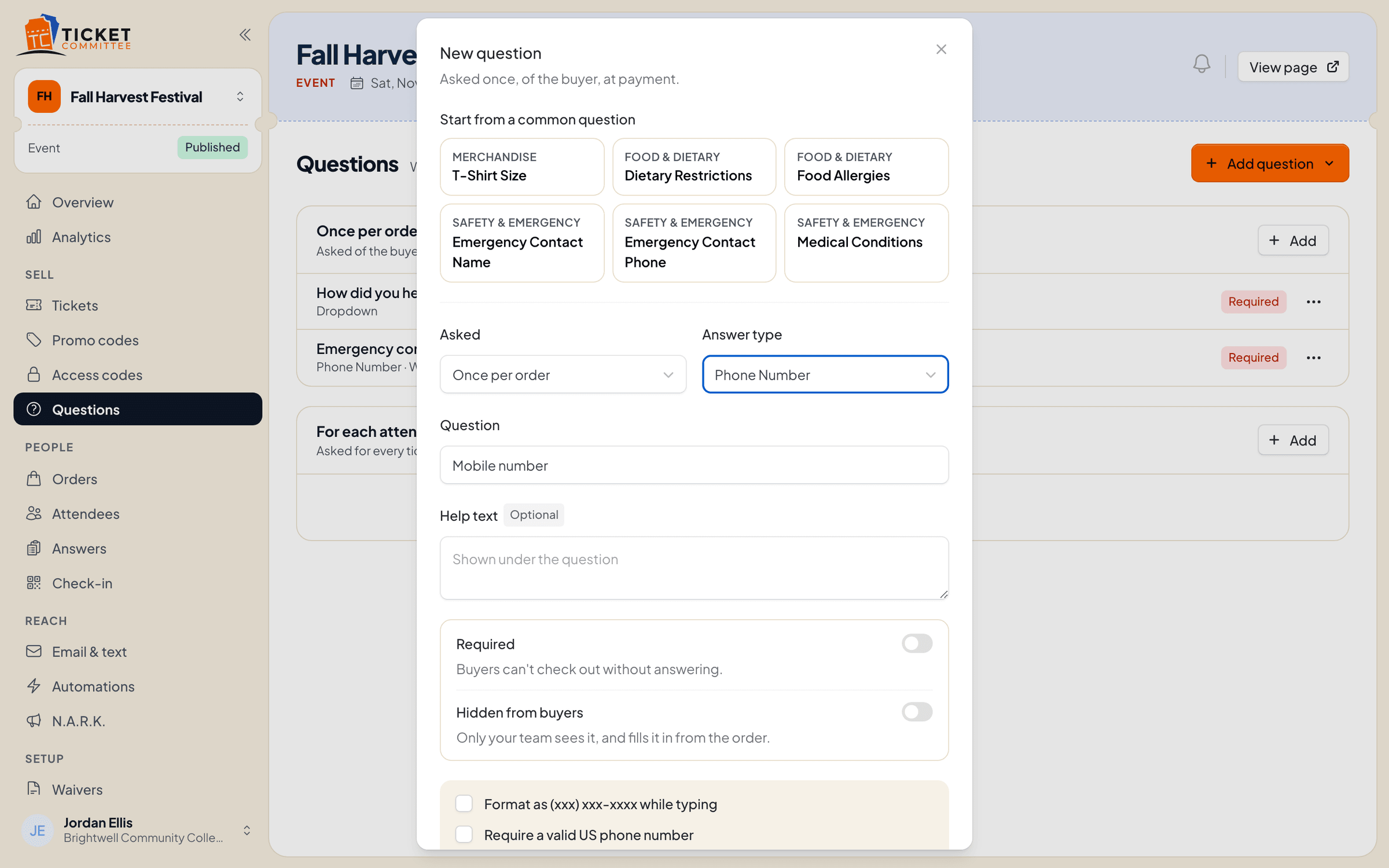
Two more options help keep numbers clean:
- Format as (xxx) xxx-xxxx while typing
- Require a valid US phone number
Step 2: Send the text
Section titled “Step 2: Send the text”- Go to Reach → Email & text and click New message.
- Under Send as, choose Text message.
- Under Who gets it:
- For Buyers, set Send to to your phone question.
- For Attendees, tick the ticket types and pick the phone question for each one.
- Write your message and send or schedule it. See Send an email or text for the details.
People who didn’t give a phone number for the question you picked are left out. The count under Who gets it shows how many people the text will reach. Click See who to check.
Keep texts short
Section titled “Keep texts short”One text holds 160 characters. The counter under the message box shows your length as you type. Placeholders like {attendee_first_name} get longer once they’re filled in, so leave yourself some room.
A few placeholders are email-only, like the buyer’s name and the event description. The Placeholders you can use list under the message box only shows the ones that work in a text.
Opting out
Section titled “Opting out”If someone replies STOP, they stop getting texts from Ticket Committee. You don’t need to do anything.
Limits
Section titled “Limits”Your plan sets how many texts and emails each event can send. If you’ve reached the limit, Text message is greyed out with a note saying so. If a message would go over the limit, you’ll see Message Limit Exceeded when you try to send. You can still save it as a draft.