
For AI
Create a silent auction
Start a Silent Auction campaign, set bidding times, and publish it
Every silent auction starts as its own campaign. You give it a name and a closing time, then fine-tune everything else in Settings before you publish.
Start the campaign
Section titled “Start the campaign”- Go to Campaigns and click New campaign.
- On the Campaign Type screen, choose Silent Auction Campaign.
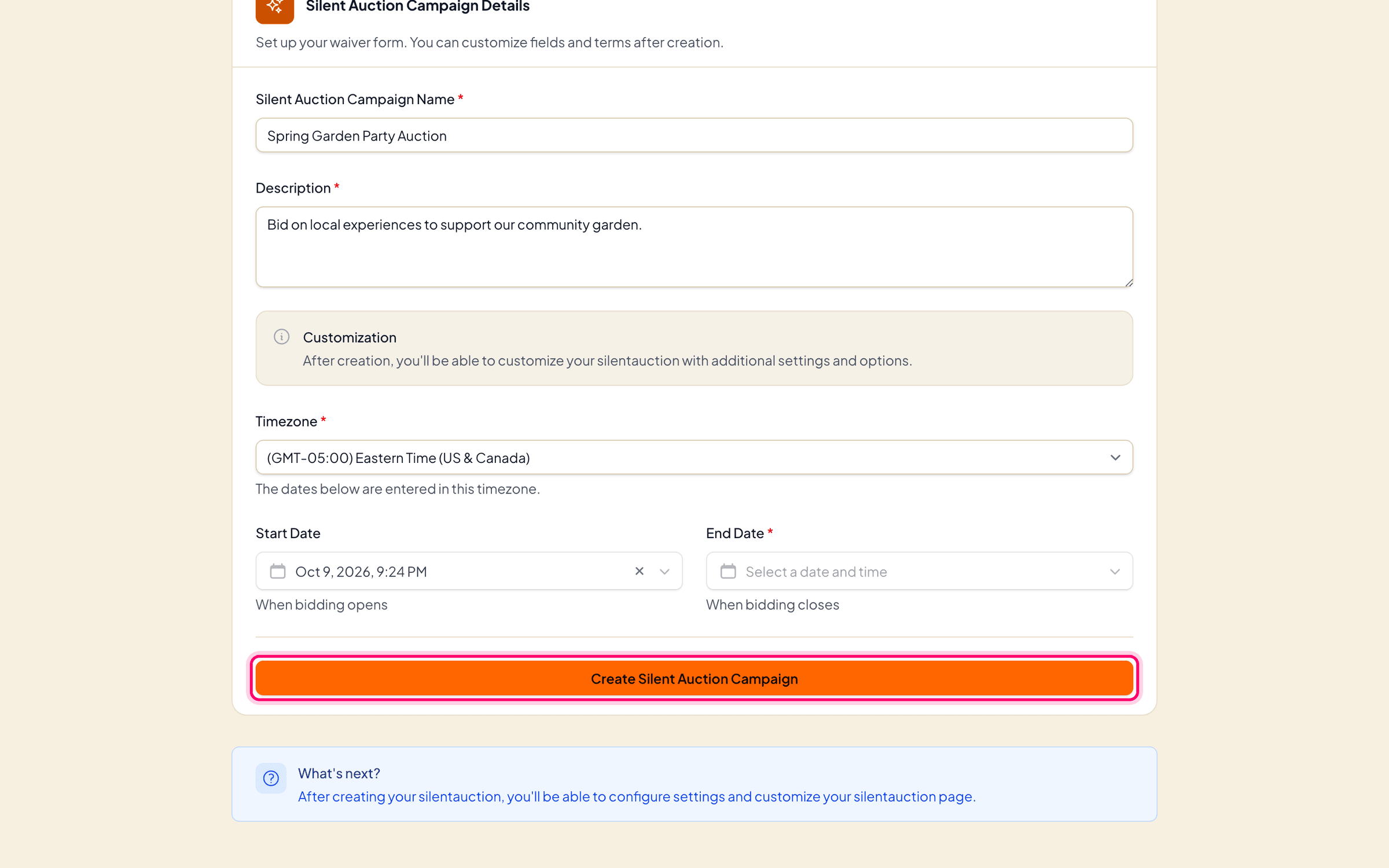
- Fill in the form:
| Field | What to enter |
|---|---|
| Silent Auction Campaign Name | The name bidders see, like “Spring Gala Auction”. At least 3 characters. |
| Description | A short intro to the auction and the cause it supports. At least 8 characters. |
| Timezone | The time zone your dates are entered in. |
| Start Date | When bidding opens. Defaults to now. |
| End Date | When bidding closes. Required, and must be after the start date. |
- Click Create Silent Auction Campaign.
You land on the auction’s Overview page.
Use the Getting ready checklist
Section titled “Use the Getting ready checklist”The Overview page shows a Getting ready checklist until you’ve finished setup:
- Set up the auction: add your terms and conditions.
- Add items: add at least one lot.
- Make bid sheets: generate printable sheets.
- Publish and share: publish the auction.
Click any step to jump to the right page.
Adjust the general settings
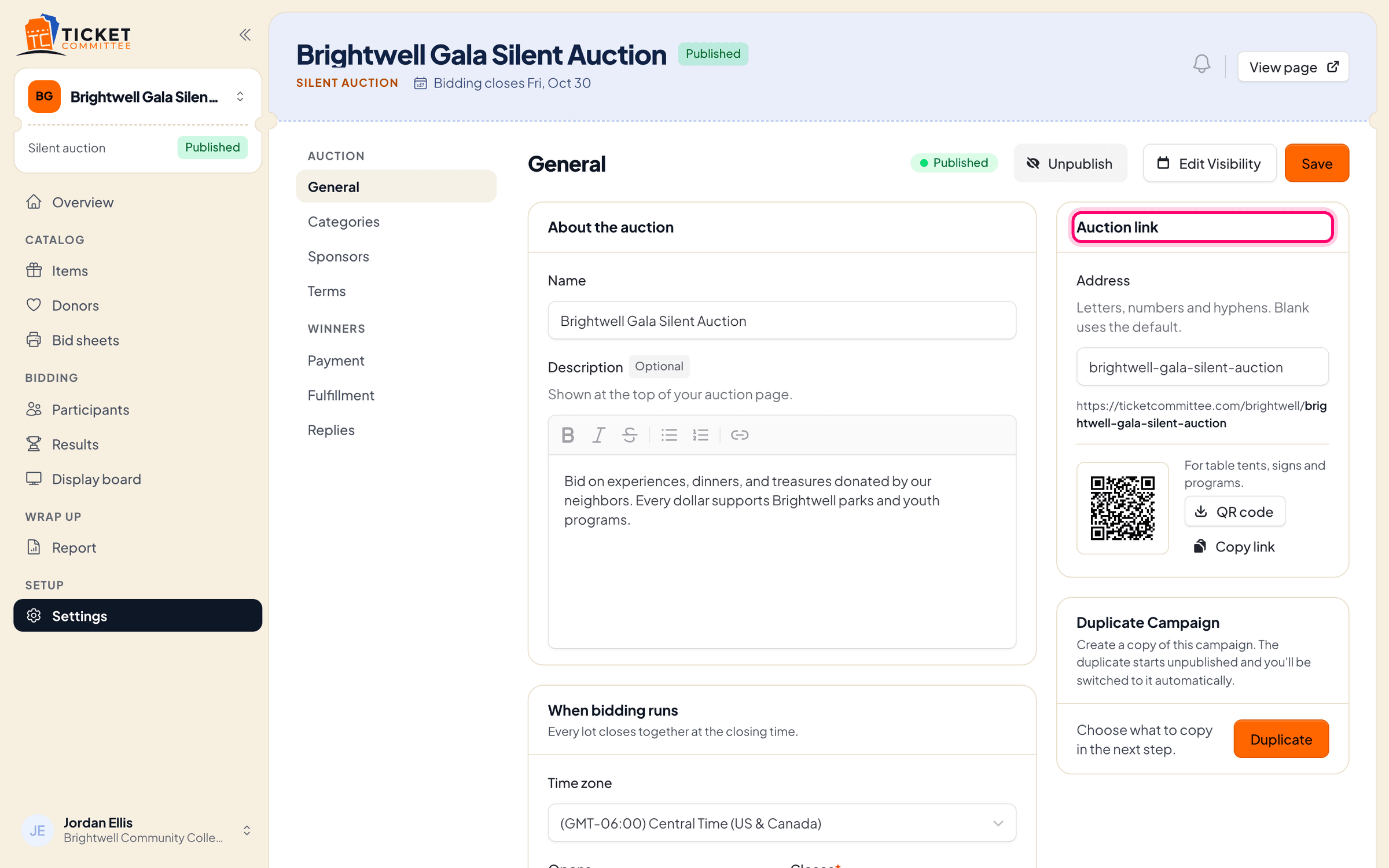
Section titled “Adjust the general settings”Go to Settings → General to change the basics any time. Click Save when you’re done.
- About the auction: the Name, and an optional Description shown at the top of your auction page. You can use bold, lists, and links.
- When bidding runs: Time zone, Opens, and Closes. Closes is required.
- Logo: shown on your auction pages and bid sheets, and on any lot without a photo. PNG or JPG, up to 2 MB.
- Auction link: change the Address at the end of your auction’s link. Use letters, numbers, and hyphens. Leave it blank to use the default.
The Auction link panel also has a downloadable QR code for table tents, signs, and programs, plus a Copy link button.
Publish the auction
Section titled “Publish the auction”Bidders can’t see the auction until you publish it.
- Go to Settings → General.
- Click Publish.
- Review the dates in the Publish Campaign window and confirm.
Before you publish, make sure that:
- Your terms, payment, and pickup settings are filled in.
- Your Stripe account is connected and ready.
- Your items are in good shape. Once an item gets a bid, its details and pricing are locked.
If the opening time is in the future, guests can browse items and register, but can’t bid until bidding opens. Registered bidders get a “Bidding Is Open” email when it does.
Publishing uses one of your plan’s publishing credits. Republishing a campaign that was published before does not use another credit.
Unpublishing
Section titled “Unpublishing”Clicking Unpublish hides the auction from the public right away and stops new bids. Existing bids and registrations are kept.
Duplicate an auction
Section titled “Duplicate an auction”Running the same event next year? On Settings → General, click Duplicate under Duplicate Campaign. You choose what to copy (such as auction settings, donors, sponsors, categories, and items) in the next step. The copy starts unpublished, and you’re switched to it automatically.