
For AI
Print bid sheets
Make a printable sheet with a scan-to-bid QR code for every lot
A bid sheet is a one-page printout for each lot, made to sit next to the item on your auction tables. Guests scan its QR code to open that item on their phone and bid.
What’s on a bid sheet
Section titled “What’s on a bid sheet”Each sheet is a PDF that shows:
- The lot number, item name, description, and featured photo
- The Starting Bid and Min. Increment
- When bidding ends, and your pickup date if you’ve set one
- Who donated it, and its estimated value if you entered one
- A Scan to Bid QR code and the item’s web address
- Your auction logo
Make and print sheets
Section titled “Make and print sheets”Sheets are made automatically in the background when you add or edit an item.
- Open your auction and go to Bid sheets.
- Each lot shows Ready or Making. If some are missing, click Make N missing.
- Wait for every sheet to finish. The page updates as each one is done.
- Click Print all to open every sheet in one PDF, then print it.
Print all stays unavailable until every sheet is ready.
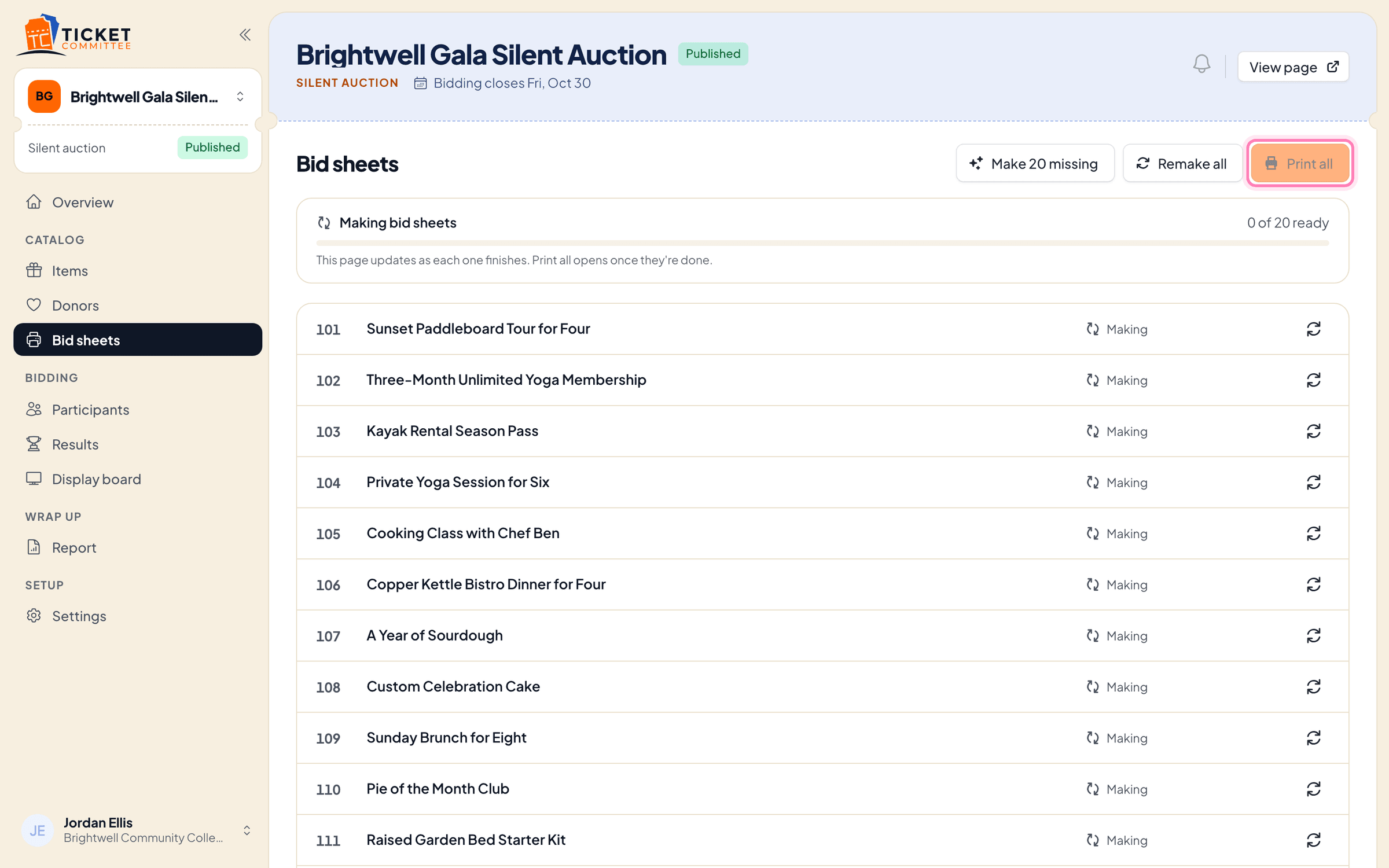
To look at a single sheet, click View next to the lot. To rebuild one, click its refresh button.
When to remake sheets
Section titled “When to remake sheets”Editing an item’s name, description, lot number, category, pricing, value, donors, pickup instructions, or photos remakes its sheet for you.
Click Remake all if you’ve changed something that affects every sheet, such as:
- Renumbering lots by dragging them on the Items page
- Changing the auction logo, closing time, or pickup date
Remaking every sheet can take a few minutes.
Other QR codes
Section titled “Other QR codes”- One lot’s QR code: open the item. The Lot QR code panel has a Download button for an SVG file you can use on your own signs.
- The whole auction: go to Settings → General. The Auction link panel has a QR code download for table tents, signs, and programs.