
For AI
Set up check-in devices
Pair phones and tablets for check-in with a code, no login needed
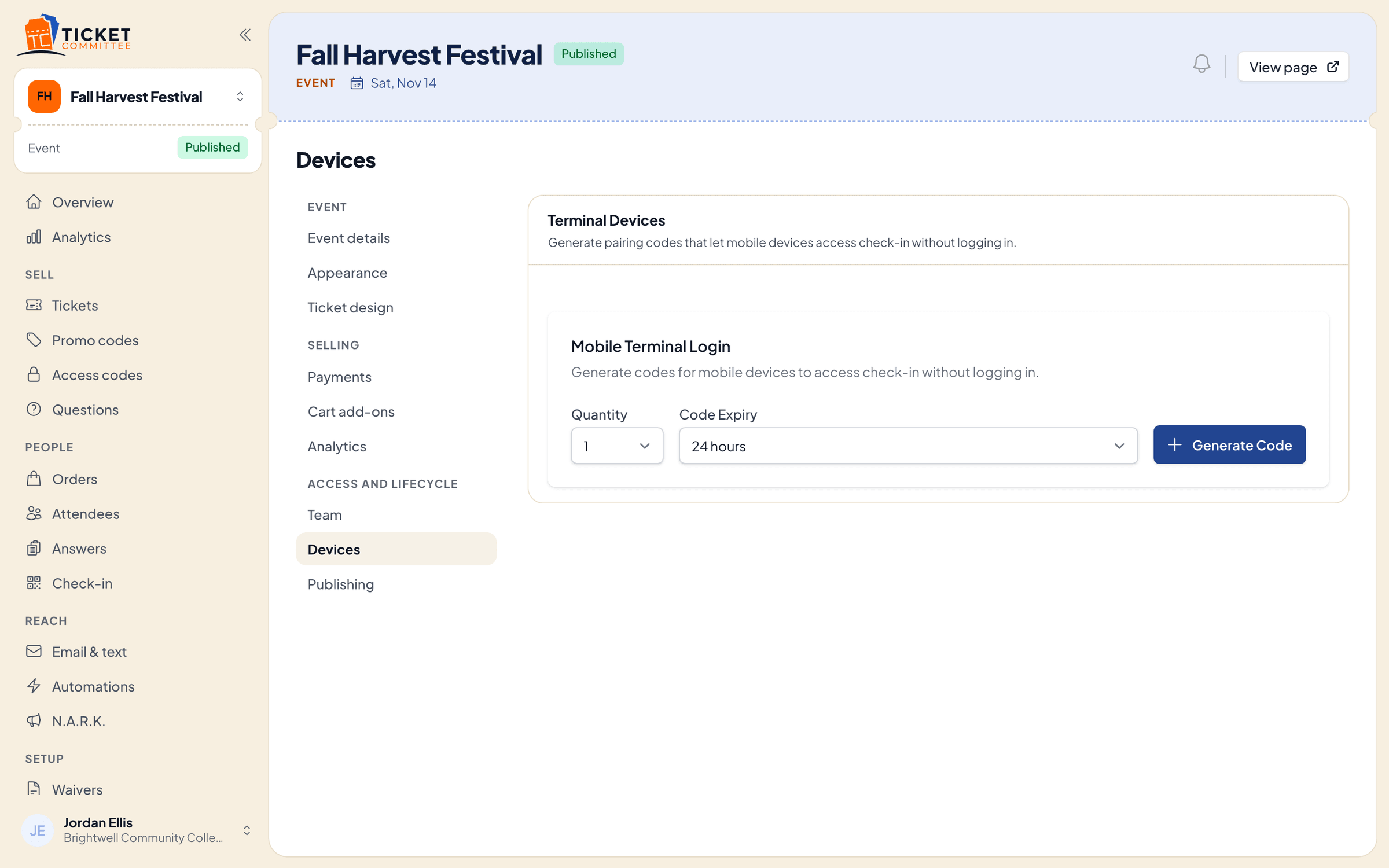
The Devices page lets you connect phones or tablets to check-in without anyone logging in to your account. You generate a short code, enter it on the device, and the device can check people in for this event. This is handy for door volunteers using shared or borrowed devices.
Go to Settings → Devices (under Access and lifecycle).
Generate codes
Section titled “Generate codes”- Under Mobile Terminal Login, choose a Quantity. You can make up to 10 codes at once, one per device.
- Choose a Code Expiry: 1 hour, 4 hours, 8 hours, 24 hours, 48 hours, or 7 days.
- Click Generate Code (or Generate 3 Codes, and so on).
The new codes appear on screen with a Copy button for each. The page also shows the address where the codes are entered. Click Dismiss when you’ve written them down or shared them.
Pair a device
Section titled “Pair a device”On the phone or tablet, open the terminal login page shown under the codes, enter the 6-character Terminal Code, and tap Connect Terminal. Each code works once.
Manage codes and devices
Section titled “Manage codes and devices”- Active Codes lists codes that haven’t been used yet, with when they expire and who made them. Codes are hidden until you click Reveal. Click Delete to cancel a code you no longer need.
- Active Terminal Sessions lists devices that are paired and can check people in, with when each was created and last active. Click Revoke to disconnect one device, or Revoke All to disconnect every device at once.
Revoke devices after your event, or right away if a device is lost.