
For AI
Invite your team
Add co-organizers to your organization and volunteers to a single event
Running an event is a team effort. Ticket Committee gives you two ways to bring people in: invite them to your whole organization, or invite a volunteer to help with just one event.
| Organization member | Event volunteer | |
|---|---|---|
| Who it’s for | Co-chairs, staff, board members | Door helpers, cash-table volunteers |
| What they can see | Every campaign in the organization, based on their role | Only that event’s orders and attendees |
| Where you invite them | Organization settings → People | The event’s Settings → Team |
Invite someone to your organization
Section titled “Invite someone to your organization”- Open the account menu at the bottom of the sidebar and choose Organization settings.
- In the People section, click Invite.
- Enter their Email.
- Choose a Role (see below).
- Click Send invite.
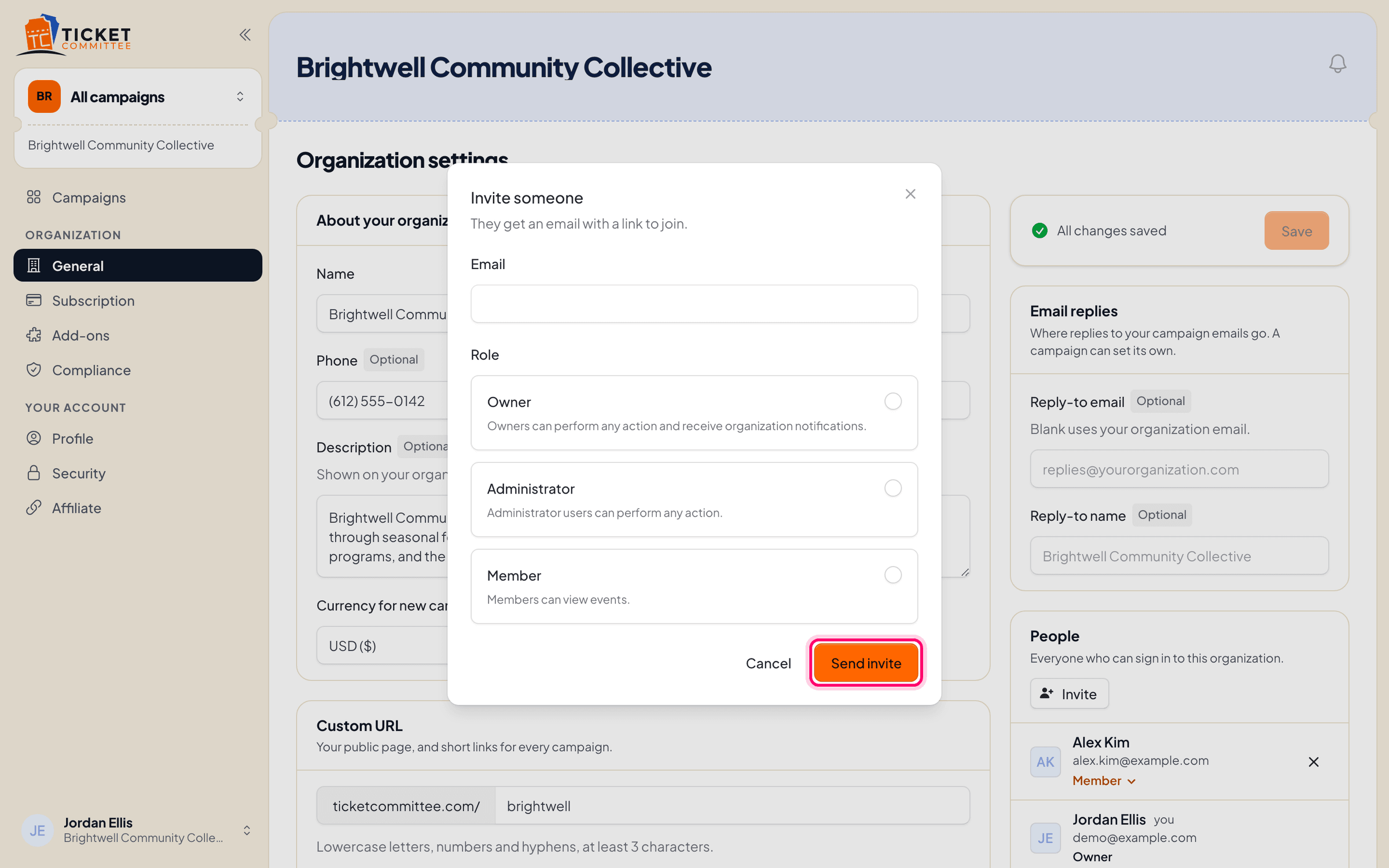
They’ll get an email with a link to join. Until they accept, they’re listed under Invited in the People section, where you can Cancel the invitation if you need to.
If they don’t have a Ticket Committee account yet, they’ll create one using the same email address, and the invitation will be waiting for them.
| Role | What they can do |
|---|---|
| Owner | Anything, and they receive organization notifications. |
| Administrator | Anything. |
| Member | View events. |
Only owners and administrators can invite people or change organization settings.
Change someone’s role or remove them
Section titled “Change someone’s role or remove them”In People, click the role under a person’s name to open Change role, pick a new one, and click Save. To remove someone, click the × next to their name and confirm with Remove. They lose access to the organization and its campaigns.
Invite a volunteer to one event
Section titled “Invite a volunteer to one event”Volunteers get access to a single event so they can help collect payments and check people in, without seeing the rest of your organization.
- Open the event and go to Settings → Team.
- Enter the volunteer’s Email.
- Optionally set Access expires. Leave it blank if access shouldn’t expire.
- Click Invite.
Pending invitations are listed under Pending invitations, where you can Revoke them. Once someone accepts, they move to Active team members, where you can Remove them.
When a volunteer signs in, they’ll see the event under Volunteering on their Campaigns list.