
For AI
Find and filter orders
Search orders by buyer, filter by status or date, and understand what each status means
Every purchase, comp, and manually added order for your event lands on the Orders page. Use it to look someone up at the door, check who still owes money, or review sales from a certain day.
Open the Orders page
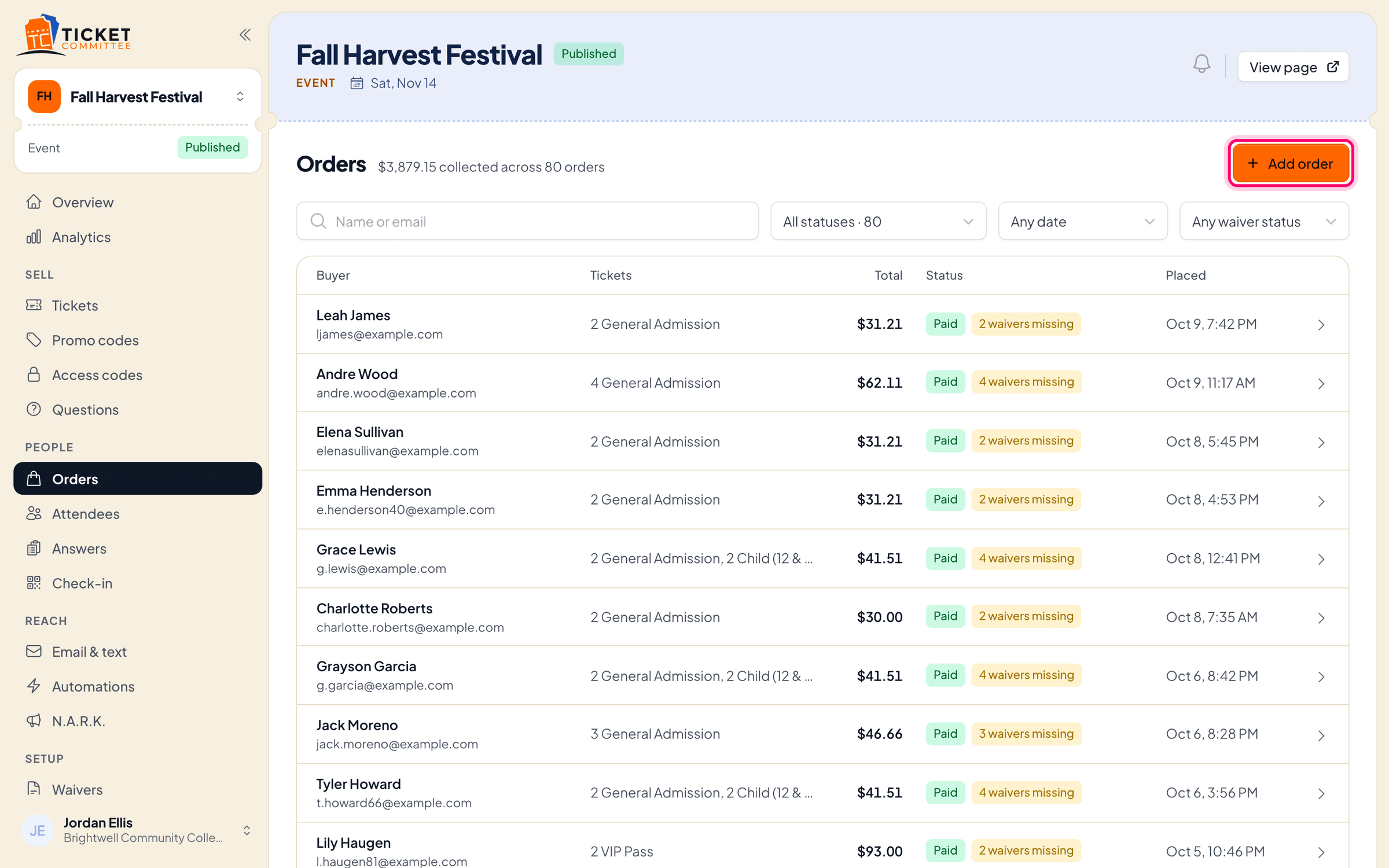
Section titled “Open the Orders page”Open your event and click Orders in the sidebar, under People.
Each row shows the Buyer (name and email), the Tickets in the order, the Total, the Status, and when it was Placed. Click any row to open the order’s details.
The list updates on its own when a new order comes in, so you can leave it open during a sale.
Search for an order
Section titled “Search for an order”Type in the Name or email box. The search matches:
- The buyer’s first name, last name, or email
- The name of any attendee on the order
- The order’s reference number
So if a parent bought tickets for their kids, you can find the order by searching for a child’s name.
Filter the list
Section titled “Filter the list”Use the dropdowns next to the search box to narrow things down. Filters and search work together.
| Filter | Options |
|---|---|
| Status | All statuses, or one status. Each option shows how many orders have that status. |
| Date placed | Any date, Today, Yesterday, This week, Last week, This month, Last month, or Custom range (pick a start and end date). |
| Waiver status | Only appears if your event uses waivers. Any waiver status, All signed, or Waiver missing. |
If nothing matches, you’ll see No orders match. Clear the search or change a filter to see more.
What each status means
Section titled “What each status means”| Status | What it means |
|---|---|
| Paid | The order is complete and paid. |
| Awaiting payment | The buyer chose to pay in person, or you created the order and marked it as awaiting payment. Tickets are held until you mark it paid. |
| Payment failed | The card payment didn’t go through. The tickets stay held while the buyer retries. |
| Processing | A card payment is still being confirmed with Stripe. |
| Part refunded | Some tickets on the order were refunded. |
| Refunded | Every ticket on the order was refunded. |
| Comp | A free, complimentary order. |
| Cancelled | The order was cancelled and its tickets no longer work. |
You may also see these badges next to the status:
- Payment required: attendees were added after the order was paid, and more money is due.
- 1 waiver missing (or more): someone on the order still needs to sign a waiver.
- D.A.T.E. with a status: the order needs Digital Approval to Enter. This only appears for events that use D.A.T.E.
Add an order yourself
Section titled “Add an order yourself”Need to record a sale made over the phone or at a table? Click Add order at the top of the page. See Add an order manually.