
For AI
Embed ticket sales on your website
Let buyers purchase tickets without leaving your own site
Instead of sending buyers to your Ticket Committee event page, you can put the whole ticket checkout right on your own website. Buyers pick tickets, pay, and get their confirmation without leaving your site.
Embedding is available on higher-tier plans. If you see Upgrade Required, click View plans to see your options.
Before you start
Section titled “Before you start”The embed option only appears after your event is published. You can’t turn it on while any of these are true:
- The event is a draft or unpublished
- Ticket sales have closed or the event has ended
- The event has no tickets
- You’ve reached your plan’s attendee limit
If the event is scheduled to open later, you can still turn the embed on. Visitors see a “Coming Soon” page until sales open.
Any of these problems are listed at the top of the embed section, so you know what to fix.
Turn on the embed
Section titled “Turn on the embed”- Open your event and go to Settings → Publishing.
- Scroll to Embed Ticket Sales.
- Turn on Enable embed.
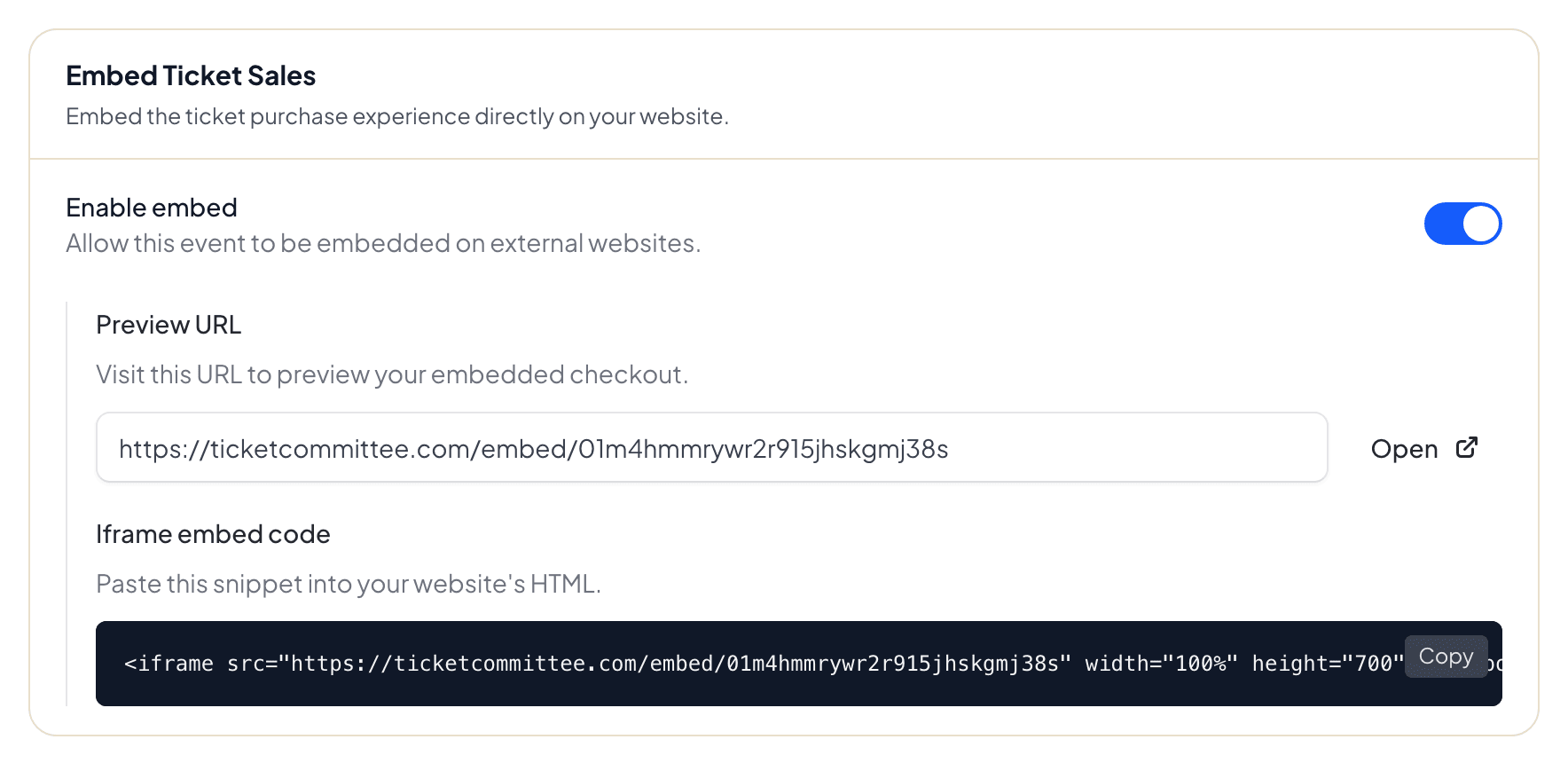
Once it’s on, you’ll see:
- Preview URL: click Open to see the embedded checkout on its own.
- Iframe embed code: the snippet to paste into your website.
Add it to your website
Section titled “Add it to your website”- Click Copy next to the Iframe embed code.
- In your website editor, add an HTML or “embed code” block where you want the tickets to appear.
- Paste the code and publish your page.
The code looks like this:
<iframe src="https://ticketcommittee.com/embed/..." width="100%" height="700" frameborder="0" allowpaymentrequest allow="payment"></iframe>Most website builders (Squarespace, Wix, WordPress, and others) have an embed or custom HTML block that accepts this kind of code. If you’re not sure where it goes, send the snippet to whoever manages your website.
Turn it off
Section titled “Turn it off”Go back to Settings → Publishing and turn off Enable embed. The embedded checkout on your website stops working, but your regular event page keeps selling.