
For AI
Design your tickets
Add a custom message to every ticket and turn on mobile wallet passes
The Ticket design page lets you add a message that’s printed on every ticket for your event, like arrival instructions or a thank-you note. If your plan includes it, you can also give attendees Apple Wallet and Google Wallet passes.
Go to Settings → Ticket design.
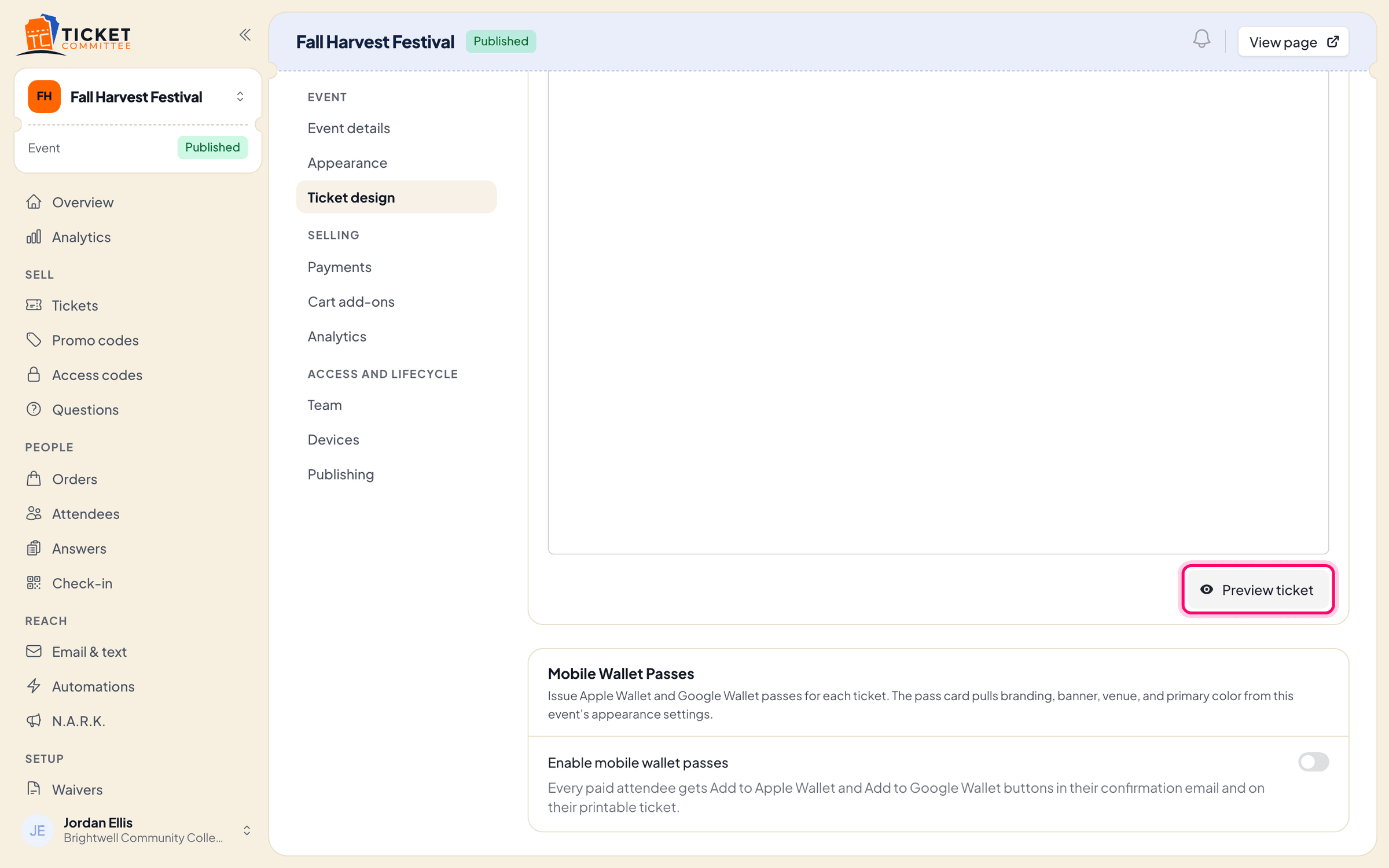
Add a ticket message
Section titled “Add a ticket message”- Under Ticket Message, type your message in the Message box. Markdown is supported.
- The message saves automatically.
- Click Preview ticket to download a sample PDF ticket and see how it looks.
The message appears on the PDF ticket attendees download. Good things to include:
- When to arrive and where to enter
- Parking or accessibility details
- What to bring, or what’s not allowed
- A thank-you for supporting your cause
Mobile wallet passes
Section titled “Mobile wallet passes”If your plan includes mobile wallet passes, you’ll see a Mobile Wallet Passes section.
- Turn on Enable mobile wallet passes.
- Click Send preview to email yourself a sample pass.
When it’s on, every paid attendee gets Add to Apple Wallet and Add to Google Wallet buttons in their confirmation email and on their printable ticket. The pass uses your event’s branding, banner, venue, and primary color from Appearance.