
For AI
Your subscription and add-ons
Choose a plan, manage billing and invoices, and buy extra publishes or other add-ons
Your Ticket Committee subscription is separate from ticket sales. Ticket money goes to your own Stripe account, while your subscription is what your organization pays Ticket Committee to use the platform. You can build events for free, and a plan is needed when you publish.
Both pages live under Organization in the sidebar. To get there, go to Campaigns, then choose Subscription or Add-ons.
Choose a plan
Section titled “Choose a plan”If your organization doesn’t have a plan yet, the Subscription page shows the available plans with their yearly price and What’s included.
- Click Subscribe on the plan you want.
- Complete payment on Stripe’s secure checkout.
How it works:
- Set up for free: build campaigns, tickets, and forms before you pay.
- Publish when ready: each campaign you publish uses one of your plan’s publishes for the year. If you have free publish credits, those are used first.
- Add more anytime: running more campaigns than your plan includes? Buy extra publishes from Add-ons.
If your organization has a discount, you’ll see it noted on the plan and applied at checkout.
Manage your subscription
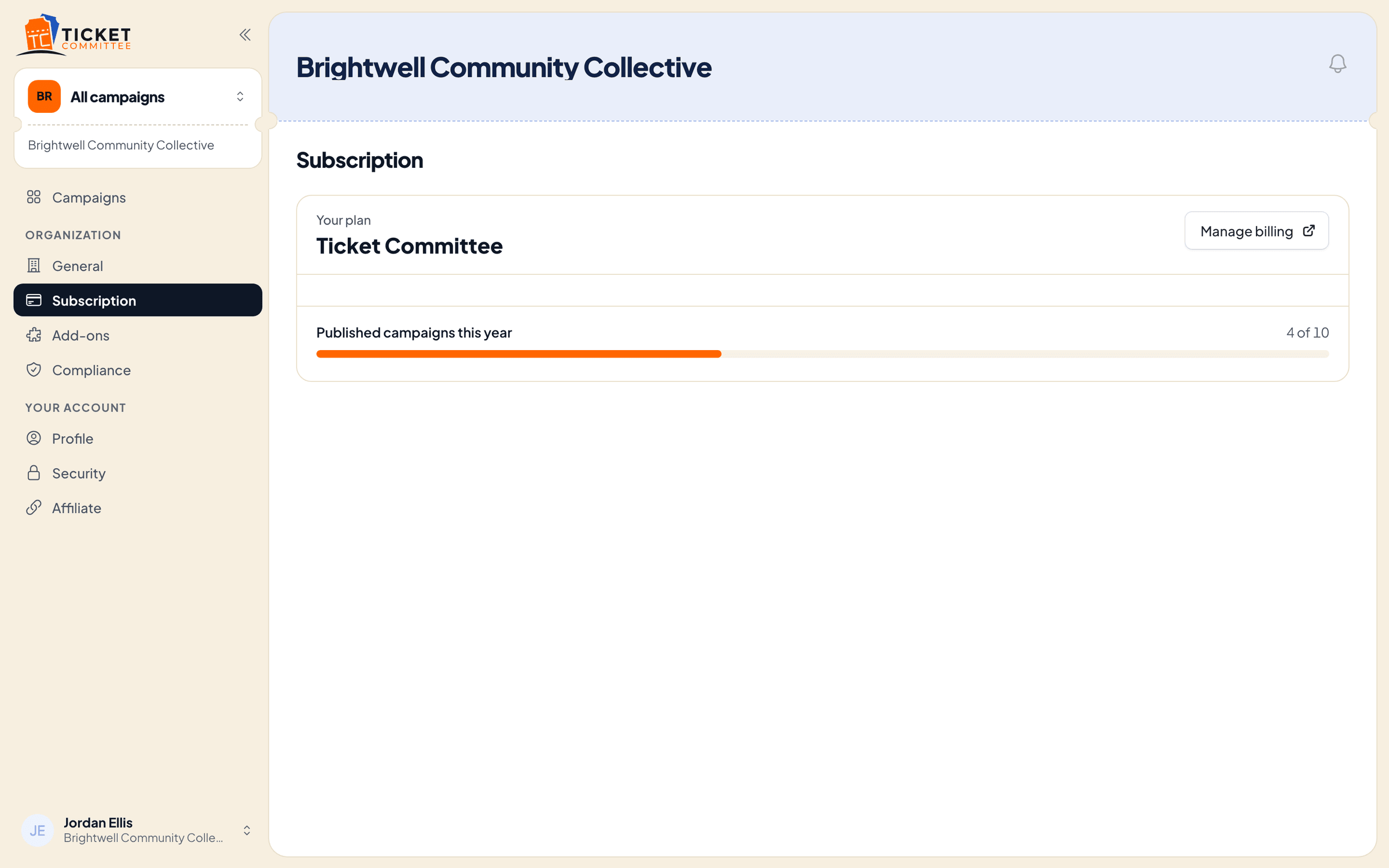
Section titled “Manage your subscription”Once you’re subscribed, the Subscription page shows:
- Your plan: the plan name. A Legacy badge means the plan is no longer offered to new customers, but your subscription continues on its existing terms.
- Renews and Next charge: your renewal date and amount. If your subscription is set to end, you’ll see the Ends date instead.
- Published campaigns this year: how many publishes you’ve used out of your plan’s total, when it resets, and any free credits included. When you’re running low, an Add campaigns link takes you to Add-ons.
- Invoices: past invoices with their status. Click the download icon to save a PDF.
Click Manage billing to open Stripe’s billing page, where you can update your payment method and manage your subscription.
Buy add-ons
Section titled “Buy add-ons”The Add-ons page lists extras you can buy, such as additional campaign publishes. Each card shows the add-on’s price and how long it lasts.
- Click Buy on the add-on you want.
- Use the + and − buttons to choose a quantity. The Total updates.
- Click Buy now.
You need an active subscription to buy add-ons. If you don’t have one, you’ll see a Choose a plan button instead.
Past purchases appear under Purchases, with a receipt for each.
Covered by a district or parent organization
Section titled “Covered by a district or parent organization”If a district or other parent organization pays for your plan, you’ll see Your plan is covered by (their name) at the top of both pages, and you won’t need to subscribe or buy add-ons yourself. Questions about limits go to the contact shown.