
For AI
Accept cash and in-person payments
Let buyers reserve tickets online and pay in person, then mark their orders paid
Not everyone wants to pay by card online. With offline payments turned on, buyers can reserve their tickets at checkout and pay you in person, by cash or check. Their tickets are held until you mark the order paid.
Turn on offline payments
Section titled “Turn on offline payments”- Open your event and go to Settings → Payments.
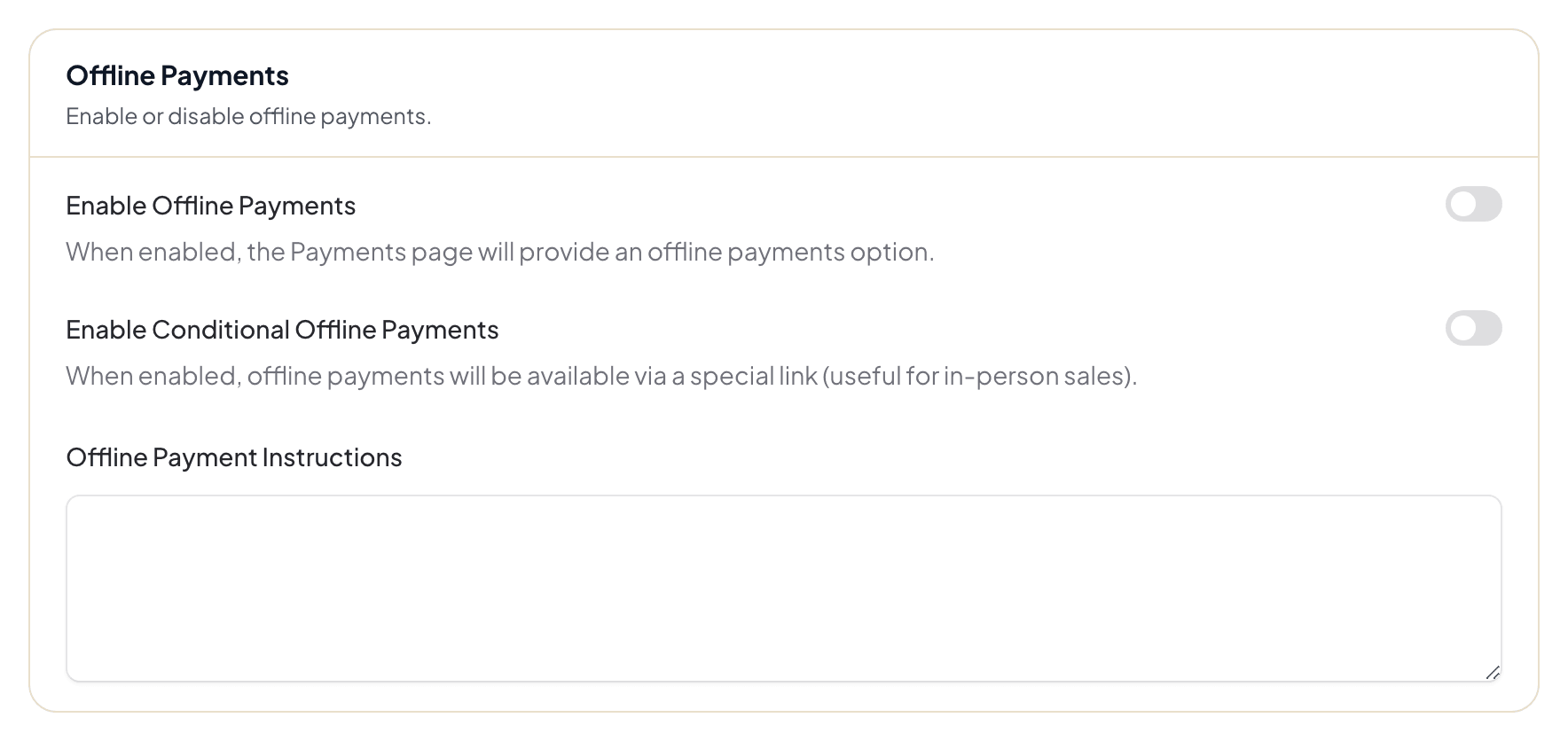
- Find the Offline Payments card.
- Choose how buyers get the option:
| Setting | What it does |
|---|---|
| Enable Offline Payments | Every buyer can choose to pay in person at checkout. |
| Enable Conditional Offline Payments | Paying in person is only offered to people who open a special link. Useful for in-person sales at a table or front office, while online buyers pay by card. |
- In Offline Payment Instructions, tell buyers how and where to pay. For example: “Bring cash or a check payable to the PTA to the front office by Friday.”
Changes save automatically.
Share the special link
Section titled “Share the special link”When Enable Conditional Offline Payments is on, a Special Offline Payment Link appears. Click Copy and share it only with the people who should be able to pay in person. Anyone who opens the link sees the in-person option for their checkout session, with the note “Paying in person is open to you for this session.”
What buyers see
Section titled “What buyers see”At the Payment step of checkout, buyers choose Card or In person. If you haven’t connected Stripe, paying in person is the only option and card fields don’t appear.
When they choose In person, your instructions appear under Paying in person. No processing fee is added to in-person orders.
After they finish:
- The order is marked Awaiting payment and the tickets are held for them.
- The confirmation email says This order still requires payment and repeats your Offline Payment Instructions. Their printable tickets are sent once the order is paid.
Mark an order paid
Section titled “Mark an order paid”When you receive the money:
- Go to Orders. Filter by Awaiting payment to see everyone who still owes.
- Open the order.
- In the Waiting for (amount) notice, click Mark as paid and confirm.
The order moves to Paid, a cash payment is recorded in the order’s Payments section, and the buyer is emailed their tickets.
Prefer to take a card instead? Click Take payment in the same notice to charge the buyer’s card on the spot.
At the door
Section titled “At the door”People with unpaid orders show a Payment pending badge on the check-in station, so volunteers know to collect before letting them in. Open the order from your Orders page to take payment or mark it paid.
Record cash sales yourself
Section titled “Record cash sales yourself”For walk-up or phone sales, add the order yourself with Orders → Add order and choose Cash/Check Payment. Pick Payment Collected if you have the money, or Awaiting Payment if you don’t. See Add an order manually.
Refunding cash
Section titled “Refunding cash”Refunding an in-person payment marks the ticket as refunded in Ticket Committee but doesn’t move any money. Return the cash or check to the buyer yourself. See Refund or cancel an order.