
For AI
Add custom questions
Ask buyers and attendees for the details you need at checkout
Questions collect extra details at checkout, like a T-shirt size, dietary needs, or an emergency contact. They’re also how you collect each attendee’s email or phone number, so you can message them later.
Once per order or for each attendee
Section titled “Once per order or for each attendee”Every question is asked in one of two ways:
| Asked | Who answers | Good for |
|---|---|---|
| Once per order | The buyer, once, at payment. | How they heard about you, a buyer’s phone number. |
| For each attendee | Once for every ticket, on the ticket types you pick. | Names, meal choices, shirt sizes, emergency contacts. |
One attendee question can be shared across several ticket types. For example, ask “Meal choice” on both Adult and VIP tickets without making it twice.
Add a question
Section titled “Add a question”- Open your event and go to Sell → Questions.
- Click Add question, then choose Once per order or For each attendee.
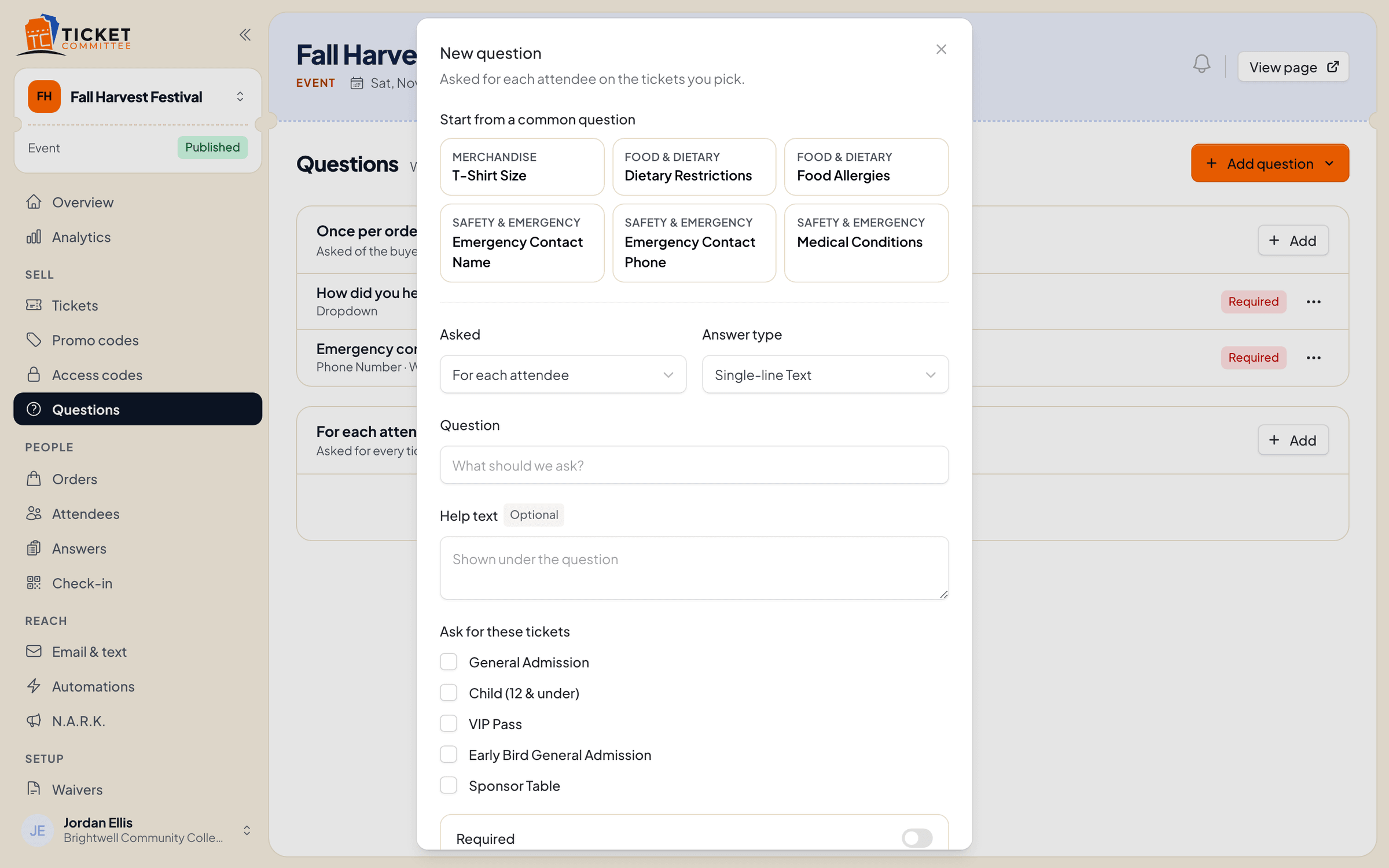
- To save time, pick one under Start from a common question. Or build your own:
- Asked: once per order, or for each attendee.
- Answer type: see the table below.
- Question: what buyers see, like “What size T-shirt?”
- Help text (optional): shown under the question.
- For an attendee question, tick the tickets under Ask for these tickets.
- For a Dropdown or Checkbox question, add the Choices. Each choice has a Label and a Value. Click Add a choice for more.
- Turn on Required if buyers must answer before they can check out.
- Click Add question.
Answer types
Section titled “Answer types”| Answer type | What buyers get |
|---|---|
| Single-line Text | A box for short answers, like a name. |
| Multi-line Text | A bigger box for longer answers. |
| Dropdown | Pick one option from a list. |
| Checkbox | Tick one or more options. |
| Confirmation | A single checkbox to agree or acknowledge something. |
| An email address, checked for a valid format. | |
| Phone Number | A phone number. Can be formatted and checked, and used for texts. |
| Date | A date picker. |
| Number | A number. |
Common questions
Section titled “Common questions”Start from a common question fills in the form for you. You can change anything before saving.
- Safety & Emergency: Emergency Contact Name, Emergency Contact Phone, Medical Conditions
- Food & Dietary: Dietary Restrictions, Food Allergies
- Merchandise: T-Shirt Size
Phone number options
Section titled “Phone number options”When Answer type is Phone Number, you get three extra options:
- Format as (xxx) xxx-xxxx while typing
- Require a valid US phone number
- Use this number for text messages: shows an opt-in checkbox at checkout. Turn this on if you plan to text these numbers. See Text your attendees.
Hidden questions
Section titled “Hidden questions”Turn on Hidden from buyers for details only your team should see, like a seating note or a “paid by check” flag. Buyers never see it. Your team fills it in from the order.
Manage your questions
Section titled “Manage your questions”The Questions page has two lists: Once per order, and For each attendee grouped by ticket type. Badges show which questions are Required, Hidden, or Shared across tickets.
From a question’s ⋯ menu you can:
- Edit it.
- Move up or Move down to change the order buyers see.
- Duplicate it as a starting point for a similar question.
- Delete it.
Moving older questions
Section titled “Moving older questions”If your event has questions made before the current question system, you’ll see Missing your questions? at the top of the page. Click Move my questions to bring them and their answers over. This can’t be undone.
See the answers
Section titled “See the answers”Go to People → Answers to see every question with its answers, counted and grouped. Click a question to expand it. For more on finding answers for one order or attendee, see Orders & attendees.