
For AI
Waitlists
Collect interested buyers when a ticket sells out, then offer them spots
When a ticket sells out, a waitlist lets buyers leave their name instead of leaving empty-handed. If spots open up (from a refund, or because you add more), you can tell people on the list, and they get a private link to buy.
Turn on a waitlist
Section titled “Turn on a waitlist”- Go to Tickets and open the ticket type.
- Turn on the Waitlist switch (right side of the screen).
- Optionally set:
- Most people on it: the maximum number of entries. Blank means no limit.
- Closes: when people can no longer join.
- Minutes to claim a spot: how long the purchase link works once you tell someone a spot opened. Defaults to 480 minutes (8 hours).
- Click Save changes.
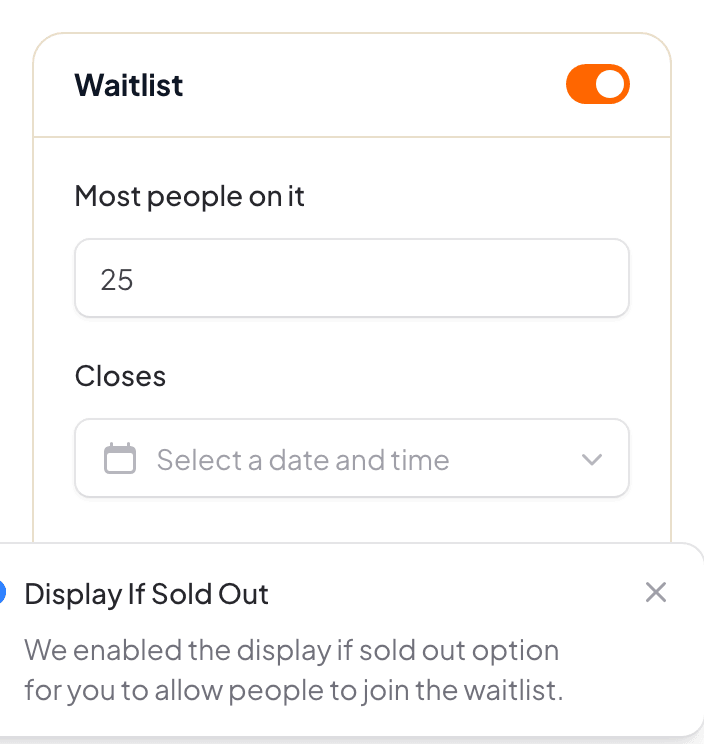
The ticket now shows a Waitlist badge on the Tickets list.
What buyers see
Section titled “What buyers see”When the ticket sells out, buyers see a Join Waitlist button on it instead of a quantity picker. They enter their name, email, phone, and how many tickets they want. For events with several dates, they also choose a date.
Buyers can’t join after the waitlist Closes or once it’s full.
See who’s waiting
Section titled “See who’s waiting”On the Tickets list, click … next to the ticket and choose View waitlist.
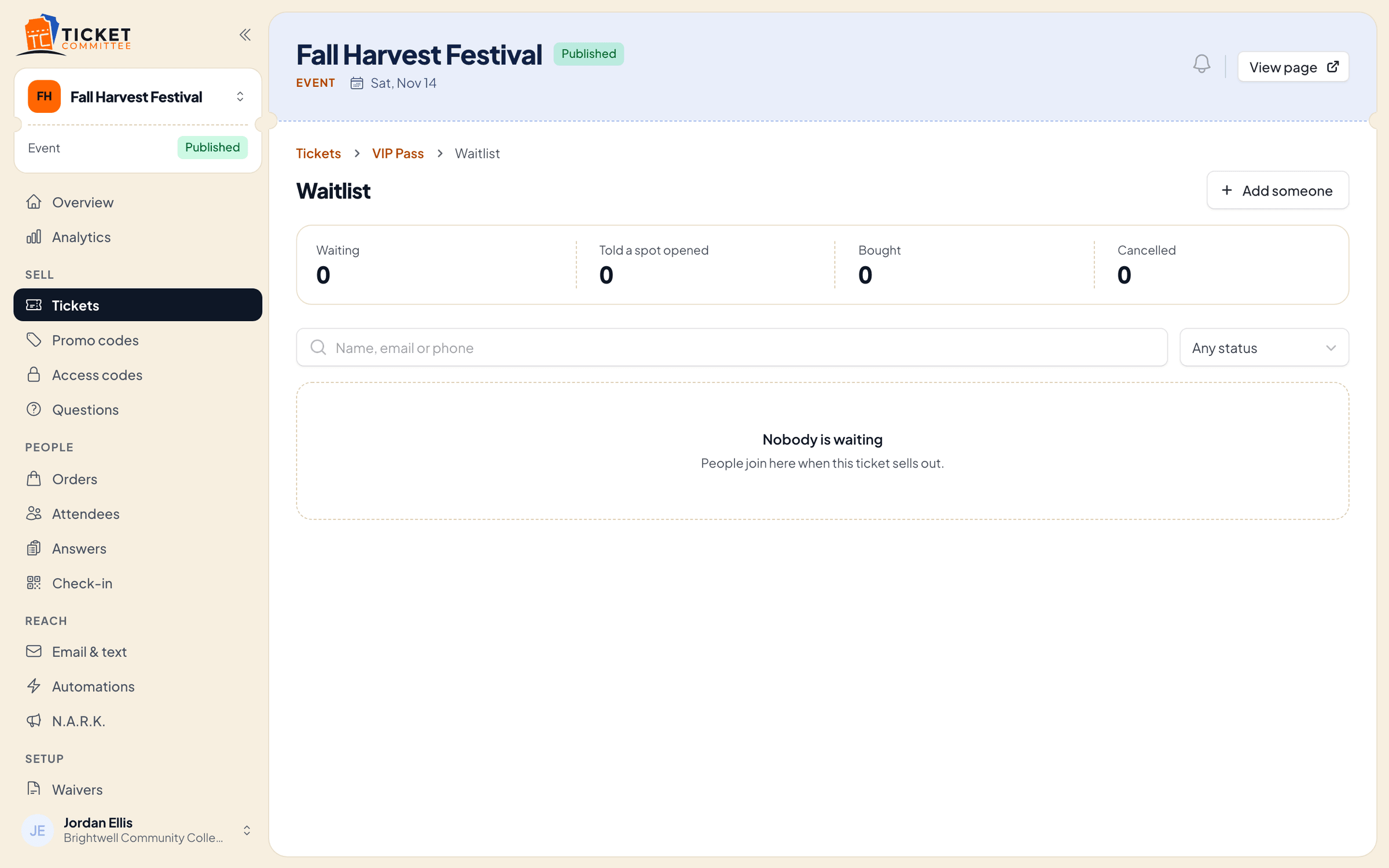
At the top, you’ll see counts for Waiting, Told a spot opened, Bought, and Cancelled. Each entry shows the person’s name, how many tickets they want, their contact info, and when they joined, with a status of Pending, Notified, Purchased, or Cancelled.
Use the search box (Name, email or phone) and the status filter to find someone. Click Add someone to add a person to the list yourself, for example someone who called the office.
Offer someone a spot
Section titled “Offer someone a spot”Waitlist offers are sent by you, one person at a time. Nothing goes out automatically.
- Make sure tickets are available. If the ticket is still sold out, you can raise its Quantity first.
- Open View waitlist and find the next person.
- Click Tell them.
They get an email that a ticket is available, with a link to buy. The link works for the number of minutes you set in Minutes to claim a spot, and lets them buy up to the number of tickets they asked for. Their status changes to Notified.
Remove someone
Section titled “Remove someone”Click the × next to an entry and confirm with Take off. They won’t hear about open spots. The entry stays in the list as Cancelled.
Related
Section titled “Related”- Add ticket types
- Hidden tickets: Still show when sold out keeps a sold-out ticket visible