
For AI
Send an email or text to buyers and attendees
Write one message, choose who gets it, and send it now or later
Email & text lets you message the people coming to your event. Use it for parking details, a schedule change, or a last-minute reminder. You can send right away, schedule for later, or save a draft.
Start a new message
Section titled “Start a new message”- Open your event and go to Reach → Email & text.
- Click New message.
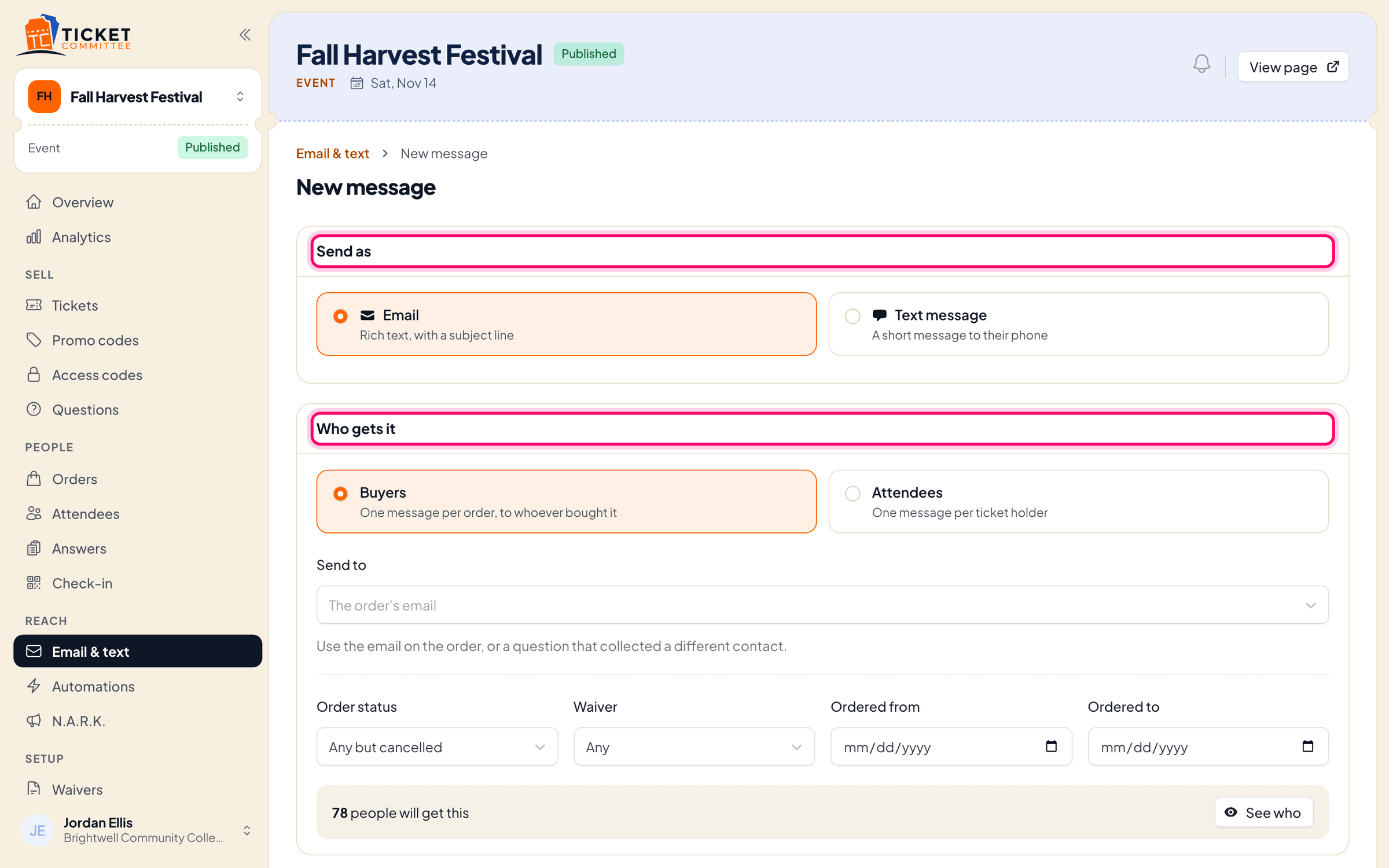
Choose email or text
Section titled “Choose email or text”Under Send as, pick one:
| Option | What it is |
|---|---|
| Rich text, with a subject line. | |
| Text message | A short message to their phone. |
If one of them is greyed out, the note under it tells you why. Either your plan doesn’t include it for this event, or you’ve sent as many as this event allows.
Texts need a phone number to send to. See Text your attendees before your first text.
Choose who gets it
Section titled “Choose who gets it”Under Who gets it, pick your audience:
- Buyers: one message per order, to whoever bought it.
- Attendees: one message per ticket holder.
For buyers, use Send to to choose the address. Leave it on The order’s email, or pick a checkout question that collected a different contact.
For attendees, tick the ticket types to include. Next to each one, pick the question that holds that ticket holder’s email (or phone number, for a text). Attendees don’t have their own contact details unless you ask for them with a question. See Add custom questions.
Narrow the list
Section titled “Narrow the list”Use the filters to send to only some people:
| Filter | What it does |
|---|---|
| Event date | Only people attending one date. Shown for events with several dates. All-access ticket holders count on every date. |
| Order status | Defaults to Any but cancelled. Pick one status, like Paid or Refunded, to target just those orders. |
| Waiver | Shown when the event has a waiver. Pick Waiver missing to nudge people who haven’t signed. |
| Ordered from / Ordered to | Only orders placed between these dates. |
Under the filters you see how many people will get the message. Click See who to check the list of names and addresses before you send.
Write the message
Section titled “Write the message”For email, enter a Subject and your Message. Formatting uses Markdown, so you can add bold text, links, and lists.
For a text, type your Message. A counter shows the length. One text holds 160 characters.
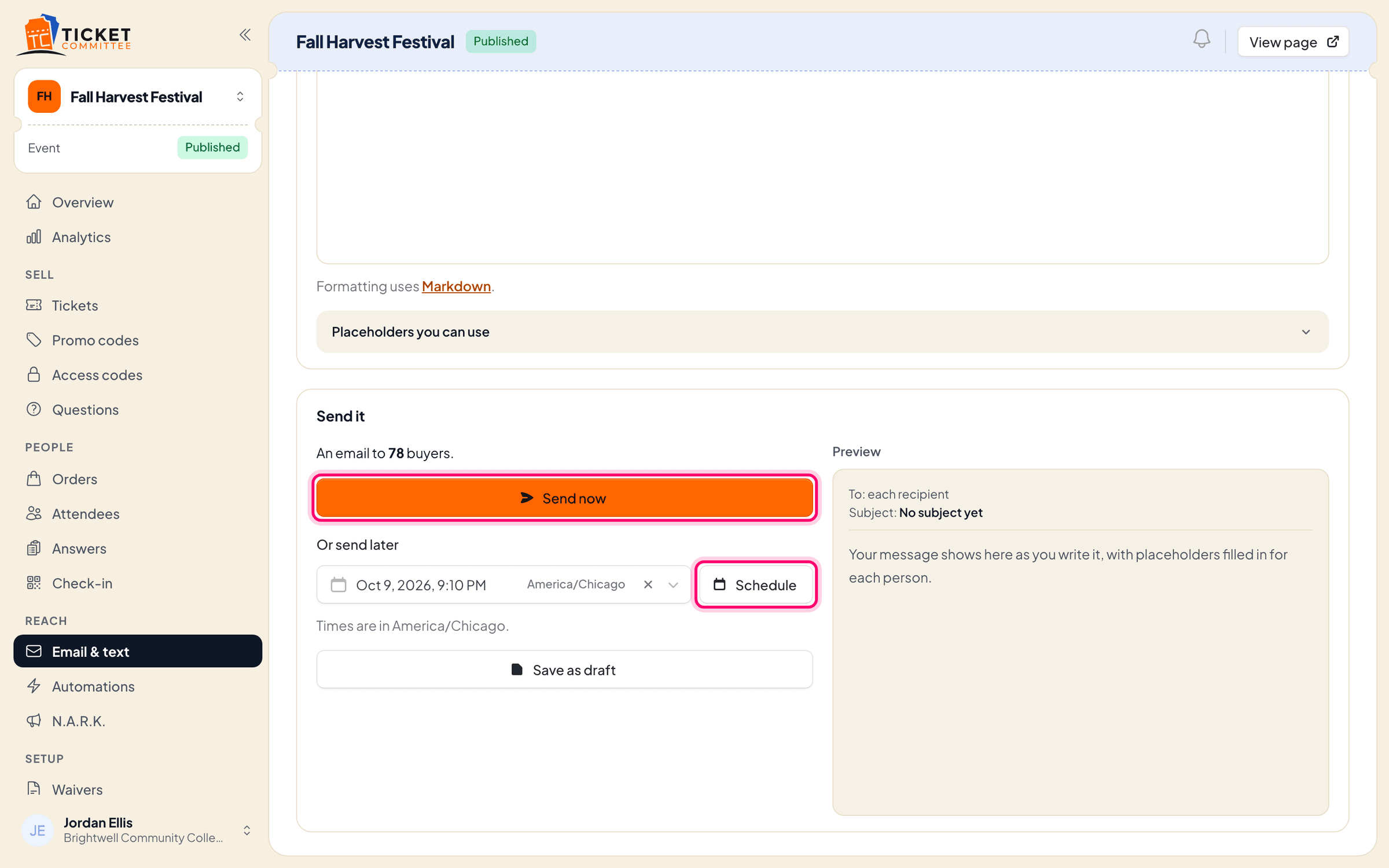
Open Placeholders you can use to personalize the message. For example, {attendee_first_name} becomes each person’s first name. See Message placeholders for the full list.
The Preview next to the send buttons shows your message as you type.
Send, schedule, or save
Section titled “Send, schedule, or save”At the bottom, under Send it:
- Send now: the message goes out straight away.
- Or send later: pick a date and time, then click Schedule. Times are in your event’s time zone, and the time must be in the future.
- Save as draft: keeps your work without sending. Come back to it any time.
See and manage your messages
Section titled “See and manage your messages”The Email & text page lists every message, with who it went to, how many recipients, when it sent, and its status. Use the status filter to show only Sent, Scheduled, Sending, Drafts, or Failed messages.
- Click a draft or scheduled message to edit it.
- Click a sent message, or choose Recipients from the ⋯ menu, to see who got it.
- Choose Delete from the ⋯ menu to remove a draft or scheduled message. Nothing queued for it is sent.
Sent messages can’t be edited or deleted.