
For AI
Manage attendees
Find attendees, edit their details, move them to another ticket, and export your list
An attendee is one person holding one ticket. A single order can have several attendees, like a parent buying for a family. The Attendees page lists every ticket holder for your event so you can look people up, fix names, and download a spreadsheet.
The Attendees list
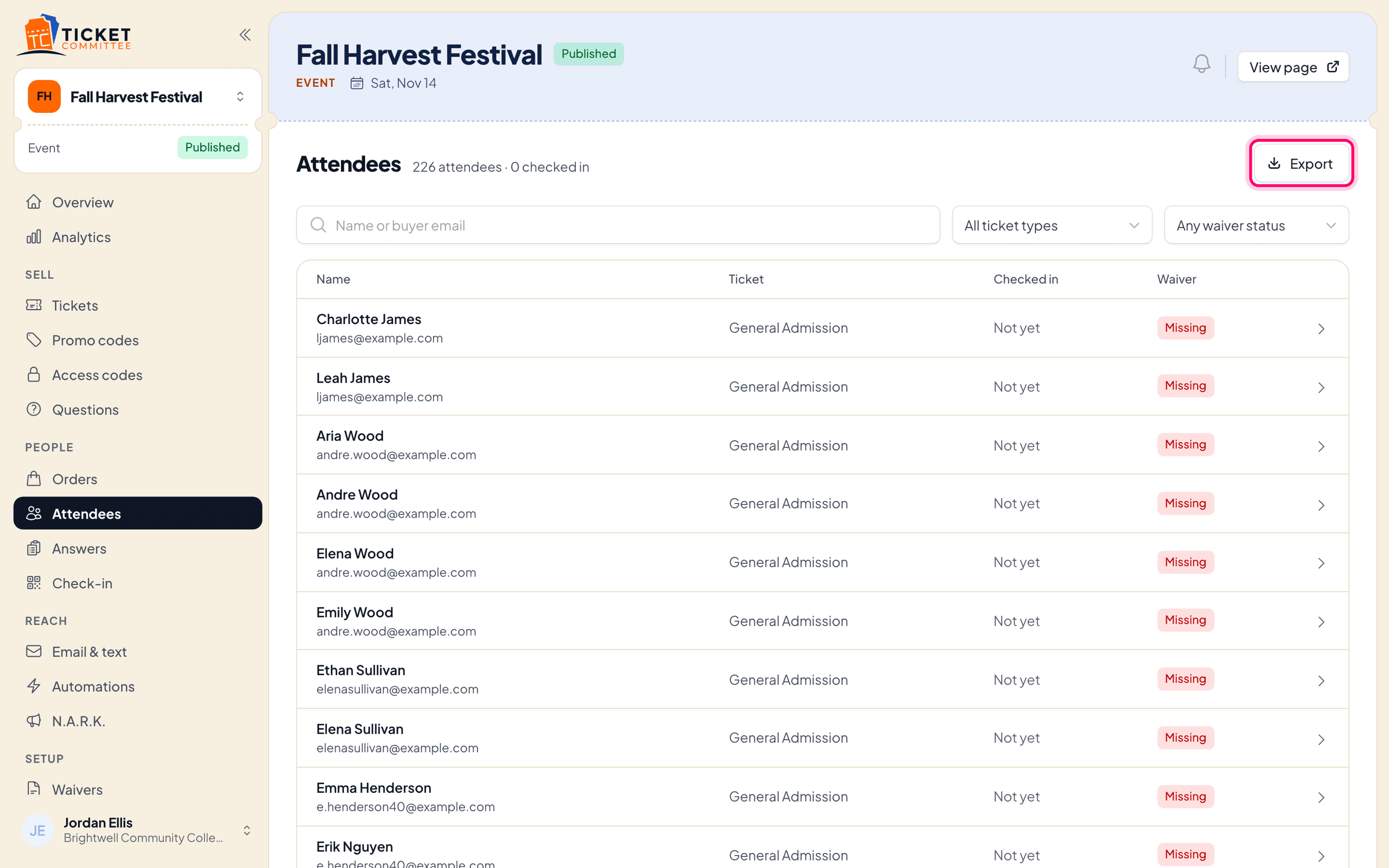
Section titled “The Attendees list”Open your event and click Attendees in the sidebar, under People. The top of the page shows how many attendees you have and how many have checked in.
Each row shows the attendee’s Name (with the buyer’s email underneath), their Ticket, and when they Checked in (or Not yet). You’ll also see:
- A Date column, if your event has several dates.
- A Waiver column showing Signed or Missing, if your event uses waivers. Click Request waiver to send a reminder to someone who hasn’t signed.
- Refunded or Cancelled in place of the check-in time for tickets that no longer work.
Search and filter
Section titled “Search and filter”- Name or buyer email: search by the attendee’s first or last name, or the email of the person who bought the ticket.
- All ticket types: show only one ticket type, like VIP.
- Any date: for events with several dates, show one date.
- Any waiver status: show only Waiver missing or Waiver signed.
An attendee’s details page
Section titled “An attendee’s details page”Click an attendee’s name to open their page. It shows:
- Check-in: when they checked in and out, or Not yet.
- Answers: their answers to your per-ticket questions.
- Waivers: each waiver they need, signed or not, with options to Open waiver or Send waiver request.
- Order: who bought the ticket, the buyer’s email, when it was placed, and the order status. Click View order to jump to the full order.
- Mobile pass: if wallet passes are turned on, QR codes the attendee can scan with their phone to add the ticket to Apple Wallet or Google Wallet.
Edit an attendee’s name or answers
Section titled “Edit an attendee’s name or answers”- On the attendee’s page, click Edit. (From an order, use the ⋯ menu next to the attendee and choose Edit attendee.)
- Update the First Name and Last Name, and any answers. First and last name are required, as are any required questions.
- Click Save.
Hidden questions, the ones buyers don’t see at checkout, can be filled in here too when you edit from the order page.
Change an attendee’s ticket
Section titled “Change an attendee’s ticket”Move someone to a different ticket type, for example from General Admission to VIP after they upgrade in person.
- On the attendee’s page, click the ⋯ button and choose Change ticket.
- Pick the New Ticket from the list.
- Click Change Ticket.
Remove an attendee
Section titled “Remove an attendee”From the attendee’s ⋯ menu, choose Refund to refund a paid ticket, or Delete attendee if there’s no payment to refund. See Refund or cancel an order.
Export your attendee list
Section titled “Export your attendee list”Click Export at the top of the Attendees page to download a CSV file you can open in Excel or Google Sheets. You can also export from Analytics → Export → Attendees.
The file has one row per attendee with:
- ID, first name, last name, email, and phone
- Ticket type (and event date, for events with several dates)
- Order ID and order date
- Whether and when they checked in and checked out
- One column for each of your questions, with their answers