
For AI
Add volunteers to an event
Give volunteers limited access to one event's orders and attendees
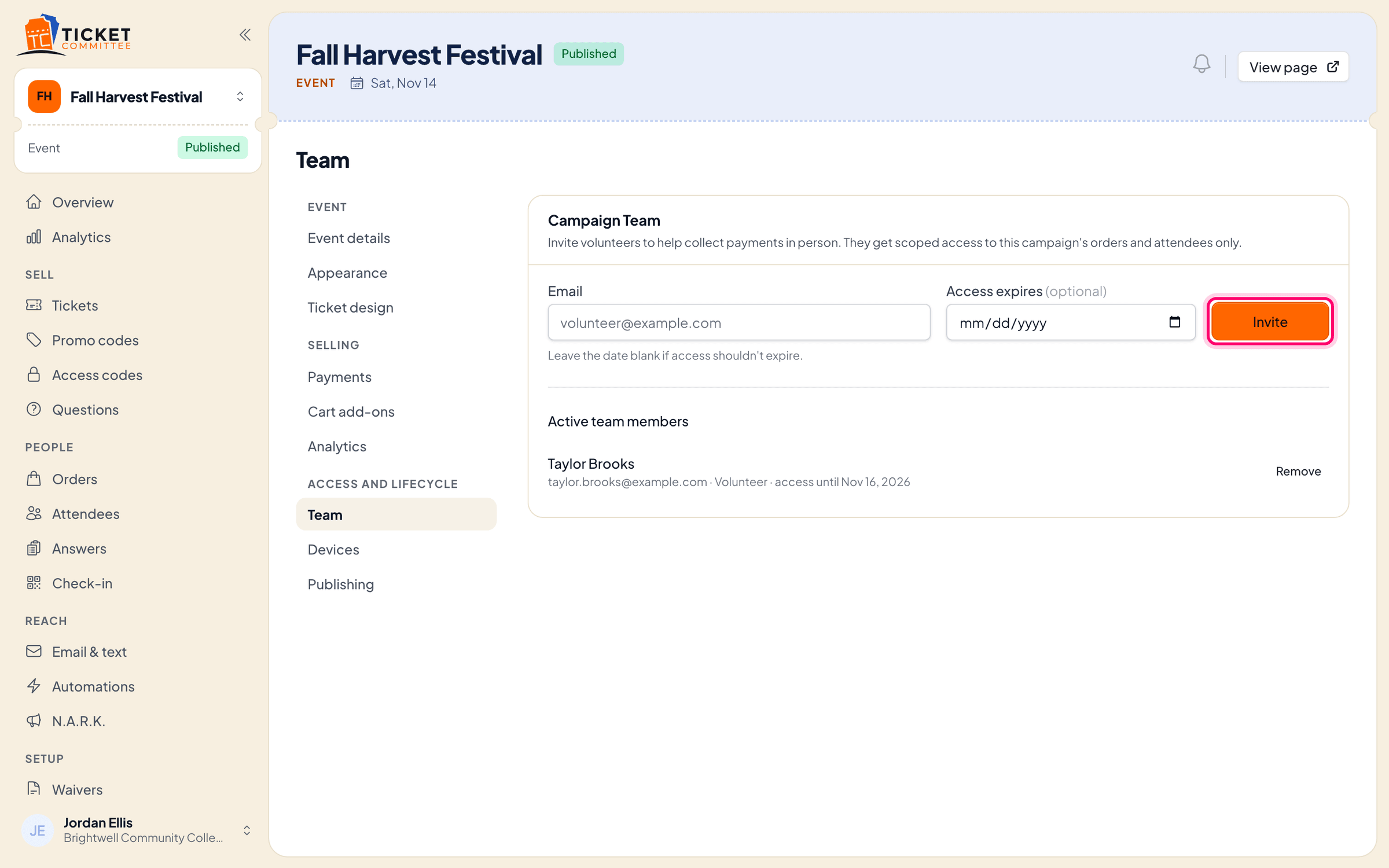
The Team page lets you invite volunteers to help run a single event, for example to help collect payments in person. Volunteers get limited access to this event’s orders and attendees only. They can’t see your other events or change any settings.
Go to Settings → Team (under Access and lifecycle).
Invite a volunteer
Section titled “Invite a volunteer”- Under Campaign Team, enter the person’s Email.
- Optionally, pick an Access expires date, like the day after the event. Leave it blank if access shouldn’t expire.
- Click Invite.
They get an email inviting them to join the team for your event. The invitation appears under Pending invitations until they accept.
What volunteers can do
Section titled “What volunteers can do”Volunteers have the Volunteer role. When they sign in, they can open this event and see its:
- Overview
- Orders
- Attendees
They can’t edit tickets, settings, payment options, or the team, and they can’t publish, archive, duplicate, or delete the event.
Manage the team
Section titled “Manage the team”- Pending invitations shows each invite with when it was sent and when access expires. Click Revoke to cancel an invitation. The link in their email stops working right away.
- Active team members shows everyone who has accepted. Click Remove to take away someone’s access immediately. You can always invite them again later.
If someone’s access has an expiry date, it ends automatically on that date.
Don’t see the Team page?
Section titled “Don’t see the Team page?”Team access depends on your plan. If it isn’t included, the page shows Team access is not enabled with a note to upgrade.