
For AI
Add an order manually
Record phone, walk-up, and comp orders yourself, paid by card, cash, or check
Not every ticket is bought online. Use Add order to record a sale taken over the phone, cash collected at a table, or free comp tickets for sponsors and volunteers. The order works just like an online one: attendees get tickets and show up on your lists.
Start a new order
Section titled “Start a new order”- Open your event and go to Orders.
- Click Add order.
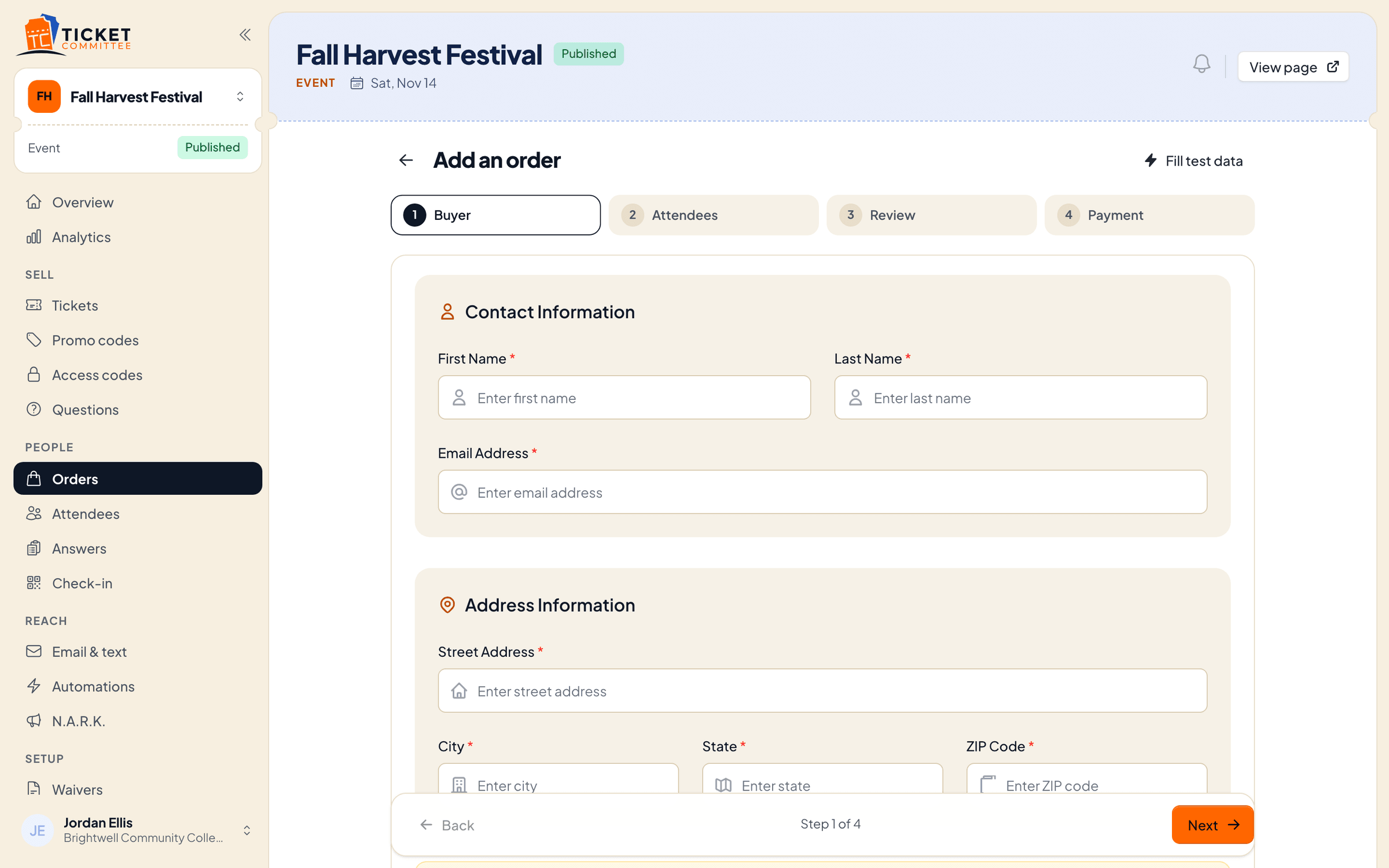
The Add an order page walks you through four steps: Buyer, Attendees, Review, and Payment. Use Next and Back at the bottom to move between them.
Step 1: Buyer
Section titled “Step 1: Buyer”Enter the buyer’s first name, last name, email, and address. All of these are required. The email is where the confirmation and tickets are sent, so double-check it.
If your event asks once-per-order questions, they appear on this step too. Required questions must be answered.
Step 2: Attendees
Section titled “Step 2: Attendees”- Click Add Attendee.
- Choose a ticket type. For an event with several dates, pick the date first (or All Dates (All Access) if that ticket covers every date).
- Enter the attendee’s first and last name, and answer any per-ticket questions.
- Check Complimentary Ticket to make this ticket free.
- Repeat for each person on the order.
The Order Total updates as you go. Comp tickets add nothing to the total.
Step 3: Review
Section titled “Step 3: Review”Check the buyer, attendees, and total. Go Back to fix anything.
Step 4: Payment
Section titled “Step 4: Payment”How you finish depends on the total.
Free Order: if every ticket is a comp (or free), there’s nothing to collect. Click Create order. An order made up entirely of comp tickets gets the Comp status.
Credit or Debit Card: charge the buyer’s card through your connected Stripe account. Enter the card number, expiration date, and CVC. This option only appears once your Stripe account is ready to take payments. See Connect your Stripe account.
Cash/Check Payment: then choose one:
| Option | Result |
|---|---|
| Payment Collected | The order is marked Paid. Use this when you’re holding the cash or check. |
| Awaiting Payment | The order is marked Awaiting payment and tickets are held. Mark it paid later from the order page. |
Click Create order to finish. The buyer is emailed their order confirmation.
Collect payment later
Section titled “Collect payment later”For an order created as Awaiting Payment, open the order and use Mark as paid once the money is in, or Take payment to charge a card. See View and manage an order.
Who can add orders
Section titled “Who can add orders”Adding orders is limited to members of your organization. Event volunteers can view orders and collect payments, but they don’t see Add order.